
Export a document
When the document is ready to leave Lunar Paper, click Actions in the top toolbar and choose Export.
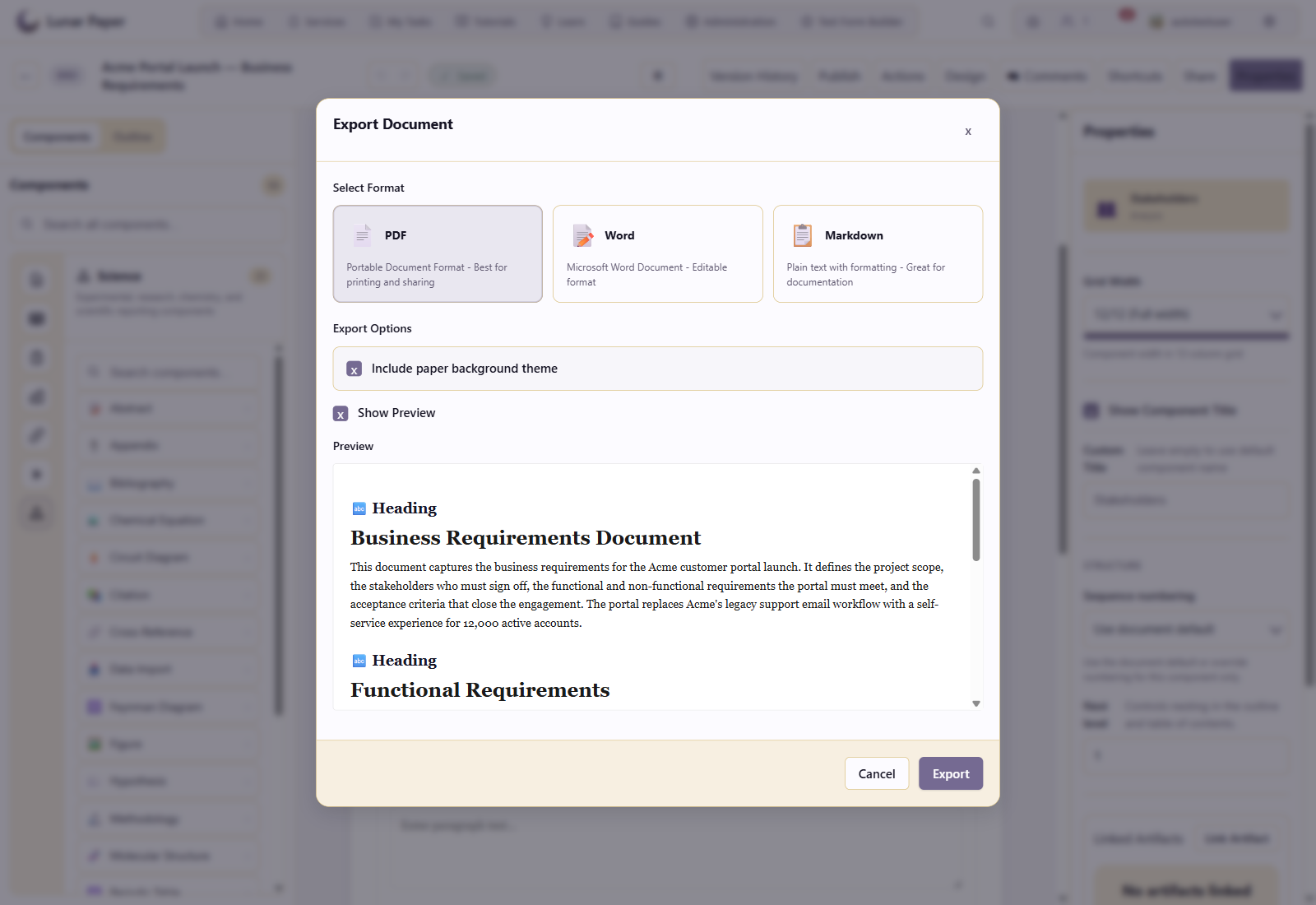
Choose a format
Section titled “Choose a format”The export dialog offers three formats:
- PDF is best for a final handoff, review, or printing, and it respects the paper theme, headers, and footers.
- Word (.docx) is best when someone needs to keep editing, add redlines, or work in a corporate template.
- Markdown is best for wikis, repositories, and other Markdown-aware tools.
Select the format and any export options, then click Export. The file downloads to your browser.
What gets exported
Section titled “What gets exported”The export includes all visible components, their styling, and linked metadata. It leaves out hidden or collapsed components, and it honors component-level style overrides.
Page and section layout
Section titled “Page and section layout”PDF and Word exports preserve explicit Page Breaks, Section Breaks, blank pages and mixed paper sizes or orientations. Break markers and the editor’s empty-page labels are omitted from the output. Word uses native section breaks; review pagination again after changing fonts or editing the exported file. Markdown omits layout controls.
Use Layout and page breaks to configure the layout before exporting.
Quick export
Section titled “Quick export”Press Ctrl+Shift+E to open the export dialog without using the mouse.
If the output looks wrong
Section titled “If the output looks wrong”- If the output does not look right, adjust it in Design a document.
- To keep a record of what you sent out, see Version history and publishing.