
Use variables and conditional rules
Variables and rules make a form respond to the person filling it in. A variable derives a value once and reuses it wherever the text needs it. A rule reacts to the answers and changes what happens next: it can hide a question that no longer applies, make one required because of an earlier choice, or fill in a value the respondent should not have to type.
Create a variable
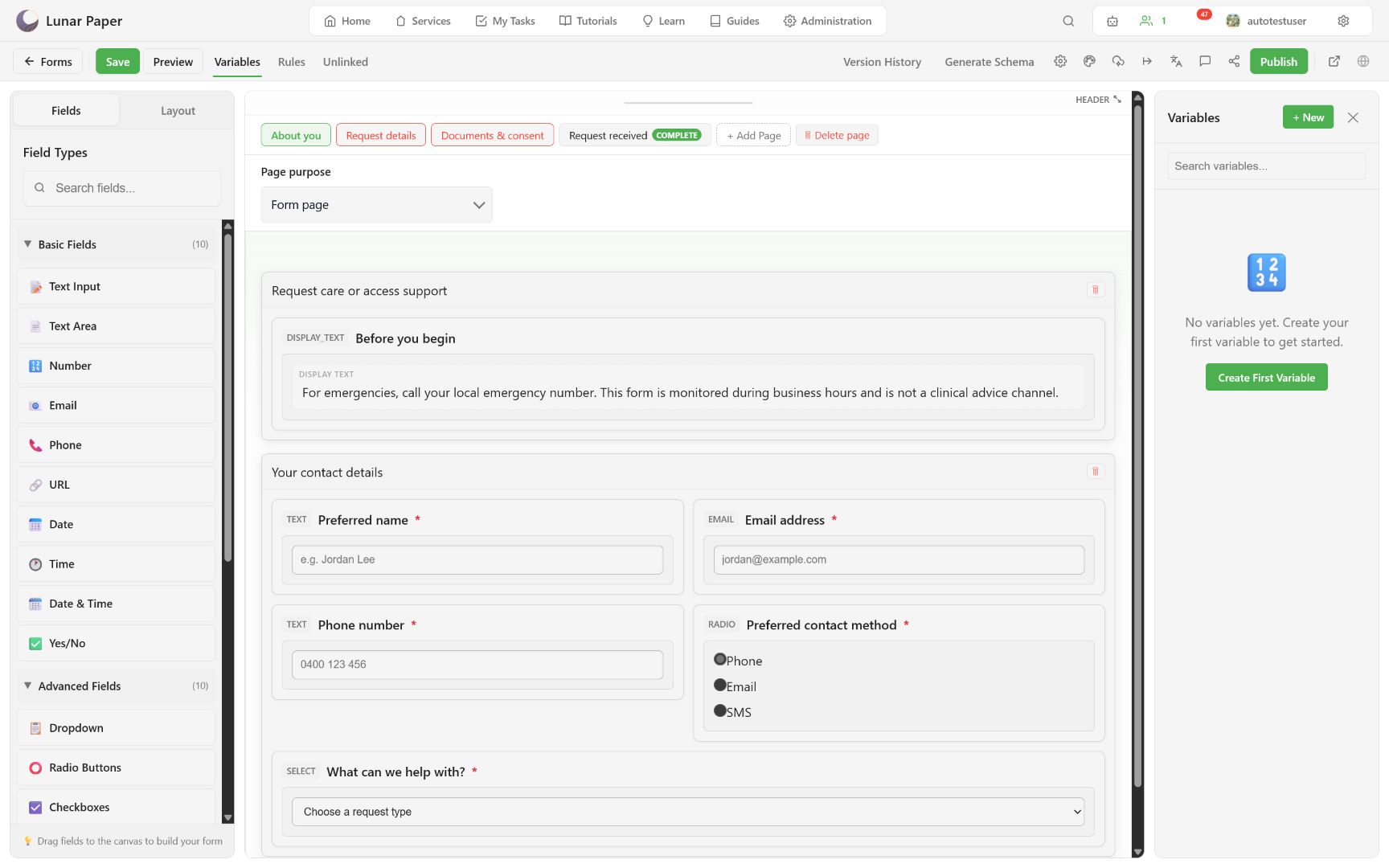
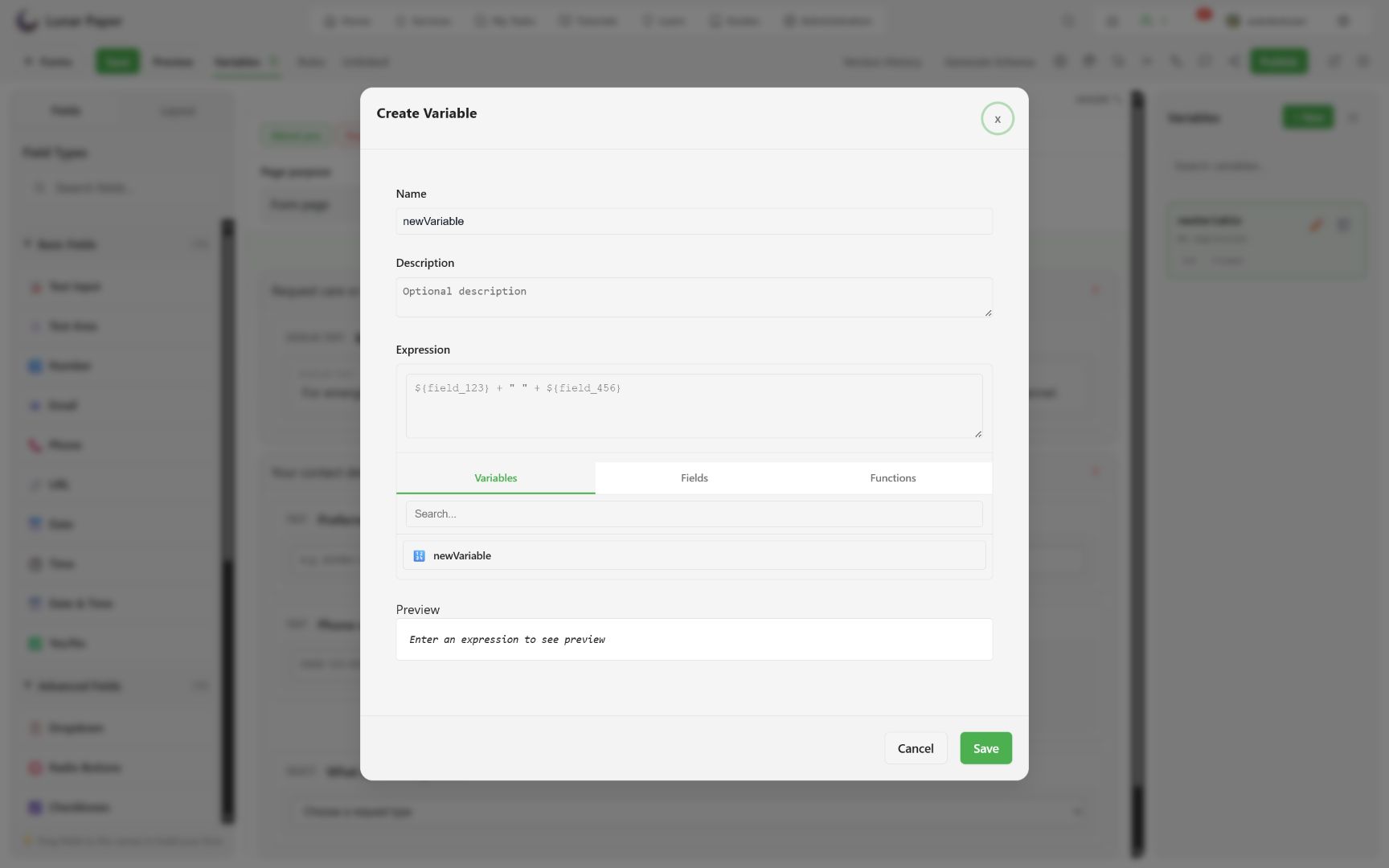
Section titled “Create a variable”Open Variables and choose + New. Give the variable a stable name, optional description, and an expression.
The expression editor can insert existing variables, fields, and supported functions. Its preview helps confirm type and output before saving.
Use variables for reusable derived text or values, such as a respondent display name or a formatted reference. Do not duplicate the same expression across many labels.
Insert a dynamic value
Section titled “Insert a dynamic value”Supported text properties show an {} action. Place the cursor where the value belongs, choose the variable or field, and preview the result.
Dynamic values are resolved by the renderer. Keep fallback wording understandable when a source answer is empty.
Add a field rule
Section titled “Add a field rule”Select a field and choose Add First Rule under Conditional Rules. Define the condition and the target behavior:
- visibility;
- enabled state;
- required state;
- computed value.
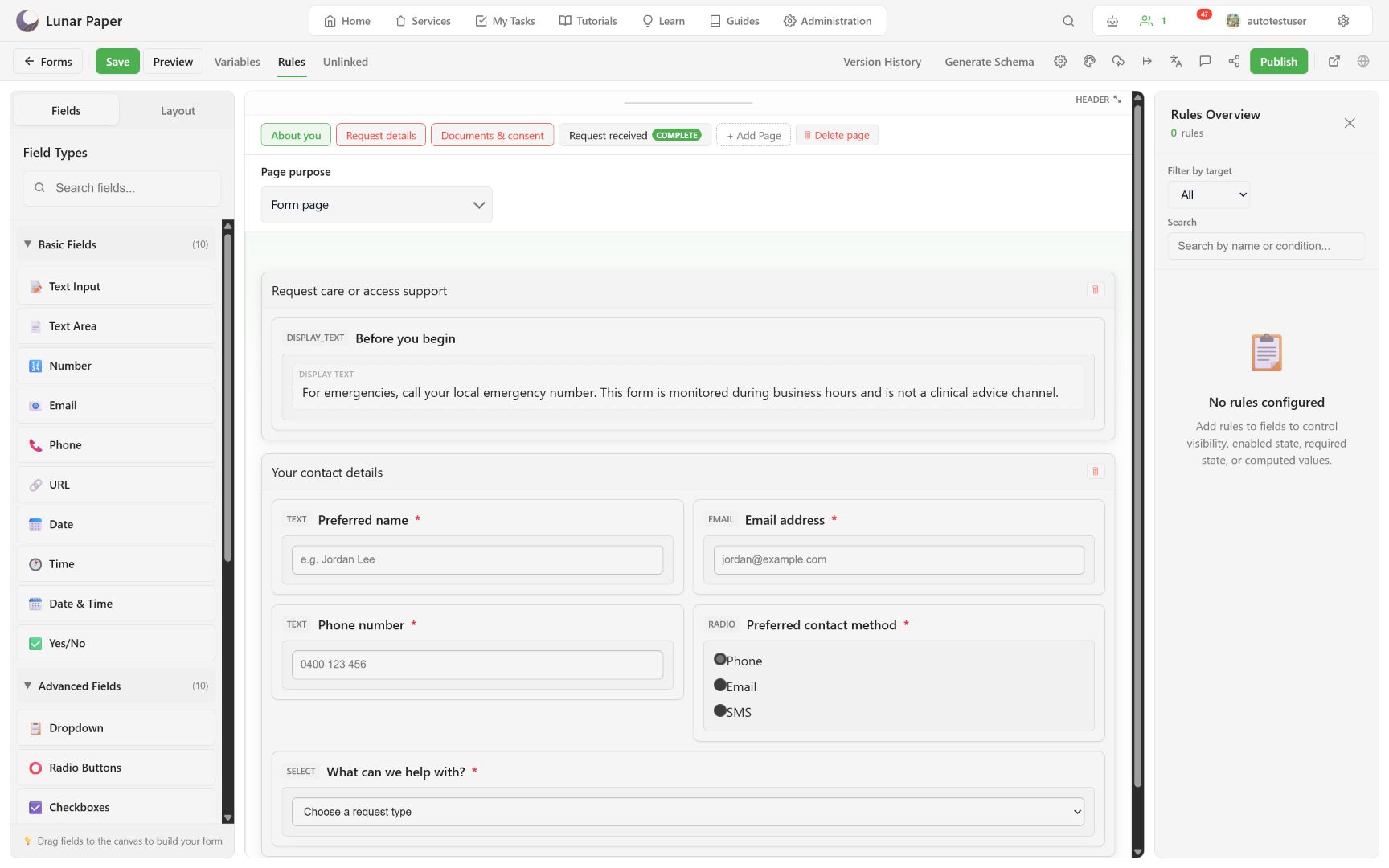
Save the rule, then use the form-wide Rules tab to find it by name, condition, or target.
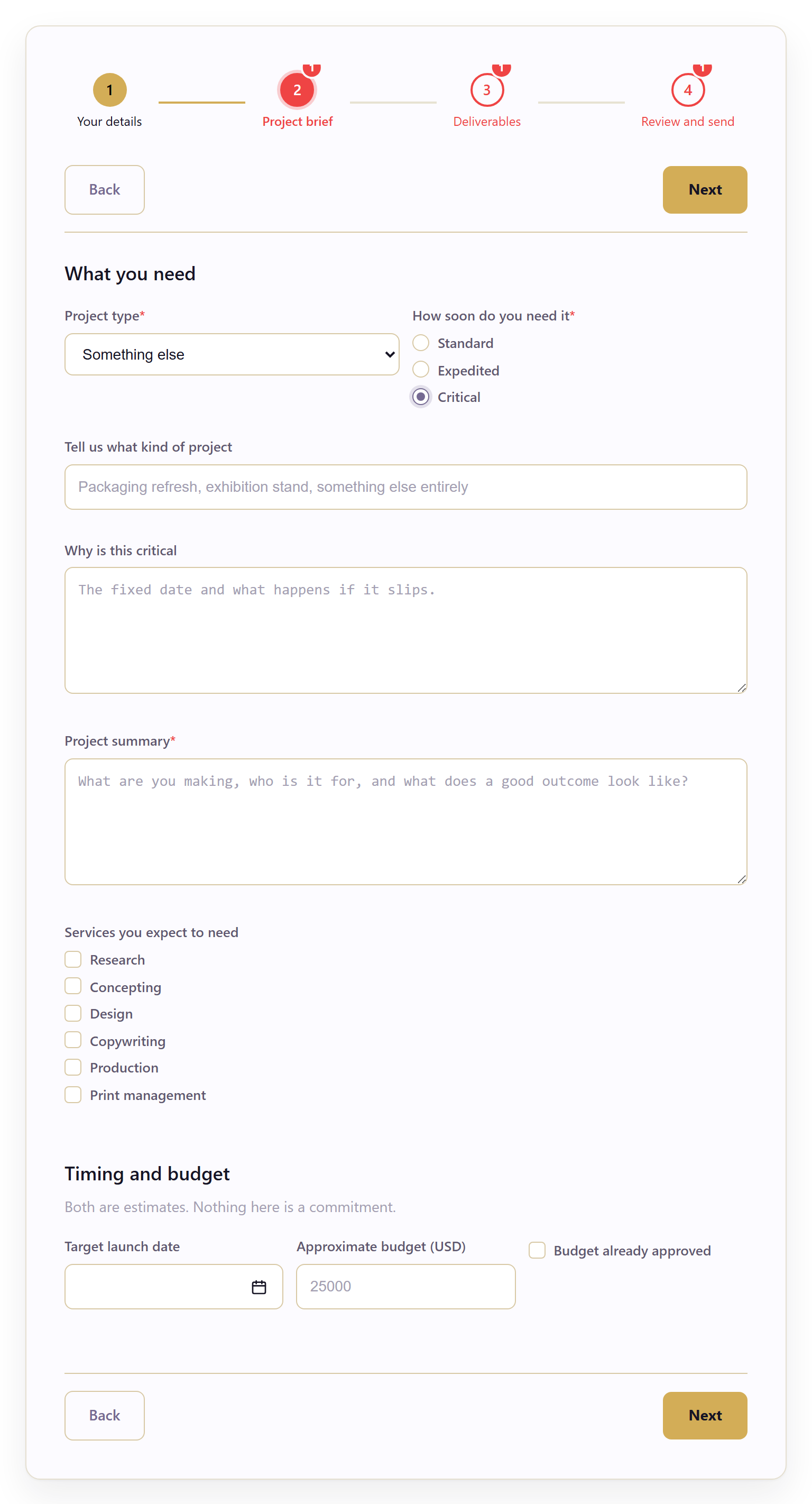
A rule that has fired should look ordinary to the respondent: the follow-up question is simply there, in the position it would have occupied anyway.
Test a rule
Section titled “Test a rule”In Preview:
- identify the source control and target field;
- set the source so the condition is false;
- record the target’s visible, enabled, required, or value state;
- set the source so the condition is true;
- confirm the target updates without losing unrelated answers;
- navigate away and back;
- use Test Save to verify the final serialized value.
Avoid circular value rules and hidden required fields that a respondent cannot satisfy. When a required field becomes hidden, test that it no longer blocks navigation.
Edit or delete safely
Section titled “Edit or delete safely”The Variables and Rules panels show where each item is used. Update whatever depends on a variable before you rename or delete it. After deleting a rule, preview both branches again so a field the rule used to control is not left in an accidental state.
Localization, variables, and rules explains how these interact with translated copy and regional formatting. To test a rule across devices and locales, use Preview and test.