
Build content with components
The Document Builder centers on components. A component is a self-contained block with its own data, properties, and formatting. You add components to the canvas and arrange them into a finished document.
Add a component
Section titled “Add a component”There are two ways to insert a component:
- Slash command. Click any Click to add content area, type
/, then type the component name. PressEnterto insert it. - Component library. Use the Components tab in the left panel, pick a category, and click a component.
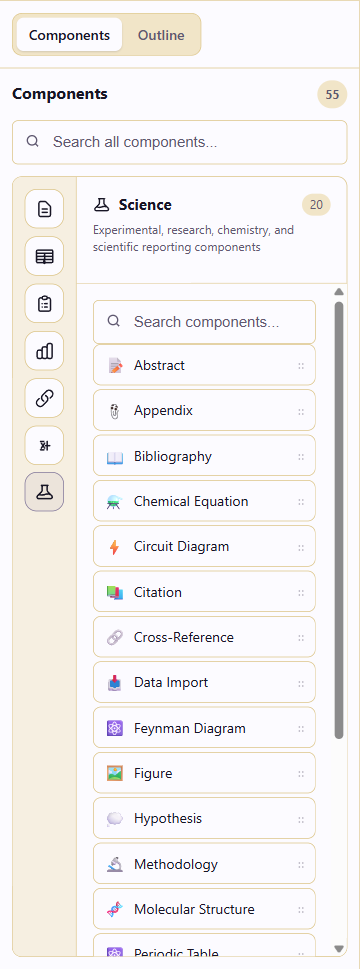
The library groups components into eight categories:
| Category | Purpose |
|---|---|
| Content | Writing, media, and presentation blocks: Callout, Divider, Heading, Image, List, Paragraph, Rich Text |
| Layout | Page Break and Section Break for page boundaries, paper size and orientation |
| Reference | Tables, glossaries, definitions, and supporting blocks: Acronyms, Definitions, Document Info, Glossary, Key-Value List, Table, Table of Contents, Version History |
| Requirements | Structured requirement capture: Acceptance Criteria Matrix, Data Requirements, Functional Requirements, Interfaces, Non-Functional Requirements, User Stories |
| Analysis | Stakeholders and system context: Stakeholders, System Context |
| Integration | Embedded reports and diagrams: Dashboard / Report, Data Hub Embedding, Flowchart |
| Math | Equations, matrices, theorems, algorithms, and proof environments |
| Science | Research components including Abstract, Appendix, Bibliography, Chemical Equation, Citation, Figure, Hypothesis, Methodology, Scientific Graph, Statistical Analysis, and Unit Converter |
Edit and reorder
Section titled “Edit and reorder”Click a component to edit its content directly on the canvas. Drag the handle at the top of a component to move it. The right panel then shows that component’s properties, including grid width, sequence numbering, nest level, and linked artifacts.
Layout breaks use full-width markers. Select a Section Break to edit its break type and page layout; ordinary width, title and nesting controls do not apply. See Layout and page breaks.
Delete a component
Section titled “Delete a component”Hover over a component and click the Delete Component button in its toolbar. Confirm the deletion in the dialog.
Keyboard shortcuts
Section titled “Keyboard shortcuts”Ctrl+Ssaves the document.Ctrl+ZandCtrl+Shift+Zundo and redo.Ctrl+Dduplicates the selected component.Deletedeletes the selected component.Ctrl+Shift+↑andCtrl+Shift+↓move the selected component up or down.Ctrl+Shift+Eopens the export dialog.?shows the keyboard shortcuts.
Once the blocks are in place
Section titled “Once the blocks are in place”Once the blocks are in place, Organize and navigate with the outline helps you put them in order. Use reference components adds glossaries and a table of contents, and Design a document sets how all of it looks.