
Resize
Resize changes the canvas size after the fact — the panel to reach for when a poster also needs to be an Instagram post.
Opening it
Section titled “Opening it”Click Resize in the tool rail. The panel opens beside the rail; clicking the button again closes it.
Unlike the seven canvas tools, the panels do respond to a click — the rail’s click problem affects only the tools above the divider. Troubleshooting has the detail.
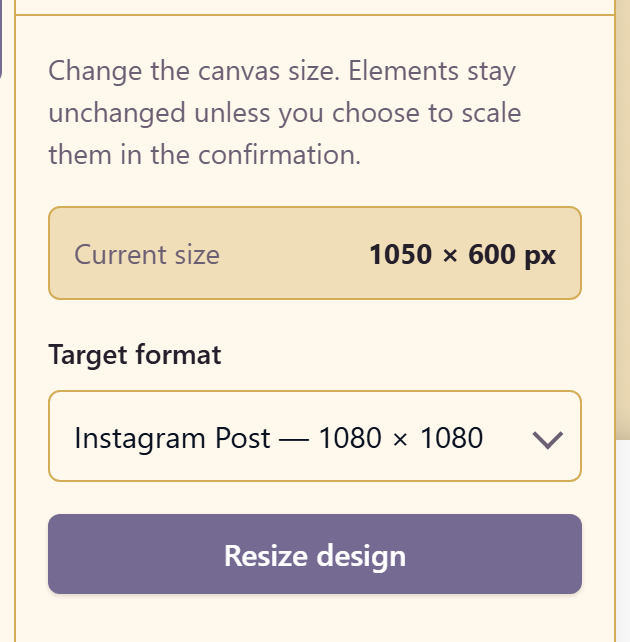
It shows the current size — 1050 × 600 px for a business card — and takes a target format, such as Instagram Post at 1080 × 1080.
What happens to the contents
Section titled “What happens to the contents”The panel is explicit: elements stay unchanged unless you choose to scale them in the confirmation.
That choice is the whole decision. Scaling keeps the composition and changes every size, which suits a proportional change. Not scaling keeps type at its intended size and leaves you to rearrange, which suits a change of aspect ratio — type scaled from a landscape banner into a square is either enormous or unreadable.
Duplicate the page before resizing if you want both formats. Resize changes the canvas rather than producing a second one.
Related
Section titled “Related”Pages and resizing covers the workflow. Pages duplicates a page first.