
Microsoft Entra SSO and Team sync
This guide connects a single Microsoft Entra ID tenant—formerly Azure Active Directory—to Lunar Paper with OpenID Connect (OIDC). It also maps Entra security groups to Lunar Paper Teams.
For the complete Microsoft architecture and setup order, start with Microsoft Entra and Microsoft 365.
The primary path works with Microsoft Entra Free. It does not require Microsoft Graph application permissions, directory provisioning, dynamic groups, Conditional Access, or group assignment to the enterprise application.
What the integration does
Section titled “What the integration does”| Entra information | Lunar Paper result |
|---|---|
OIDC sub claim |
Stable external identity used to link future sign-ins |
Email or email-shaped preferred_username |
Account address used during provisioning |
Entra security-group object IDs in groups |
SSO-managed Team membership when the object ID is mapped to a Team |
| Provider alias | Stable identity source, shown by its friendly provider name in administration |
New SSO accounts start with the Member platform role. A system administrator can grant a higher account role separately on the Users screen. Entra group claims manage Team membership; they do not grant platform administrator roles.
Before you begin
Section titled “Before you begin”You need:
- a Lunar Paper system administrator account;
- permission to create an app registration, credential, security groups, and users in the intended Entra tenant;
- the public HTTPS origin of Lunar Paper, such as
https://paper.example.com; - an independent local Lunar Paper administrator account kept open while SSO is tested; and
- a securely stored
SSO_ENCRYPTION_KEYin the Lunar Paper deployment.
The callback URI is the Lunar Paper origin plus this fixed path:
/api/auth/sso/azure-entra/callbackFor example:
Production: https://paper.example.com/api/auth/sso/azure-entra/callbackLocal test: http://localhost:3001/api/auth/sso/azure-entra/callbackUse the local URI only for a local evaluation environment. Production SSO must use HTTPS.
When documenting or asking for support, replace tenant, application, group, and user identifiers with placeholders. Do not include client-secret values, passwords, tokens, recovery information, or unredacted portal screenshots.
1. Register Lunar Paper in Microsoft Entra ID
Section titled “1. Register Lunar Paper in Microsoft Entra ID”- Sign in to the Microsoft Entra admin center and select the tenant whose users will sign in to Lunar Paper.
- Open Entra ID → App registrations → New registration.
- Enter a recognizable name, such as
Lunar Paper SSO. - Under Supported account types, select Accounts in this organizational directory only. This creates a single-tenant integration.
- Under Redirect URI, select Web and enter the exact Lunar Paper callback URI.
- Select Register.
- On the application overview, record these non-secret identifiers:
- Application (client) ID
- Directory (tenant) ID
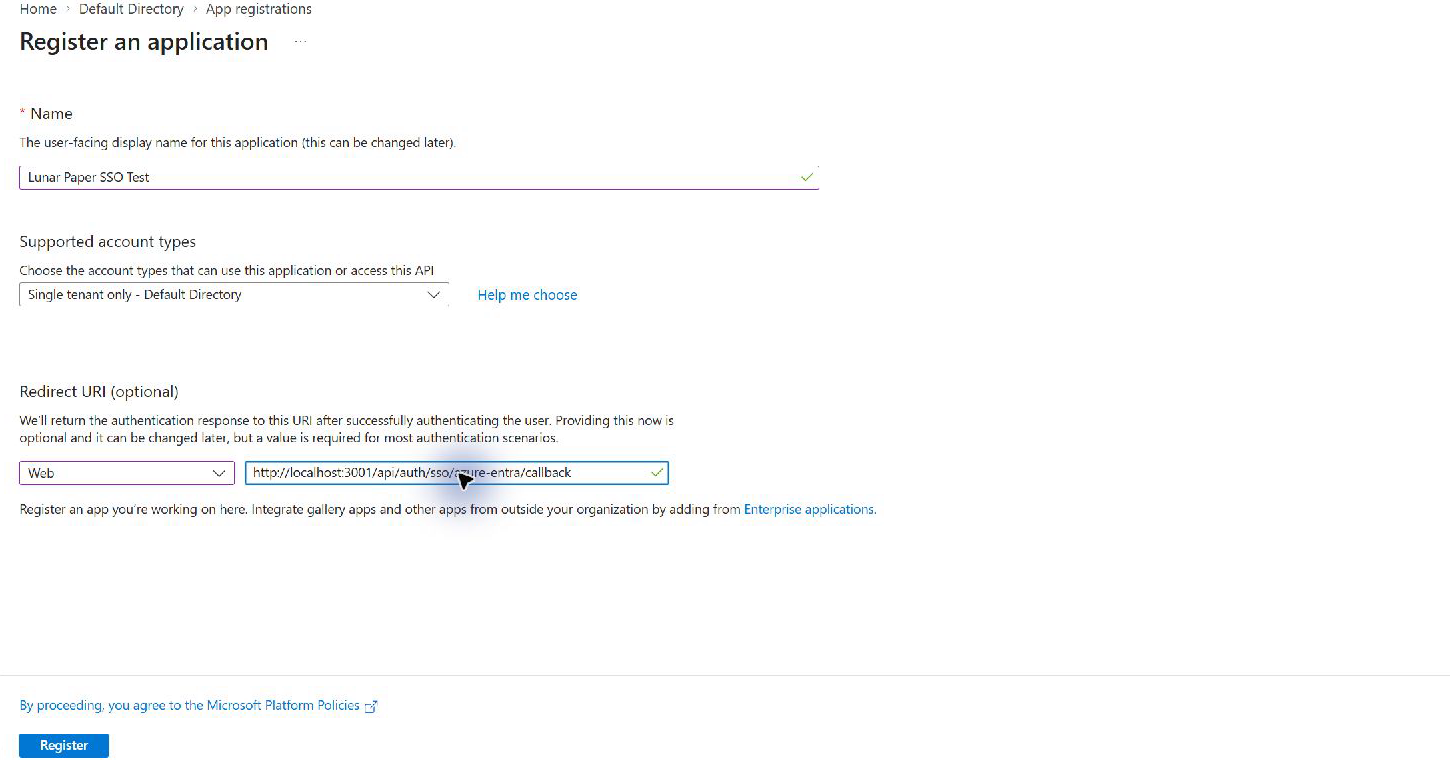
The registered URI and the redirectUri saved in Lunar Paper must match exactly,
including scheme, host, port, path, and trailing slash. Do not register the
frontend /login URL as the callback.
2. Create the client secret
Section titled “2. Create the client secret”- In the app registration, open Certificates & secrets.
- On Client secrets, select New client secret.
- Give it a purpose-specific description, such as
Lunar Paper production. - Choose the shortest lifetime allowed by your operating policy and select Add.
- Copy the secret Value immediately into your approved password or secret manager.
The secret value is shown once. The Secret ID is not a usable client secret. Never paste the value into documentation, tickets, screenshots, chat, source control, or an environment file that is not access-controlled.
Set an expiry reminder before continuing. The rotation procedure is covered under Ongoing operations.
3. Create the Entra security groups
Section titled “3. Create the Entra security groups”Open Entra ID → Groups → All groups → New group. For each Team membership:
- Set Group type to Security.
- Set Membership type to Assigned.
- Use a name that makes the Lunar Paper purpose clear, such as:
LP-AdminsLP-EditorsLP-Viewers
- Add the intended users as members.
- Create the group, open it, and copy its immutable Object ID.
Keep an operator-only mapping record with placeholders filled from your tenant:
| Entra security group | Object ID | Lunar Paper Team |
|---|---|---|
LP-Admins |
<admin-group-object-id> |
LP-Admins |
LP-Editors |
<editor-group-object-id> |
LP-Editors |
LP-Viewers |
<viewer-group-object-id> |
LP-Viewers |
Lunar Paper matches membership by object ID, not group display name. Renaming an Entra group therefore does not change the membership key, although its friendly name should also be updated in Lunar Paper for administrators.
Why this guide does not assign groups to the enterprise application
Section titled “Why this guide does not assign groups to the enterprise application”Group-based enterprise-application assignment requires Microsoft Entra ID P1 or P2. The Entra Free path leaves Assignment required? off and sends Security group object IDs in the OIDC token instead. Lunar Paper then applies its Team mappings.
Dynamic group membership also requires a premium license. Assigned/static Security groups avoid that dependency.
4. Add the security-group claim
Section titled “4. Add the security-group claim”- Return to Entra ID → App registrations → Lunar Paper SSO.
- Open Token configuration.
- Select Add groups claim.
- Select Security groups.
- Keep the group claim in its default object-ID format and apply it to the ID token. The portal may also display Access and SAML token types.
- Save the claim.

Do not select Groups assigned to the application for the Entra Free path; that option depends on premium group-based application assignment. Do not change the claim to group names: the Lunar Paper mapping expects immutable object IDs.
5. Configure the Lunar Paper identity provider
Section titled “5. Configure the Lunar Paper identity provider”In Lunar Paper, open:
Administration → Security & Access → SSO & Identity Providers
or go directly to:
/administration/security-access/sso-providersSelect New Provider and set:
| Field | Value |
|---|---|
| Alias | azure-entra |
| Name | Microsoft Entra ID |
| Protocol | OIDC |
| Enabled | On |
| Issuer URL | https://login.microsoftonline.com/<tenant-id>/v2.0 |
| Client ID | The Entra Application (client) ID |
| Client secret | The secret Value copied when it was created |
| Redirect URI | The exact HTTPS callback registered in Entra |
| Scopes | openid email profile |
| Group claim | groups |
| Team membership source | Sign-in group claims |
The alias becomes part of the callback URI and cannot be changed after the provider is created. If you choose another alias, use it consistently in both Entra and Lunar Paper.
Use the tenant-specific v2.0 issuer. Do not use common, organizations, a
tenant display name, or the portal URL.
Lunar Paper encrypts the stored client secret with SSO_ENCRYPTION_KEY. The
secret is not returned to the browser after it is saved.
Directory Sync
Section titled “Directory Sync”For the claim-only Entra integration, set Directory Sync to:
{ "enabled": false}Directory sync is not required for sign-in or Team mapping. This also avoids Microsoft Graph application permissions and admin consent.
To make never-signed-in Entra users searchable, keep this SSO configuration and add a separate read-only Graph application by following Directory user sync (preview). The current Azure connector synchronizes users but not their Entra group memberships. Its current claim-replacement behavior can remove SSO-derived Team membership during a directory run, so this combination remains an isolated evaluation path until the connector is updated.
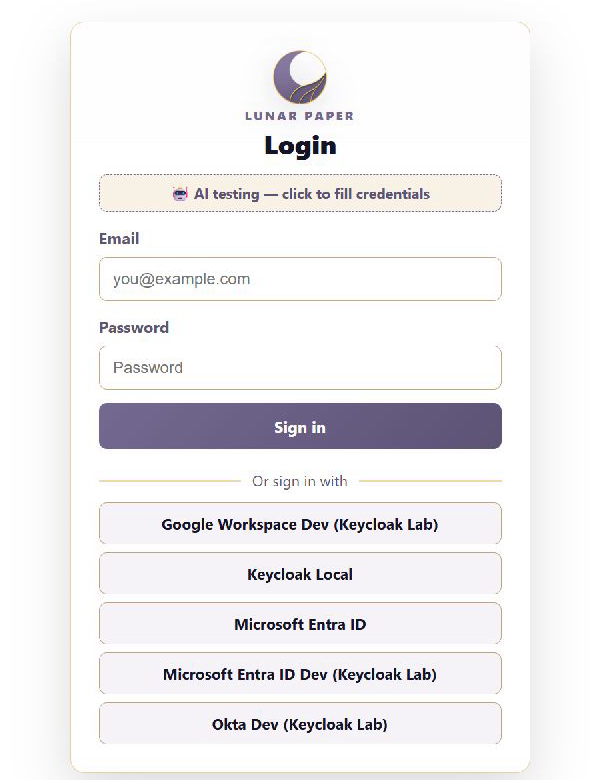
Select Save Provider, then select Discovery beside the provider. A green Discovery test passed message confirms that Lunar Paper can read the tenant-specific OIDC metadata. It does not test a user, client secret, or group membership.
The enabled provider now appears on the login screen using its friendly name.
6. Map Entra groups to Lunar Paper Teams
Section titled “6. Map Entra groups to Lunar Paper Teams”Open:
Administration → Security & Access → Teams
or:
/administration/security-access/teamsFor each Entra security group:
- Create or select the Lunar Paper Team that should receive its members.
- Select the Team name to open its settings.
- Open SSO mappings, then select Microsoft Entra ID
(
azure-entra). - Enter the Entra group’s friendly name in Group display name.
- Enter the immutable Entra Object ID in Group object ID.
- Select Map group.
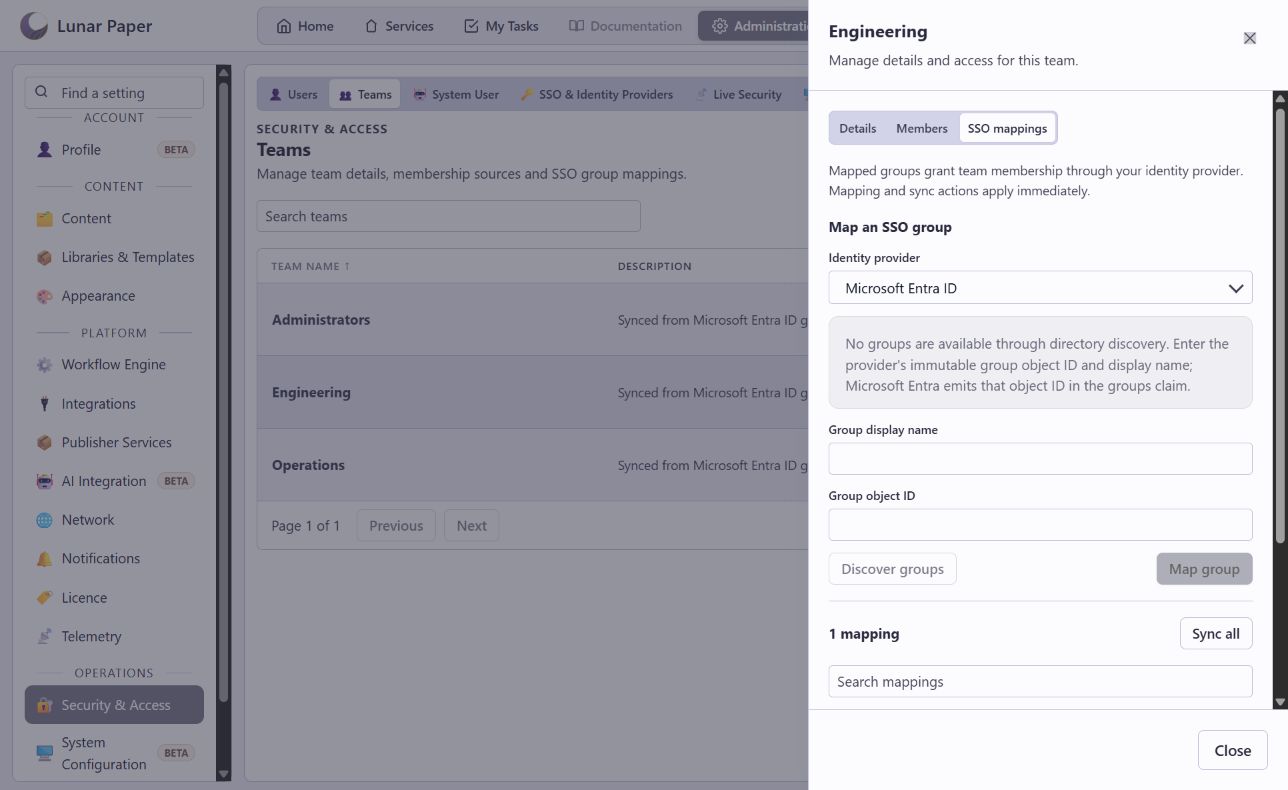
An empty discovered-group list is expected when directory sync is disabled. Enter the name and object ID directly; do not enable Graph permissions solely to populate the picker.
How membership changes flow
Section titled “How membership changes flow”- On successful SSO sign-in, Lunar Paper reads the user’s
groupsclaim and reconciles thesso_groupsource for every mapped Team. - Sync and Sync All SSO reconcile group claims already stored from the user’s most recent sign-in. They do not query Entra for fresh membership.
- After an administrator adds or removes an Entra membership, the user must sign out and complete a fresh SSO sign-in before Lunar Paper receives the new claim and recalculates Team membership.
- Manual Team membership is stored as an independent source. Removing an SSO mapping does not erase an unrelated manual membership source.
- Linking a Team to a service remains a separate step. In the service, select Team → Teams → Link team, choose the mapped Team and its service role, then use Effective access to confirm the user inherits access through the Team. On a service that shows Access model update available, review and activate the transition before the Team grant takes effect. See Manage people and access.
7. Test the complete flow
Section titled “7. Test the complete flow”Use a private browser window so the test does not silently reuse the Entra administrator’s session.
- Keep the local Lunar Paper recovery-administrator session open elsewhere.
- Add a dedicated test user to one mapped Entra Security group.
- Open Lunar Paper
/loginin the private window. - Select Microsoft Entra ID.
- Complete Microsoft sign-in, MFA registration, or a first-login password change manually.
- On a Free installation, the first callback may return with
?error=licence_user_limit. This provisions the account without signing it in. In the recovery-administrator session, open Administration → Security & Access → Users, find the new Microsoft Entra ID user, and select Keep enabled. Then repeat the SSO sign-in. - Confirm that the callback returns to Lunar Paper without an error.
- Filter Source to Microsoft Entra ID and confirm the test user has the Member role and the expected Team.
- Grant a higher platform role on the Users screen only when that person needs it; a group claim does not grant that role.
- Open the Team and confirm the member source reads
azure-entra: <group-name>. - Link that Team to a test service without adding the user directly, activate the service’s access-model transition if prompted, and confirm Effective access names the Team as the source.
- Sign in as the test user, open Services, and confirm the service appears and opens successfully.
Repeat the test with one non-administrator group before rollout. Also test removing the user from the Entra group, signing in again, and confirming the SSO-managed Team source is reconciled. An explicitly assigned platform role is preserved.
Expected no-cost configuration
Section titled “Expected no-cost configuration”| Capability | Required for this guide? | Cost-sensitive note |
|---|---|---|
| Single-tenant OIDC app registration | Yes | Available with Entra Free |
| Assigned/static Security groups | Yes | Available with Entra Free |
| Security-group token claim | Yes | No Graph application permission required |
| Security defaults and MFA registration | Keep enabled | Available with Entra Free |
| Dynamic group membership | No | Premium feature |
| Group assignment to the enterprise application | No | Requires Entra ID P1 or P2 |
| Conditional Access | No | Requires Entra ID P1 or later |
| Microsoft Graph directory sync | Optional | Separate application and consent scope; synchronizes users, not group membership |
Troubleshooting
Section titled “Troubleshooting”AADSTS50011 or redirect URI mismatch
Section titled “AADSTS50011 or redirect URI mismatch”Compare the URI in all three places:
- Entra app registration under Authentication;
- Lunar Paper Redirect URI; and
- the alias in the Lunar Paper provider.
The URI must match exactly. Use the backend callback path, not the login page.
?error=sso_failed after Microsoft sign-in
Section titled “?error=sso_failed after Microsoft sign-in”Check, in order:
- the provider is enabled;
- Discovery passes;
- the issuer contains the correct Directory tenant ID and
/v2.0; - the Application client ID belongs to the same app registration;
- clientSecret contains the secret Value, not its ID; and
- the secret has not expired.
The first Free-mode sign-in asks for a licence seat
Section titled “The first Free-mode sign-in asks for a licence seat”The first SSO callback creates the user and identity binding, but Free mode allows only selected users to sign in. Keep the recovery-administrator session open, reload Administration → Security & Access → Users, select Keep enabled for the new identity, and have the user select Microsoft Entra ID again. If all three seats are selected, release one or activate a licence with more capacity first.
The user signs in but has no mapped Team
Section titled “The user signs in but has no mapped Team”- Confirm the user is a member of an assigned/static Security group.
- Confirm Token configuration contains the Security groups claim.
- Compare the Entra group Object ID character-for-character with the Lunar Paper Team mapping.
- Sign the user out and complete a fresh SSO sign-in after changing membership.
- Check whether the user is above Entra’s 200-group OIDC/JWT claim limit.
The Entra email claim is missing
Section titled “The Entra email claim is missing”Entra can omit email for a cloud-only member whose directory mail field is
empty. Lunar Paper resolves claims from the ID token and UserInfo response and
can use an email-shaped preferred_username to provision the account. The
immutable sub claim remains the external identity key; email and username
claims are never authorization keys.
If preferred_username is not email-shaped, correct the Entra user profile or
choose a tenant-approved address before retrying.
Discover Groups is empty
Section titled “Discover Groups is empty”This is expected with the documented claim-only Entra configuration. The current Azure directory connector does not populate the cached group picker. Map the friendly name and immutable object ID directly on the Teams screen.
Ongoing operations
Section titled “Ongoing operations”Rotate the client secret
Section titled “Rotate the client secret”- Create a new secret in the same Entra app registration.
- Copy its Value directly into Lunar Paper Client secret.
- Save the provider and run Discovery.
- Complete a private-window SSO sign-in.
- Only after that succeeds, remove the old secret from Entra.
Lunar Paper currently stores one active client-secret value for the provider, so rotation requires a short coordinated change rather than overlapping two secrets in its configuration.
Change group access
Section titled “Change group access”Manage membership in Entra, not by repeatedly adding manual Lunar Paper Team members. After the Entra change, have the affected user sign in again. Use the Users source filter and Team membership-source labels as the verification surfaces.
Remove or disable the integration
Section titled “Remove or disable the integration”- Keep the recovery administrator available.
- Disable the provider in Lunar Paper.
- Verify local administration still works.
- Remove the client secret from Entra when rollback is no longer required.
- Remove Team mappings that are no longer valid and review any remaining manual membership sources.
Microsoft reference material
Section titled “Microsoft reference material”- Register an application in Microsoft Entra ID
- Add a Web redirect URI
- Configure group claims
- Review ID-token claims
- Manage access to enterprise applications
- Configure security defaults
All screenshots on this page are cropped and re-encoded to remove browser chrome, account menus, user addresses, tenant and application identifiers, credentials, tokens, cookies, and image metadata. The examples contain only placeholders or non-secret interface labels.