
Create content
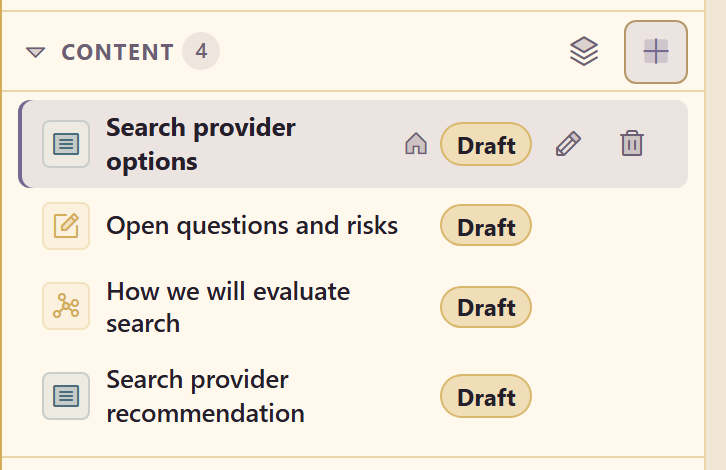
Content is the top rail: what you would show someone, and the only rail that gets published.
Three kinds of content
Section titled “Three kinds of content”New content at the top of the rail asks for a type and a name.
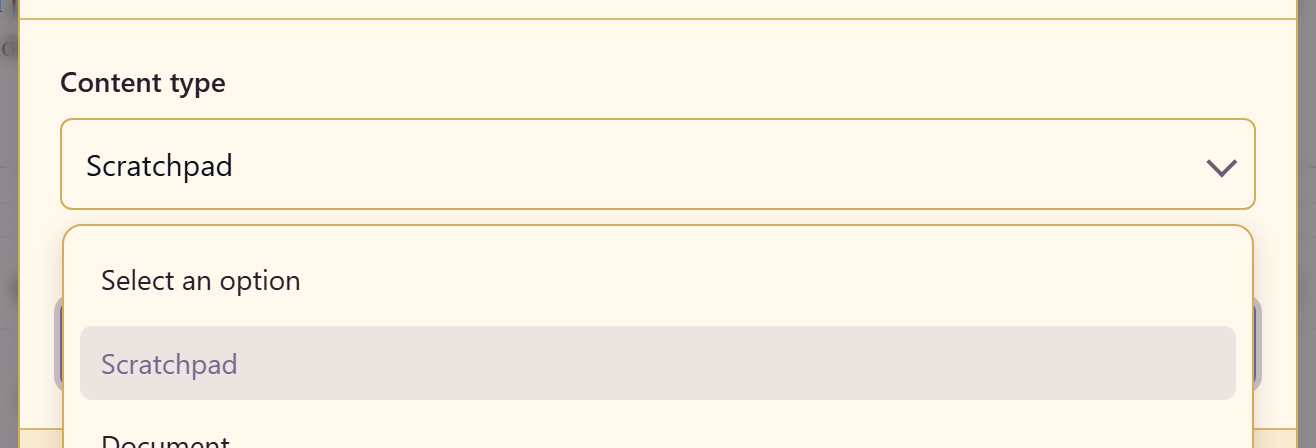
| Type | What it is | Use it for |
|---|---|---|
| Document | The full Documents editor, inside the workspace | The written answer, the comparison, the record |
| Chart | The Charts designer | A process, a decision tree, an architecture |
| Scratchpad | A free canvas with drawing, elements, pan, and zoom | Open questions, sketching, anything not yet in order |
In each case you get the whole tool, not a cut-down version. A chart opens with the full shape library, pages, and connector tool.
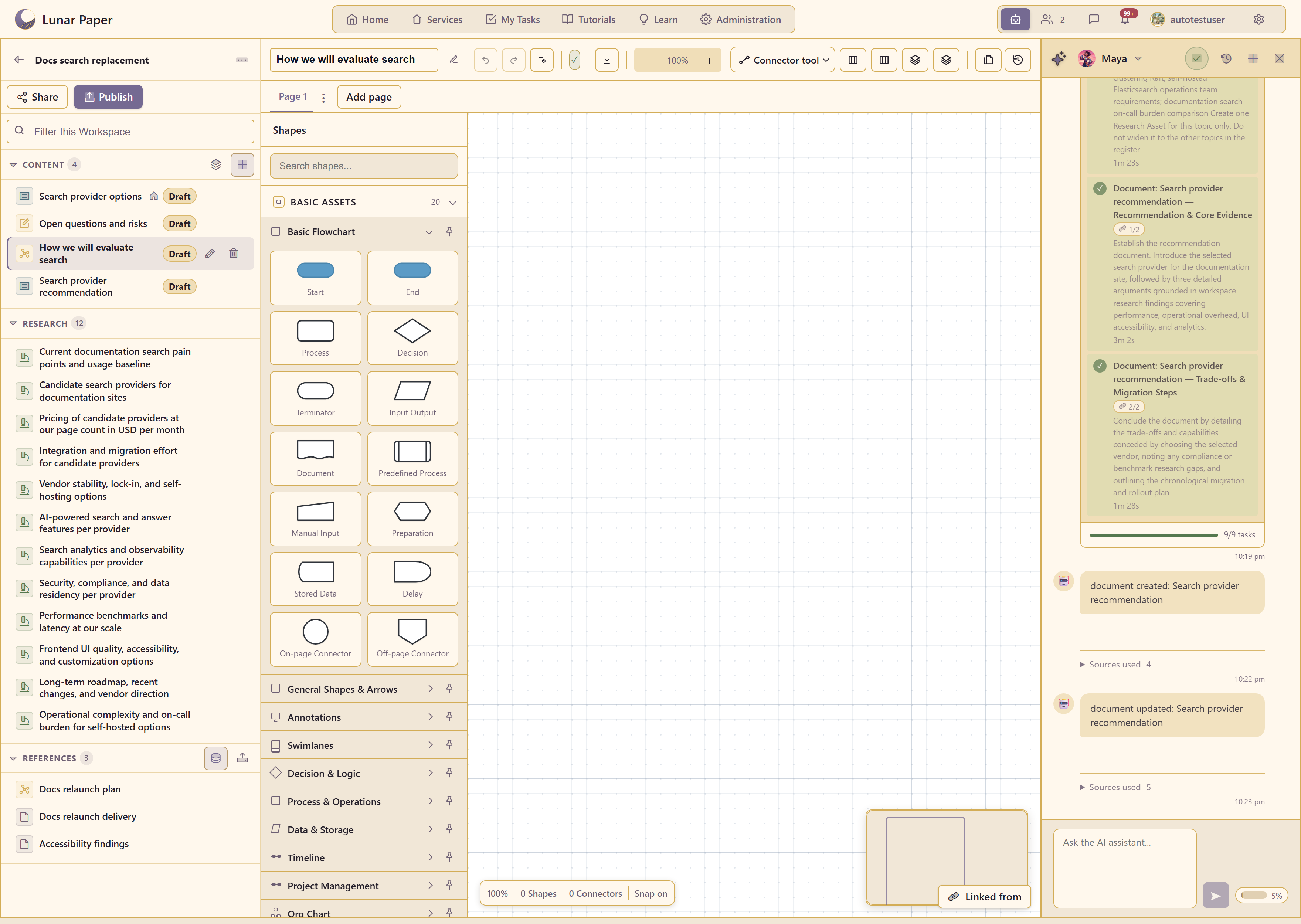
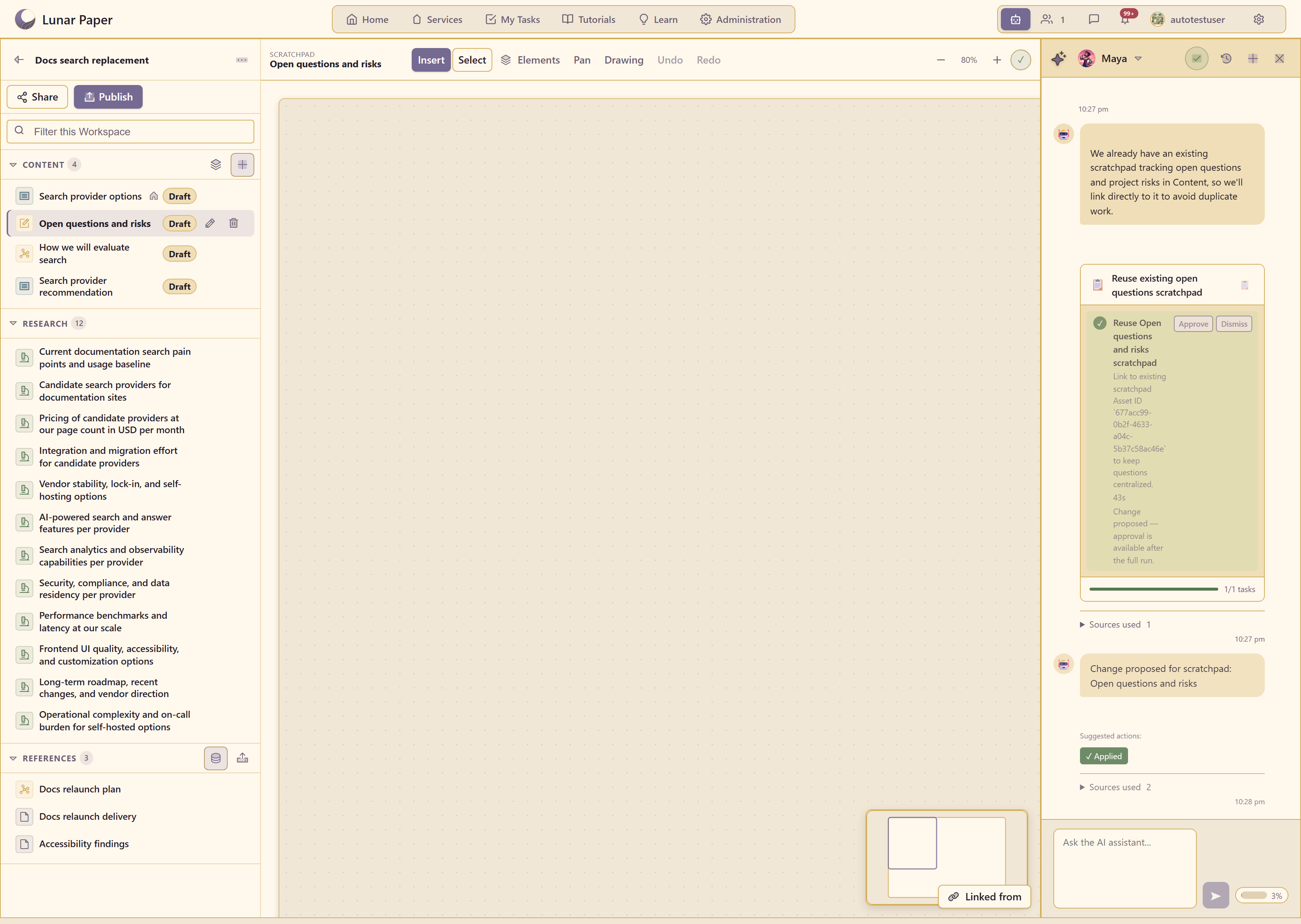
A scratchpad opens as an empty canvas with insert, select, pan, drawing, and zoom.
Two ways to get a document
Section titled “Two ways to get a document”Create from research on a research item writes one from that evidence and carries the provenance across.
Ask the AI for the end product, naming what it should use. The example workspace’s recommendation document came from a single request: write a document from the research already here, recommend one provider, give three reasons with the evidence behind each, state what we give up, and end with the migration steps.
Either way you get a normal editable document.
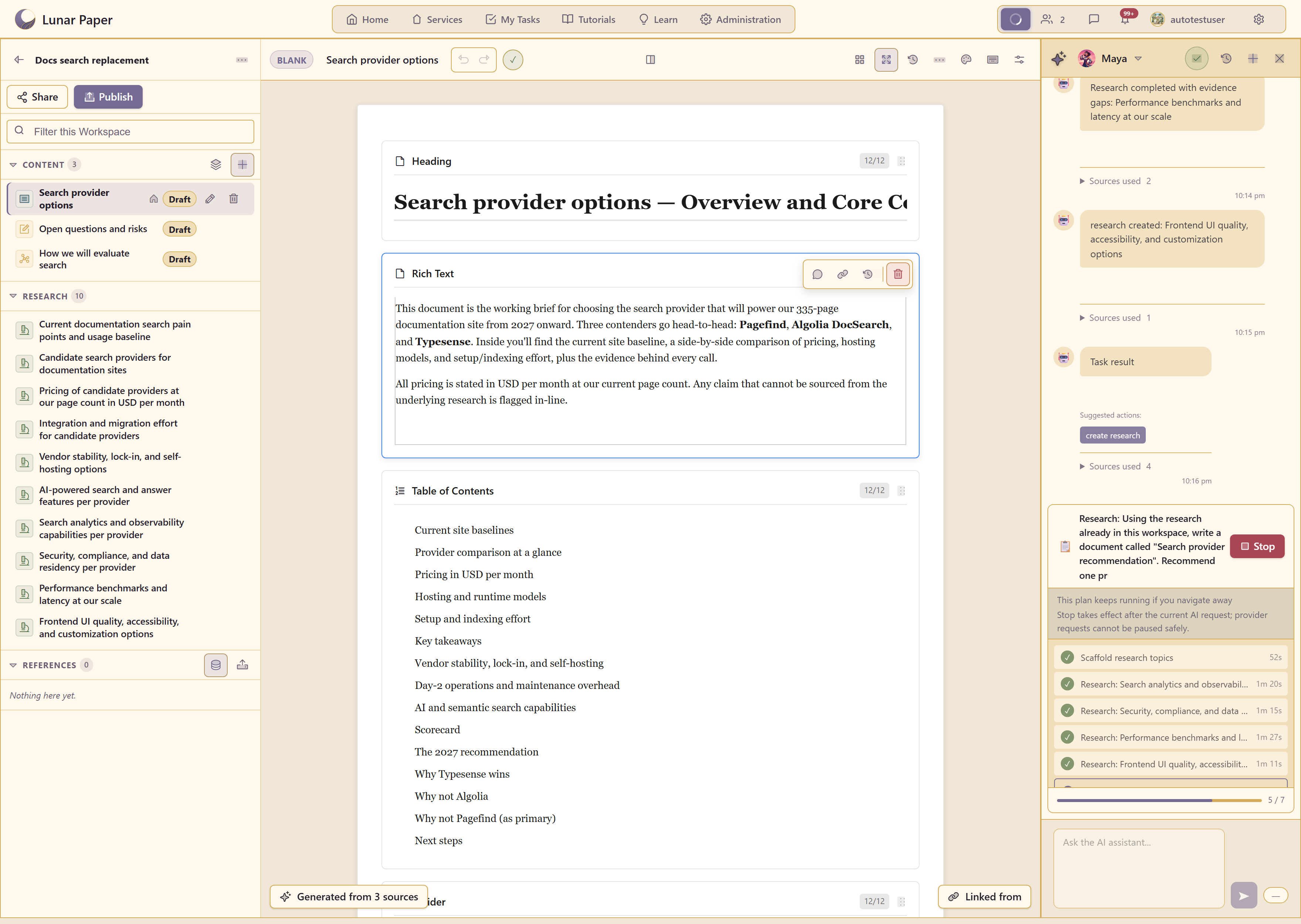
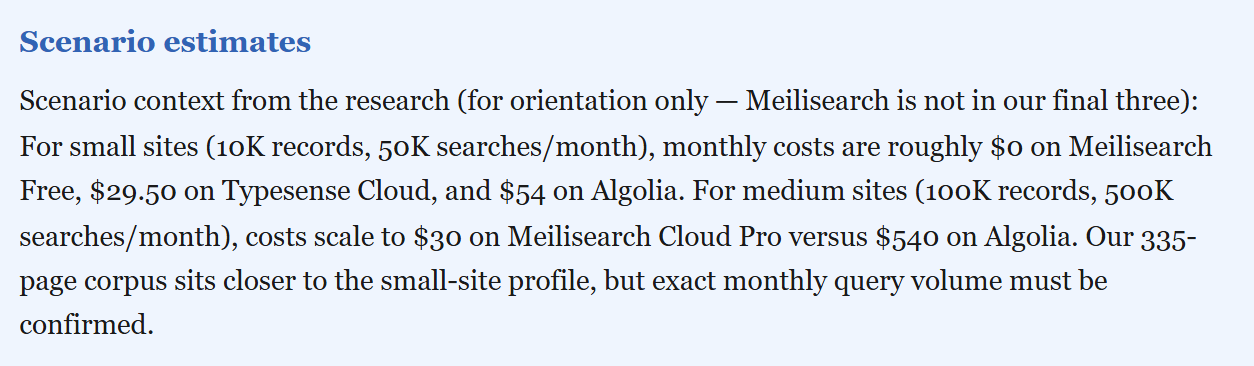
This is the real editor, not a preview: blocks, undo and redo, version history, a properties panel, and per-block comment and history controls. Tables, callouts, and a table of contents work as they do in Documents.
Provenance and backlinks
Section titled “Provenance and backlinks”Two badges sit along the bottom of an open content item.
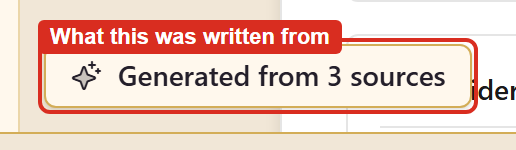
Generated from N sources records what the item was written from, which is how a reader traces a sentence back to the research behind it. It appears only on content that came from research; content typed by hand has nothing to point at.
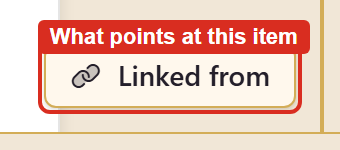
Linked from goes the other way: what points at this item. Check it before renaming or removing anything.
Configure a content item
Section titled “Configure a content item”Configure page on any item holds everything about how it behaves — its name and description, whether it is Draft or Live, whether it is the landing page, its keywords, and its collection.
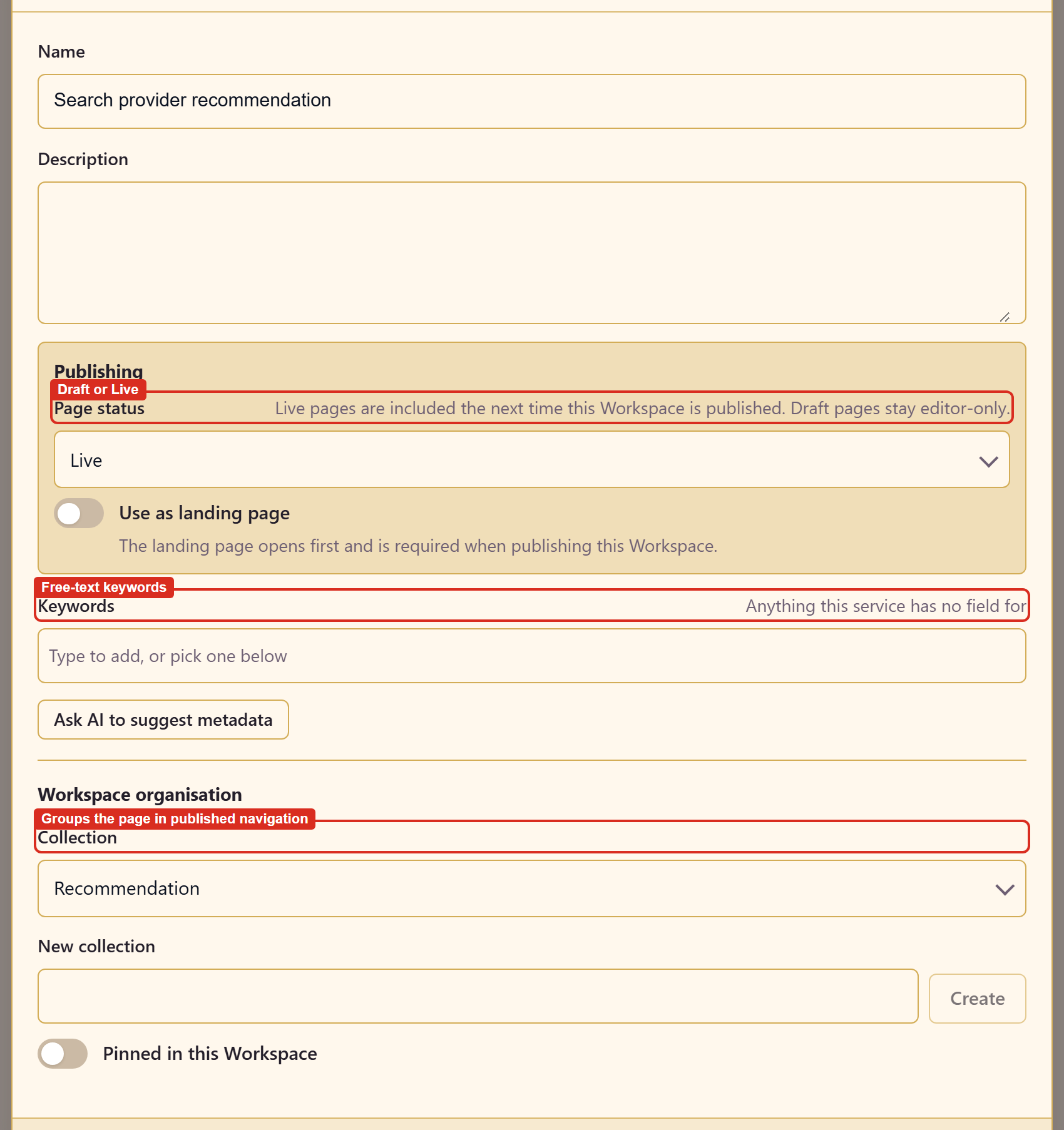
Two of those change what readers get. Page status decides whether the item publishes at all, and Collection decides how it is grouped in the navigation. The rest is metadata that follows the item into the service’s Asset Library, where other workspaces can find it.
Content and metadata settings documents every field.
Arrange what readers see
Section titled “Arrange what readers see”There are two ways to group published pages, and they end up in the same place.
Set a collection on the item, in Configure page. Or add a group directly in the navigation organiser.
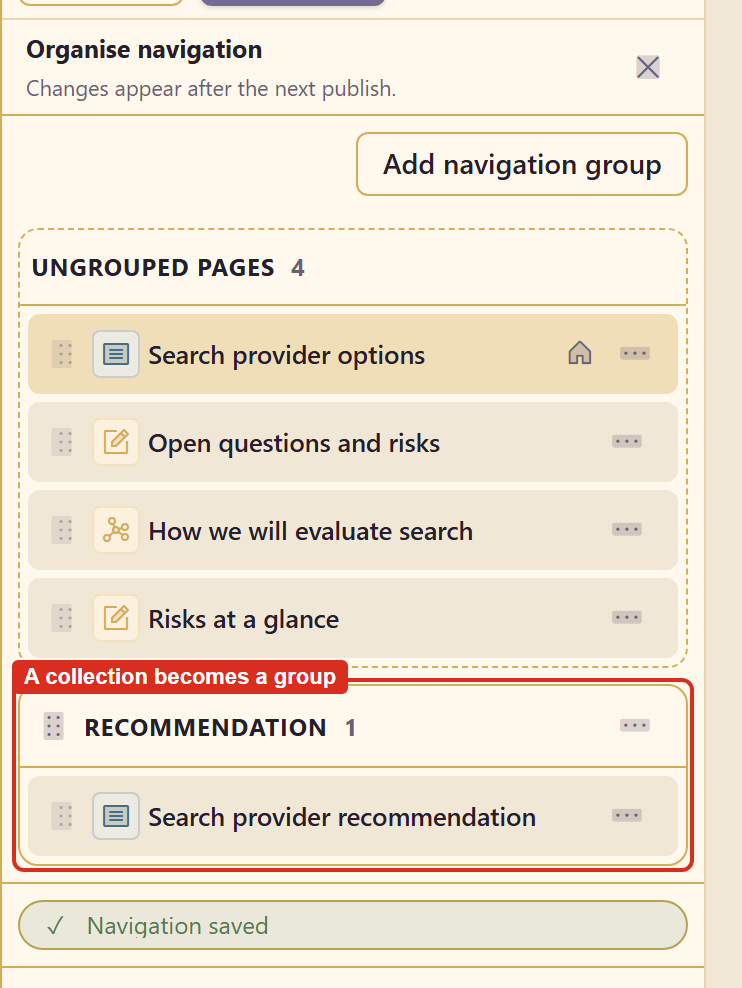
A collection appears here as a named navigation group; everything without one sits under Ungrouped pages. From there you can drag items between groups and reorder them.
Prefer collections. The grouping then travels with the item as metadata instead of living only in this panel, which matters when someone finds the item through the Asset Library.
The organiser saves as you work — a Navigation saved confirmation appears — and, as the panel says, changes appear after the next publish.
The published copy currently shows only the landing page
Section titled “The published copy currently shows only the landing page”On the version tested, a workspace with two Live pages published both, and the publish dialog counted them and gave each a published version. The published copy’s contents list still linked only the landing page, and the navigation group did not appear.
Until that is fixed, treat the landing page as the published output and put anything readers must see inside it.
Related
Section titled “Related”Publish a workspace takes this to readers. Evidence and provenance explains why generated content records its sources.