
Create skin variants
Three elemental versions of one character is a common requirement. Copying the project three times triples the maintenance, because every edit to the base has to be re-applied to each copy. Variations share one set of frames, and only the palette and layer visibility differ, so you edit once and every variant inherits the change. The steps below produce a base character plus fire, ice, and poison variants.
You need a finished base character. The Draw a sprite guide builds one, and a settled palette makes the variant palettes easier to work out.
Open the Variations panel
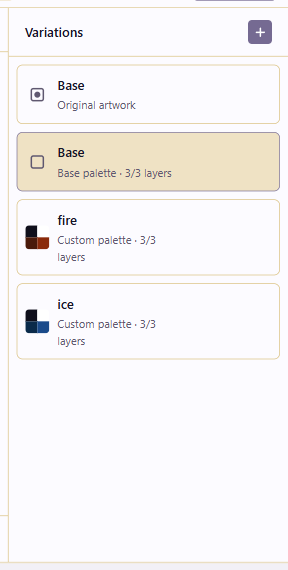
Section titled “Open the Variations panel”Open the project and click Variations in the top toolbar. The panel shows Base (the original artwork). Every new variation inherits the base frame data.
Create the fire variation
Section titled “Create the fire variation”In Variations, create a new variation and rename it fire. It initially looks identical to the base, because a fresh variation copies the base’s palette and visibility.
Swap the palette
Section titled “Swap the palette”Open the palette. Replace the key anchor color (the character’s blue outfit, say) with fire tones such as red, orange, and yellow. Use Generate Ramp between the new anchors to rebuild the shading ramp so the variant has a full set of shades, not just the anchors. Because you’re on the fire variation, only its palette changes; the base is untouched.
Adjust layer visibility (optional)
Section titled “Adjust layer visibility (optional)”If you have effect layers for the base look, such as an aura or a glow, hide the base version on fire and show a fire-themed one (or create one). Variations remember per-variation visibility, so this only affects fire.
Repeat for ice and poison
Section titled “Repeat for ice and poison”Create ice with a blue and cyan palette, and poison with green and purple. Adjust visibility per variant as needed. You now have Base, fire, ice, and poison: four variants from one set of frames, differing only in palette and visibility.
Preview each variation
Section titled “Preview each variation”Click each variation in the panel to switch the editor to it. If the character is animated, press Space to play and confirm the variant is correct in motion, not just on a static frame.
Export all variations
Section titled “Export all variations”Open Export, pick your format, and under Variation tick Export all variations. Each variation exports as its own file or sheet.
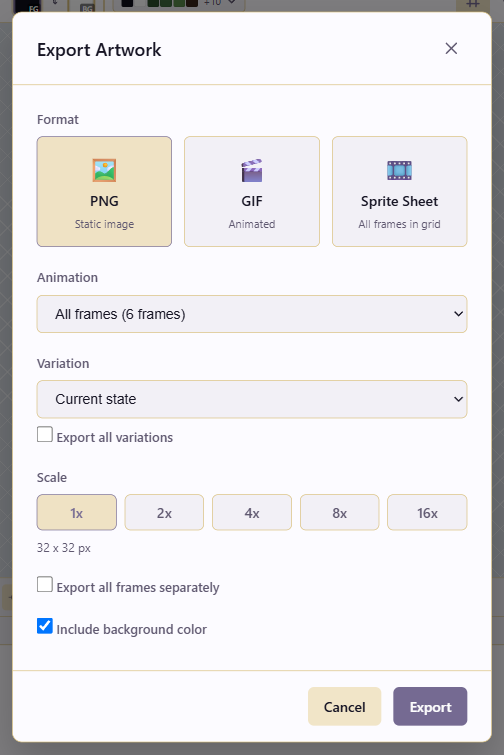
Name variations the way your engine sorts them (char_base, char_fire, char_ice, char_poison) so the export filenames land in a predictable order.
Separate projects
Section titled “Separate projects”Variations are for palette and visibility swaps. If you find yourself redrawing pixels per variant, with different silhouettes, proportions, or animations, use a separate project that shares a reference instead. Once a variant differs in structure from the base, you no longer gain anything from shared edits.
The AI Assistant can build a variant family quickly: loadPalette into each named variation, and generateMirroredVariants for directional derivatives. The action vocabulary is in AI actions.