
Services
A service is the container everything else lives in. Modules, data, documents, charts, dashboards, emails — all of it belongs to a service, and a service decides who can see it and where it may be published.
If you are wondering why you cannot find something, the answer is almost always that it is in a different service.
What a service is for
Section titled “What a service is for”Think of it as the boundary around one body of work: a team, a product, a client, a department.
That boundary does three jobs.
It groups the work. Everything created inside a service stays inside it. A chart in one service is not visible from another.
It controls access. Membership is per service, and so is the ceiling on where anything may be published.
It gives you a whole view. Because everything is in one place, a service can show you a map of how its pieces connect and an index of everything it has made.
The two halves of the screen
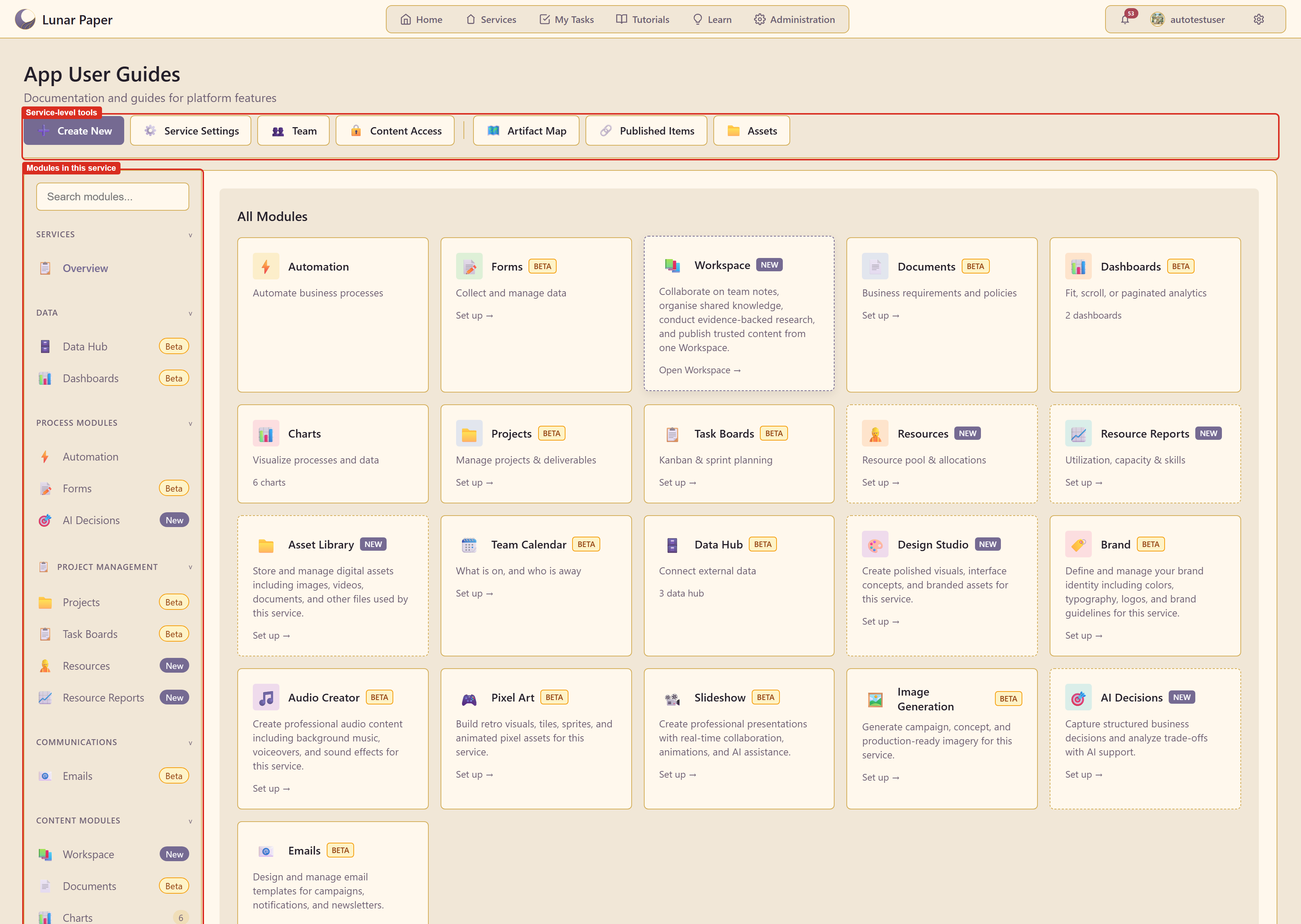
Section titled “The two halves of the screen”The left side lists the modules available in this service, grouped by what they are for — data, process, project management, communications, content, creative, and resources. Each entry opens that module scoped to this service.
The top row holds the service’s own tools, which are not modules and apply to everything inside. To create something, open its module from the left side and use that module’s create action.
Service Settings covers the name, appearance, which modules are switched on, and the URL.
Team manages who can get in, individually or by linked team, plus an audit log.
Content Access sets the ceiling for how widely anything here may be published.
Artifact Map draws everything in the service and how it connects.
Assets opens the Asset Library, the index of everything the service has made.
Feature list covers all of it.
The idea worth understanding first
Section titled “The idea worth understanding first”Content Access is a maximum, not a default. Setting the service to allow anything signed in does not publish anything — it sets the widest audience an individual item is then allowed to choose.
Getting that backwards is the usual cause of confusion about why something is or is not visible. What a service is explains the model.
Where to go
Section titled “Where to go”| If you want to | Go to |
|---|---|
| Create a service | Create a service |
| Set up a new service | Quickstart |
| See everything a service can do | Feature list |
| Follow a complete piece of work | Guides — six walkthroughs |
| Find which page covers a capability | Capabilities |
| Look up a setting | Settings reference |
| Find everything the service has made | Asset Library |
| Look up an artifact type or read the map | Artifacts and the Artifact Map |
| Understand the container model | What a service is |
| Work out why three screens show different counts | Artifacts and assets |
| Fix something that is not behaving | Troubleshooting |
The examples in these screenshots
Section titled “The examples in these screenshots”Captures use App User Guides, service 20, which is the service the rest of this documentation was built in. It holds 28 connected artifacts across charts, dashboards, data sources, projects, task boards, emails, and pages.