
Create a presentation from a template
A useful deck starts with enough context that teammates know why it exists before they open the first slide.
1. Start from the dashboard
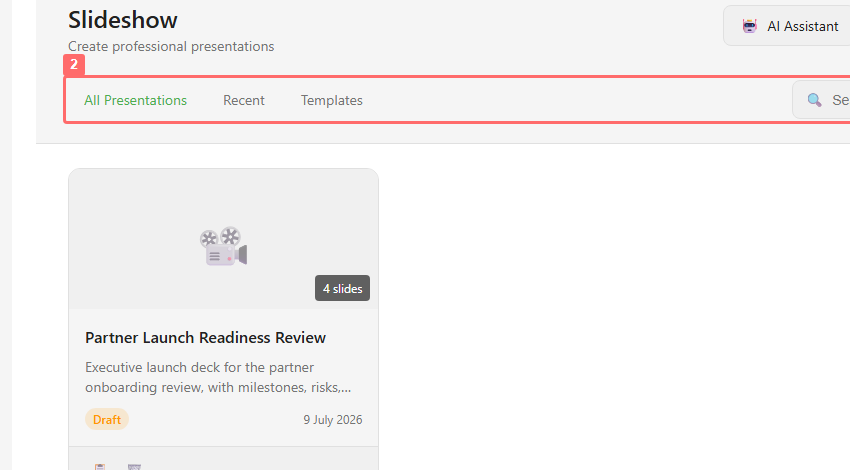
Section titled “1. Start from the dashboard”Open Slideshow inside the service and click Create Presentation.
2. Name the deck
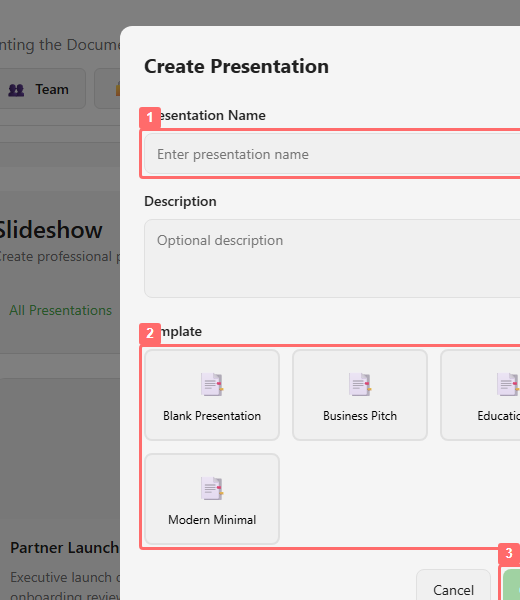
Section titled “2. Name the deck”Enter a specific name, such as Partner Launch Readiness Review. Add a one-sentence description that names the audience, decision, or outcome.
3. Choose a template
Section titled “3. Choose a template”Select the template that matches the shape of the deck. Blank Presentation gives you an empty deck. The business, educational, and minimal templates give you more structure to start from, where the service offers them.
4. Create and check the editor
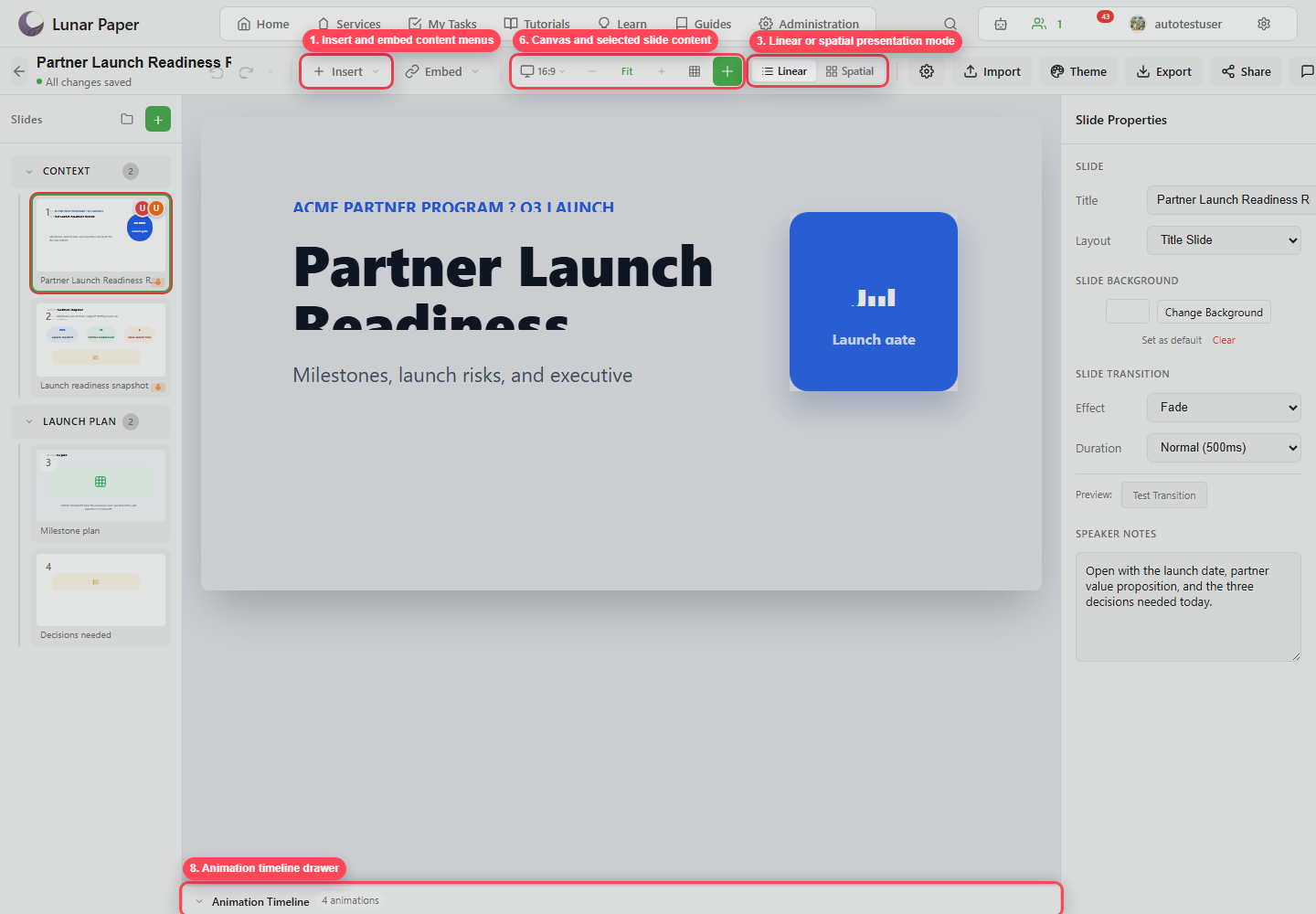
Section titled “4. Create and check the editor”Click Create. The editor opens with the slide navigator, canvas, properties panel, toolbar, and timeline drawer visible.
5. Add the first structure
Section titled “5. Add the first structure”Add sections before you add too many slides. A review deck usually works well with sections such as Context, Evidence, Plan, and Decision.
6. Save a baseline version
Section titled “6. Save a baseline version”Once the structure is useful, click Publish and write a short baseline version comment. Later you can use Versions to compare the reviewed deck against this first draft. With the shell in place, Build a launch review deck takes it through to a finished deck.