
Plan the schedule
A project’s schedule has two layers. The dates in Settings bound the whole thing and feed the dashboard tile. Milestones mark the points inside it that people actually plan around.
Set the outer dates
Section titled “Set the outer dates”In Project Settings → Schedule, set Start Date and Target End Date. A live summary shows duration, elapsed, and remaining days as you type.
The dashboard’s schedule tile reads these two dates and reports one of: On Track, At Risk, Behind Schedule, or Overdue.
Add milestones
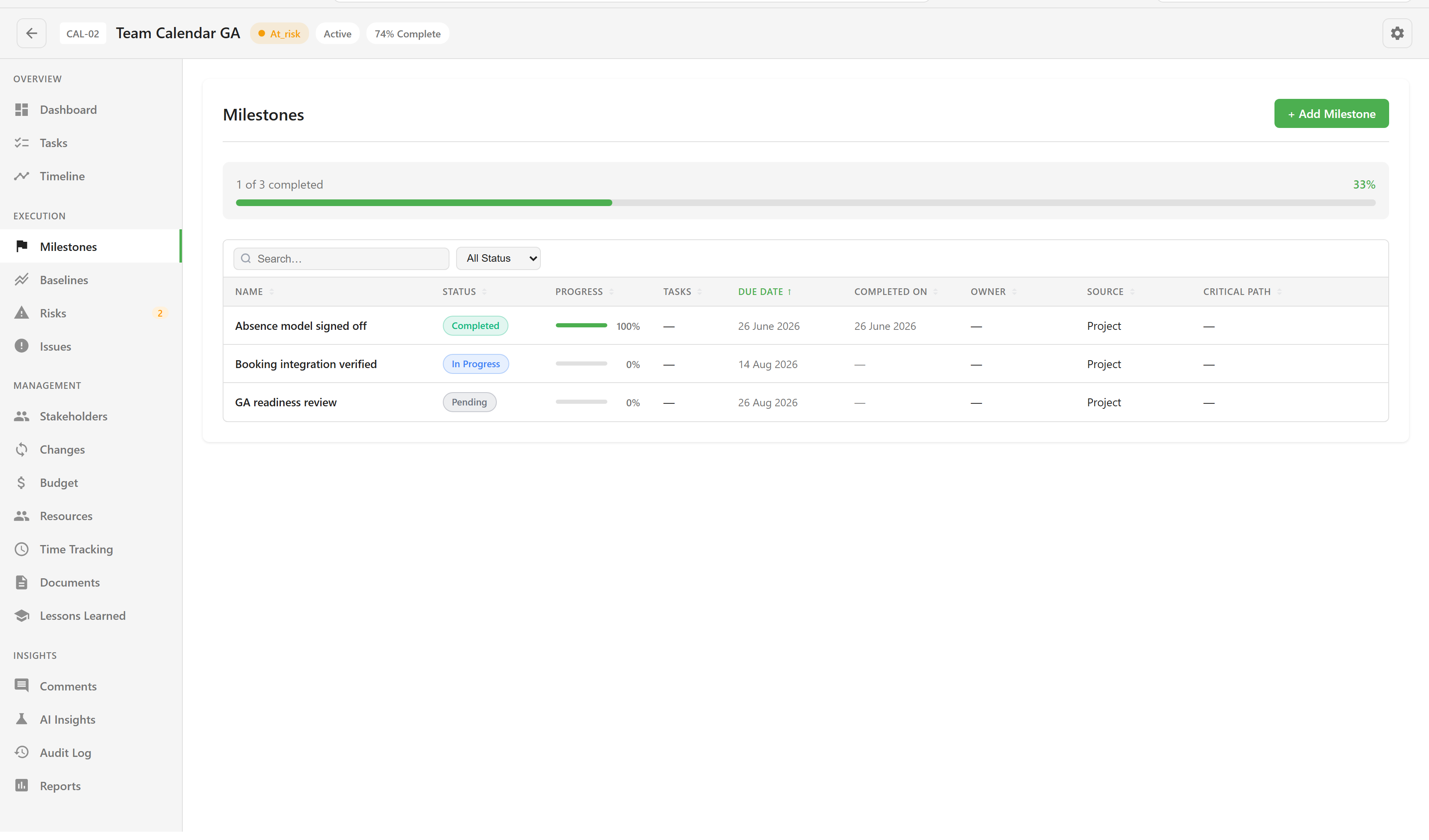
Section titled “Add milestones”Open Milestones and choose + Add Milestone.
| Field | Notes |
|---|---|
| Name | Required. Name the deliverable, not the activity: “Booking integration verified” beats “Integration work”. |
| Description | What “done” means for this milestone. |
| Status | Pending, In Progress, Completed, Delayed, or Cancelled. |
| Due Date | Required. |
| Owner | The person accountable for it. |
| Critical Path | A checkbox: “This milestone is on the critical path”. |
Milestones drive the dashboard’s Scope tile, which counts how many exist and how many are complete.
Mark the critical path
Section titled “Mark the critical path”Tick Critical Path on the milestones that cannot slip without moving the end date. Do it sparingly — a project where everything is critical tells a reader nothing.
Read the timeline
Section titled “Read the timeline”Open Timeline for a Gantt view across day, week, or month zoom, with toggles for Milestones, Dependencies, Critical Path, and Baseline, and filters by board, milestone, and assignee.
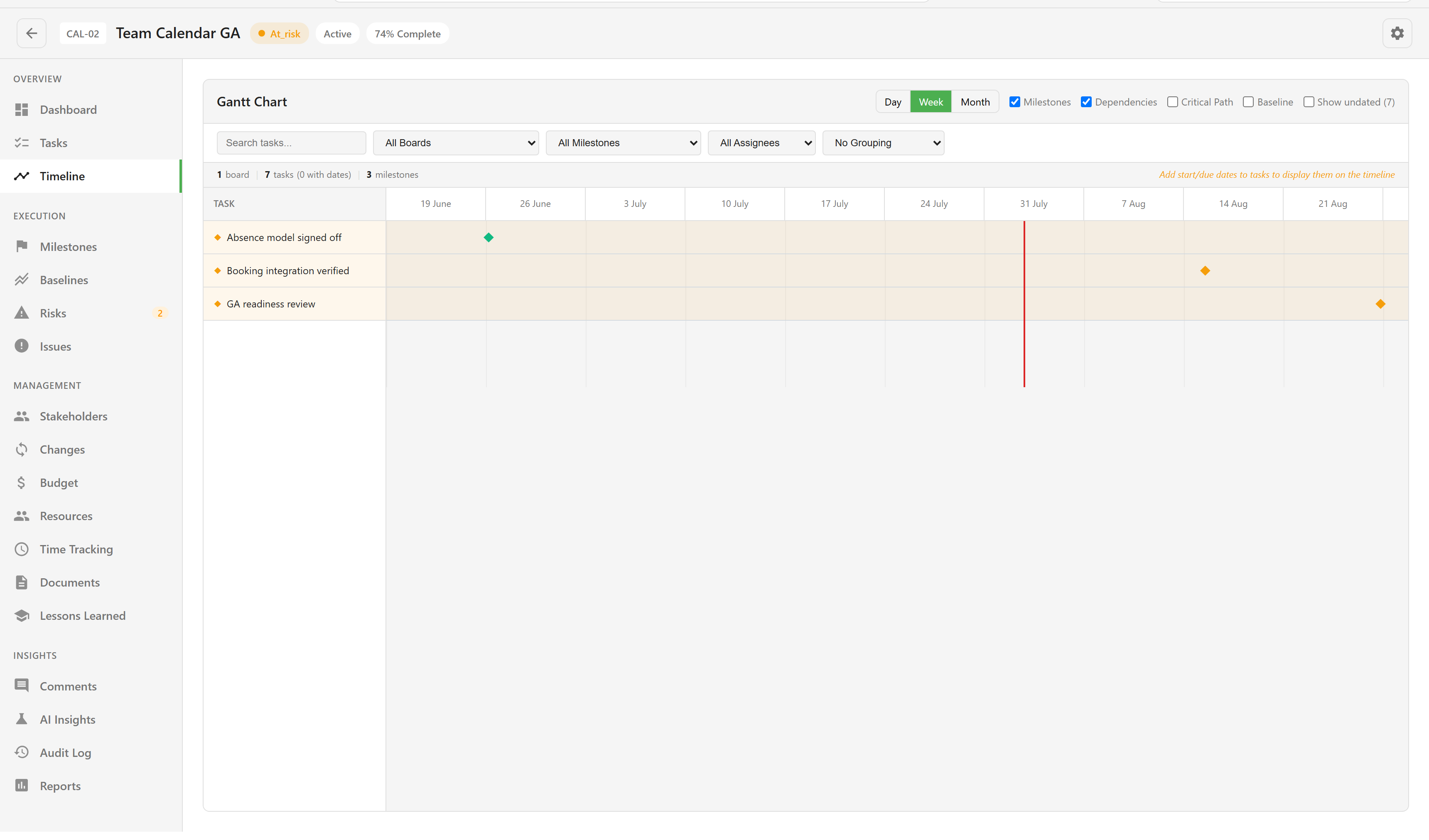
The timeline draws tasks from linked boards alongside milestones. With no board linked it says so directly: “Create a task board and add tasks to see them on the timeline”. Link task boards covers that step.
Capture a baseline
Section titled “Capture a baseline”Once the plan is agreed, open Baselines and save one. A baseline is a snapshot of the schedule you can compare against later, which is what makes “we are three weeks late against the original plan” a statement you can evidence rather than remember.
Every section of the project screen is listed in the project views reference.