
Microsoft Entra and Microsoft 365
Use this section as the starting point for a Microsoft-based Lunar Paper deployment. Microsoft sign-in, optional directory user caching, and unattended mail are separate integrations. Give each one its own Entra application, credential, permissions, test plan, and rotation schedule.
Choose what you need
Section titled “Choose what you need”| Requirement | Entra application | Permission or claim | Lunar Paper guide |
|---|---|---|---|
| Users sign in with Microsoft and join Teams | Lunar Paper SSO |
OpenID Connect plus the groups ID-token claim |
SSO and Team sync |
| Administrators can find users before their first sign-in | Lunar Paper Directory Sync |
Microsoft Graph application User.Read.All |
Directory user sync (preview) |
| Workflows and platform features send through Exchange Online | Lunar Paper Mail |
Microsoft Graph application Mail.Send, restricted in Exchange |
Outbound email connectors |
Do not add Graph mail or directory permissions to the SSO registration. The SSO application signs people in. The directory application reads user profiles. The mail application sends as approved mailboxes.
Understand the two kinds of sync
Section titled “Understand the two kinds of sync”The words “group sync” and “directory sync” describe different behavior:
| Behavior | When it runs | What it changes | Microsoft Graph required? |
|---|---|---|---|
| Sign-in group-to-Team sync | Every successful SSO sign-in | Reconciles mapped Lunar Paper Team membership from the user’s current groups claim |
No |
| Directory user sync | On demand or on the configured schedule | Caches Entra user profiles so administrators can find people before first sign-in | Yes, User.Read.All |
For normal SSO and Team membership, use Sign-in group claims. After an Entra administrator changes a person’s Security-group membership, that person must sign out and complete a new Microsoft sign-in. A Team’s Sync action replays the claims from the most recent sign-in; it does not query Entra.
The current directory connector does not retrieve group membership and must not be enabled on a provider that uses SSO Team mappings. Its full limitation and isolated evaluation procedure are in Directory user sync (preview).

Recommended setup order
Section titled “Recommended setup order”- Keep a local Lunar Paper system administrator available as a recovery account.
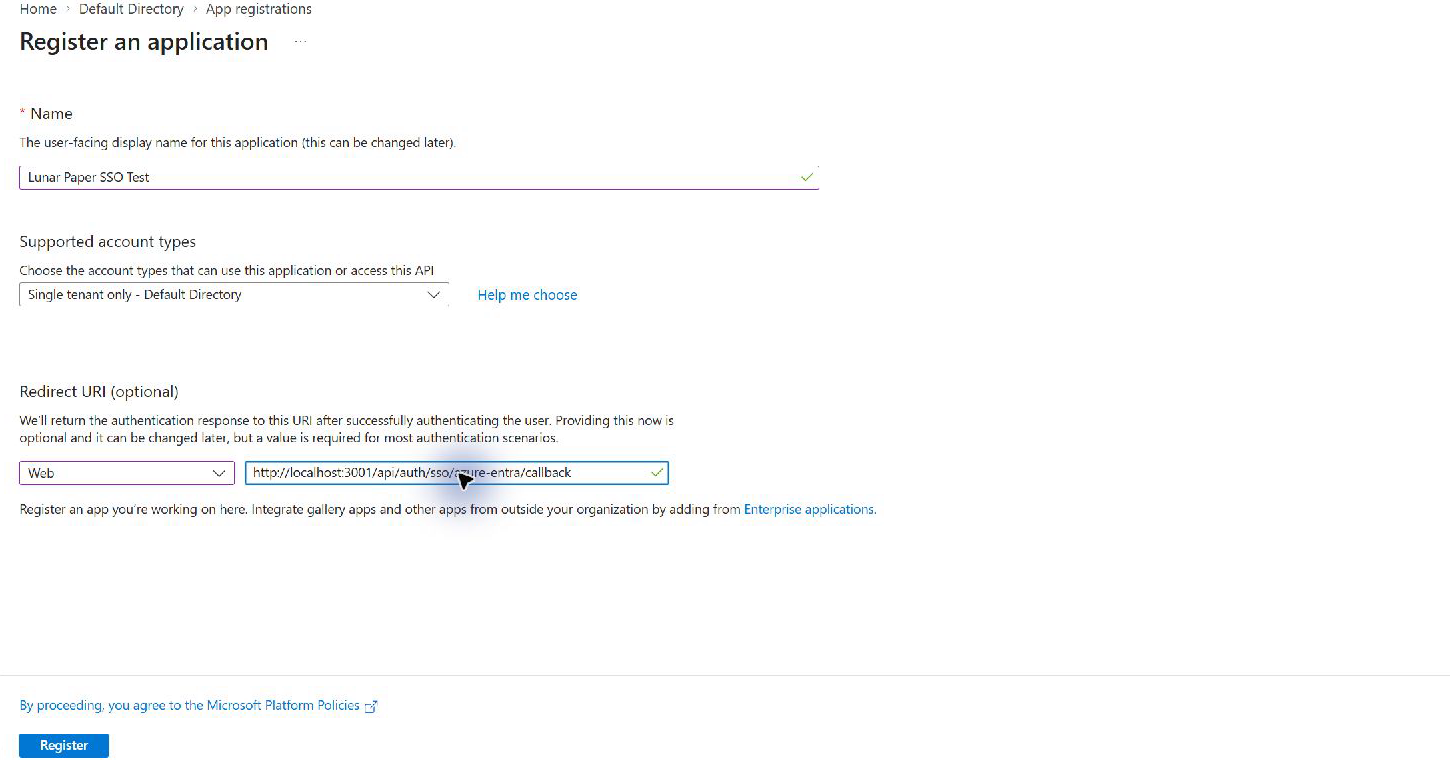
- Register
Lunar Paper SSOin Entra with the exact Lunar Paper callback URI. - Add the Security-groups claim to the ID token.
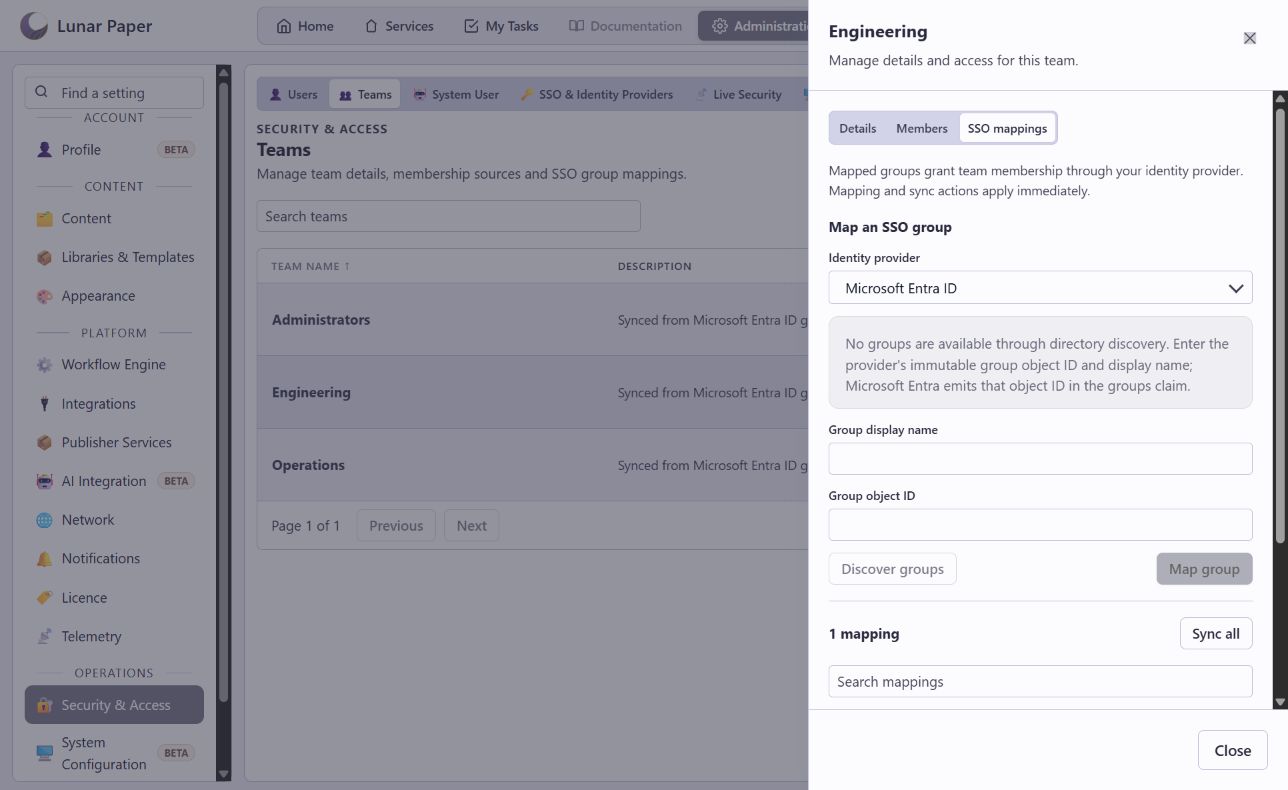
- Configure the Lunar Paper provider with Team membership source set to Sign-in group claims.
- Map each immutable Entra group object ID to the intended Lunar Paper Team.
- Test with an ordinary Entra user. On a Free installation, use Keep enabled on the Users screen after the first callback, then repeat the SSO sign-in.
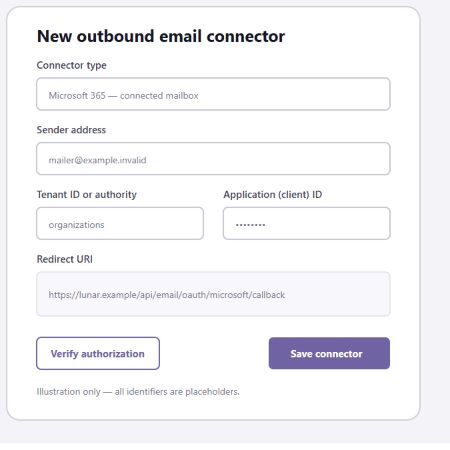
- If outbound email is required, create a separate
Lunar Paper Mailregistration and restrict it to the intended Exchange Online mailboxes. - Configure a Corporate / organization-managed email connector when a workflow must choose between approved From addresses.
- Test each sender separately with one controlled recipient before publishing the workflow.
Send workflow email from approved mailboxes
Section titled “Send workflow email from approved mailboxes”The Microsoft 365 organization connector has a default sender. A workflow can request another mailbox only when all of these conditions are true:
- the connector is classified as Corporate / organization-managed;
- the address passes Lunar Paper’s optional exact-domain sender policy;
- the mailbox is inside the Exchange application access policy or Application RBAC scope; and
- Exchange Online permits the application to send as that mailbox.
In the workflow designer, open Send Email and select the organization connector. Lunar Paper then displays From Address. Leave it empty to use the connector default, or enter the complete address of another approved mailbox. Set a controlled recipient, save the action, and test in dry-run mode first. Enable Run for real only for the deliberate delivery test.
Repeat the live test for every From address that production workflows may use. A successful action means Microsoft accepted the submission; confirm receipt in the destination mailbox before treating delivery as proven.
See Send Email action reference for every workflow field and Outbound email connectors for registration, Exchange scoping, credential rotation, and provider limits.
Verification checklist
Section titled “Verification checklist”- The login page displays the intended Microsoft Entra provider.
- OIDC Discovery succeeds.
- The first SSO callback creates a Microsoft Entra ID user even when a Free seat still needs to be selected.
- After Keep enabled, the same person completes SSO and reaches an accessible Lunar Paper page.
- The Users screen shows Source: Microsoft Entra ID, the Member role, and the expected Team.
- Removing and adding Entra group membership is reflected after a fresh SSO sign-in.
- The Microsoft 365 connector verifies with its default sender.
- A workflow dry run retains its connector, From address, recipient, subject, and body.
- A controlled live test succeeds for every approved From address, and the recipient confirms delivery.
Keep evidence private
Section titled “Keep evidence private”Use placeholders in runbooks, tickets, and screenshots. Remove tenant and application IDs, group object IDs, tenant domains, user addresses, user lists, secret values and IDs, certificates, tokens, passwords, recovery details, and browser account menus. Crop screenshots to the setting being explained and remove image metadata before publication.
The screenshots in this section contain only generic labels, localhost or example values, blank identifier fields, and placeholder addresses. They do not contain customer tenant, group, user, or credential data.