
Quickstart — your first sprite
1. Open the module
Section titled “1. Open the module”Open your service in Lunar Paper. In the left sidebar, scroll to the Creative Modules heading and click Pixel Art. The project library appears.
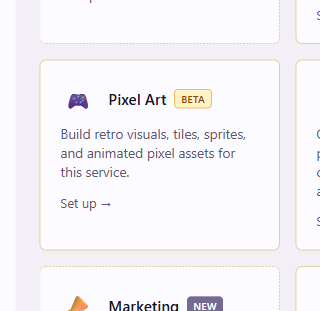
The library has three tabs (All Projects, Recent, and Templates) and a New Project button at the right.
2. Create a project
Section titled “2. Create a project”Click New Project. A small dialog opens.
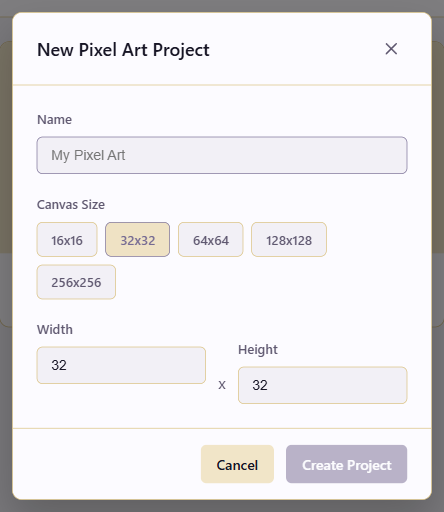
Type a name (goblin_scout_v1, not test or Untitled). Select 32×32 and click Create Project.
The editor opens with the Pencil tool selected. If the canvas looks small, use the zoom controls above it: click Zoom In (+), or pick a percentage from the dropdown. Press Ctrl+0 to fit the canvas to the window.
3. Pick a color and draw
Section titled “3. Pick a color and draw”Click the foreground color swatch in the top-centre toolbar and pick a color. Click on the canvas to place a pixel. Click and drag to draw strokes. Press Ctrl+Z to undo.
4. Save
Section titled “4. Save”Press Ctrl+S (or click Save at the top-left). The project appears in your All Projects list.
5. Export a PNG
Section titled “5. Export a PNG”Click Export in the top-right toolbar.
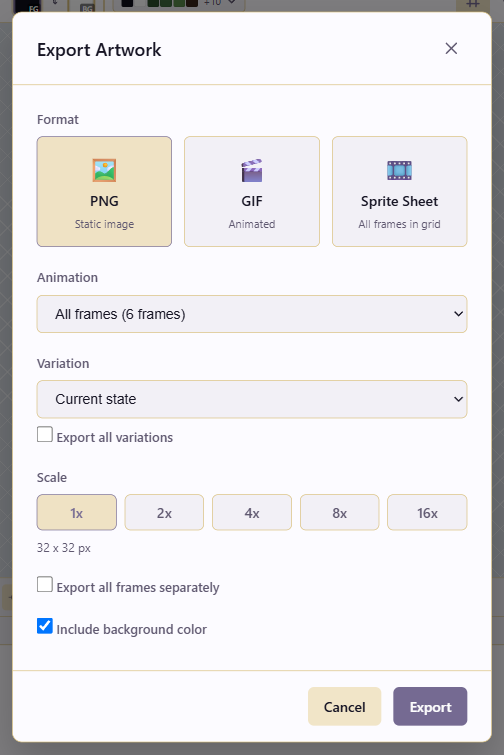
Leave Format on PNG, Variation on Current state, and pick a Scale: 1x for raw pixels, 4x for a larger version. Leave Include background color unticked for a transparent background. Click Export.
Sprites, cycles, and tilesets
Section titled “Sprites, cycles, and tilesets”The Guides hub covers specific outputs: a layered sprite, a walk cycle, a tileset, skin variants. The Editor reference names every region and button.