
Services quickstart
This takes a new service from empty to ready for a team to work in. It takes about twenty minutes, and doing it properly at the start saves a lot of tidying later.
1. Open the service
Section titled “1. Open the service”A service opens at its home page, which is a directory of everything in it.
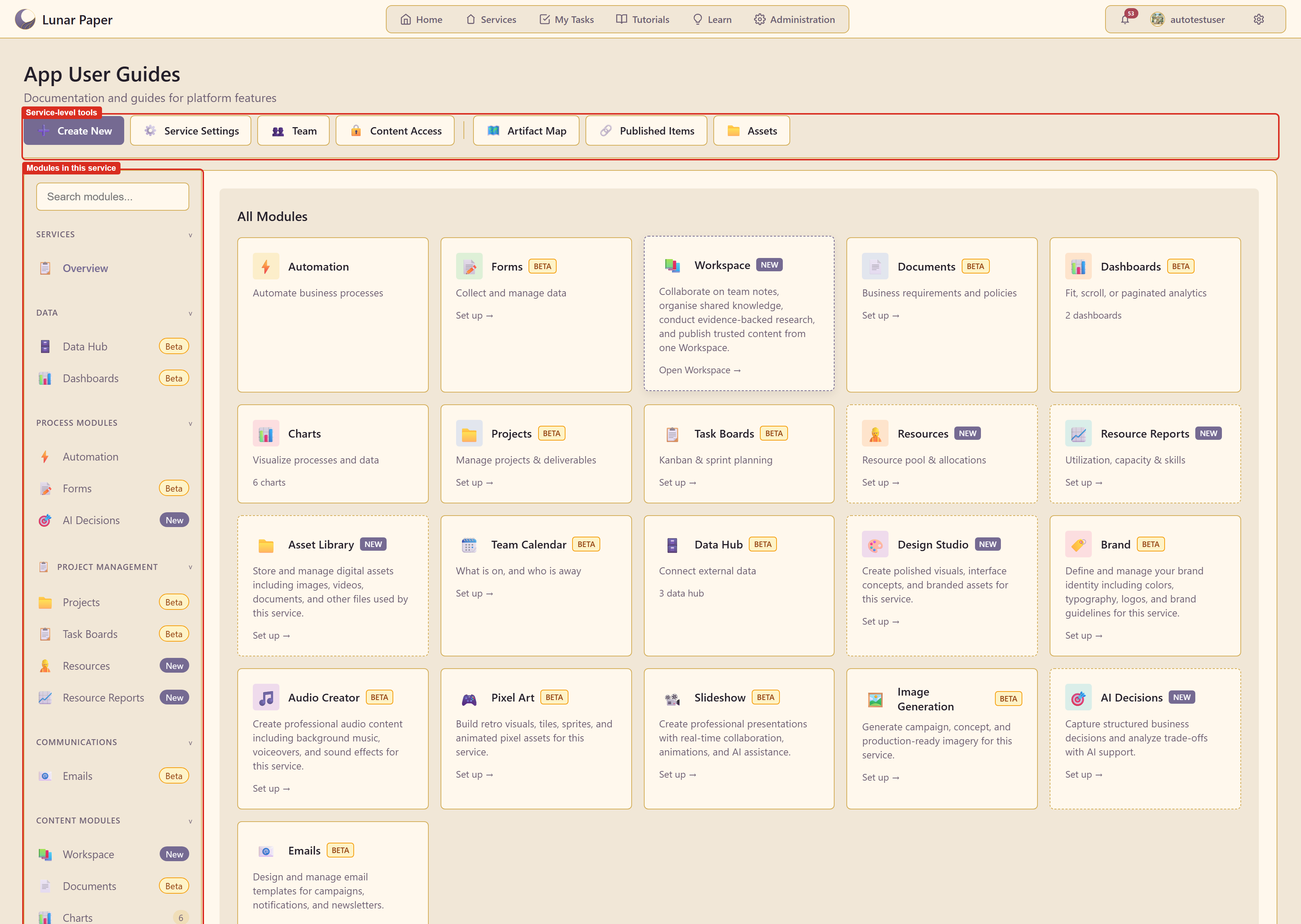
The row of tools across the top applies to the whole service. The list down the left is the modules it can use.
2. Give it an identity
Section titled “2. Give it an identity”Open Service Settings.
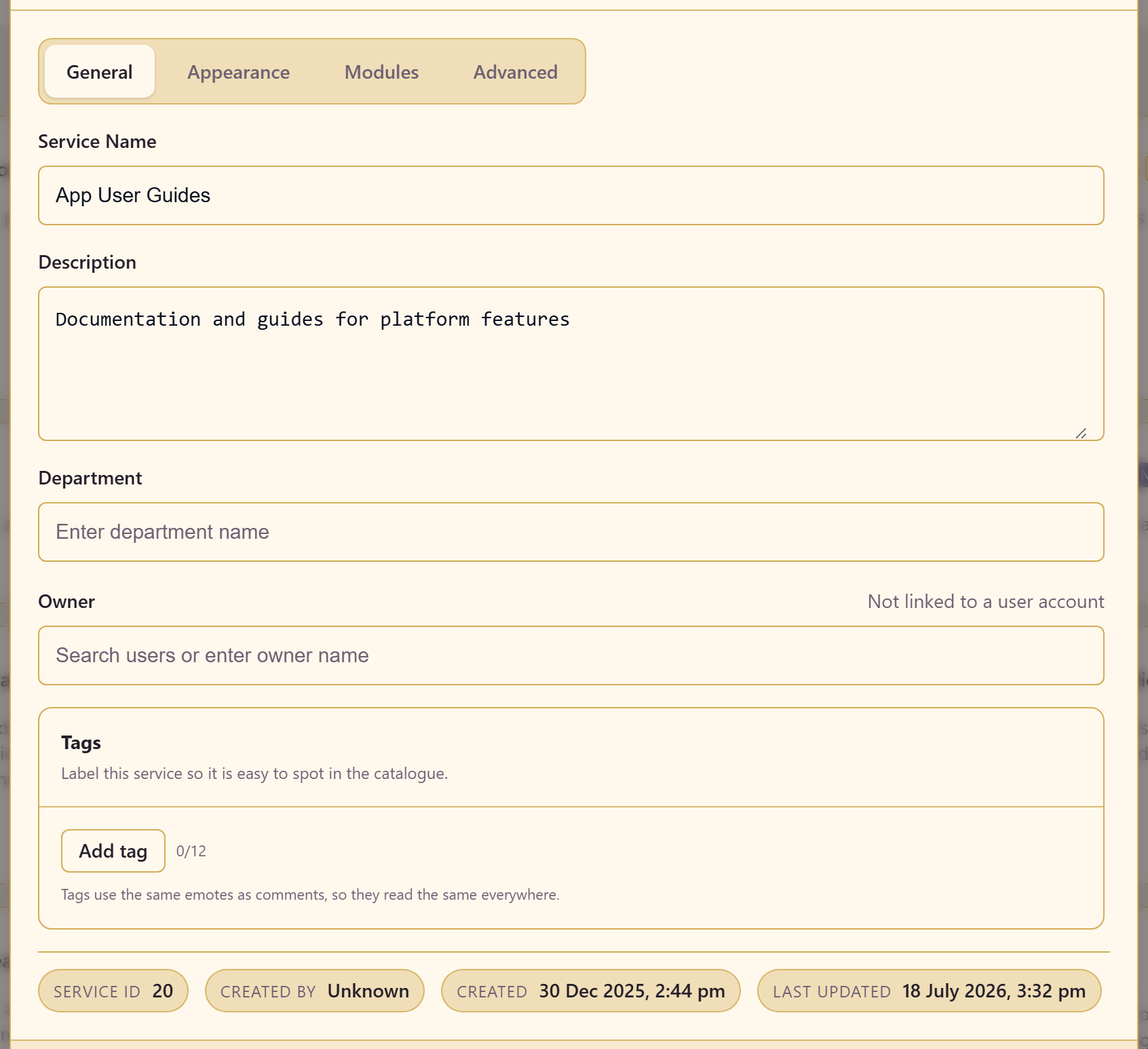
On General, set the name, a description saying what the service is for, the department it belongs to, and an owner.
Fill in the description properly. It is what someone browsing the catalogue reads to decide whether this is the service they want, and “docs” is not an answer.
Add tags — up to twelve — so the service is easy to find later.
On Appearance, pick an emoji icon and an accent colour.
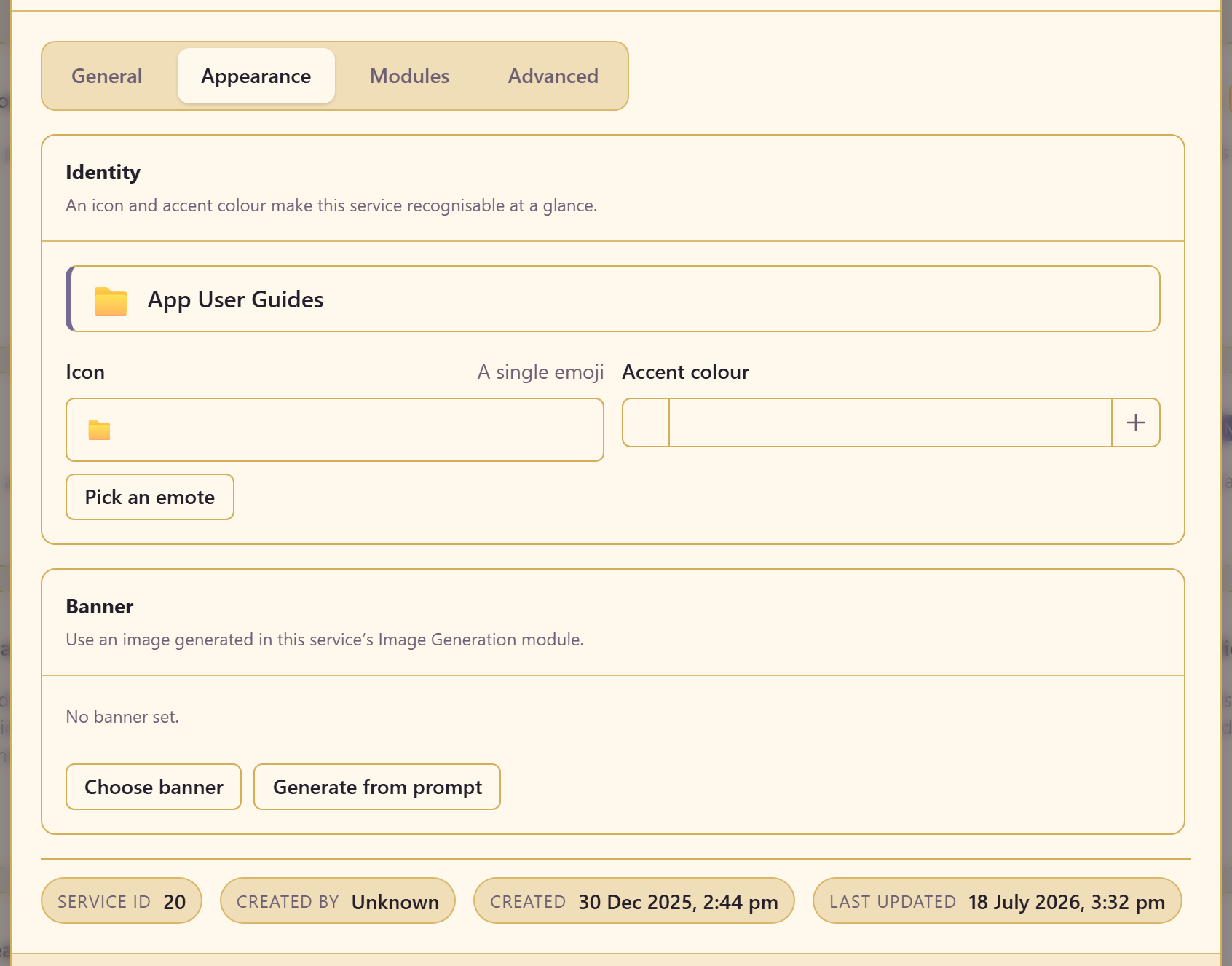
This is not decoration. When someone has eight services open across a week, a distinct icon and colour is how they avoid doing the right work in the wrong place.
3. Turn off the modules you will not use
Section titled “3. Turn off the modules you will not use”Still in settings, open Modules.
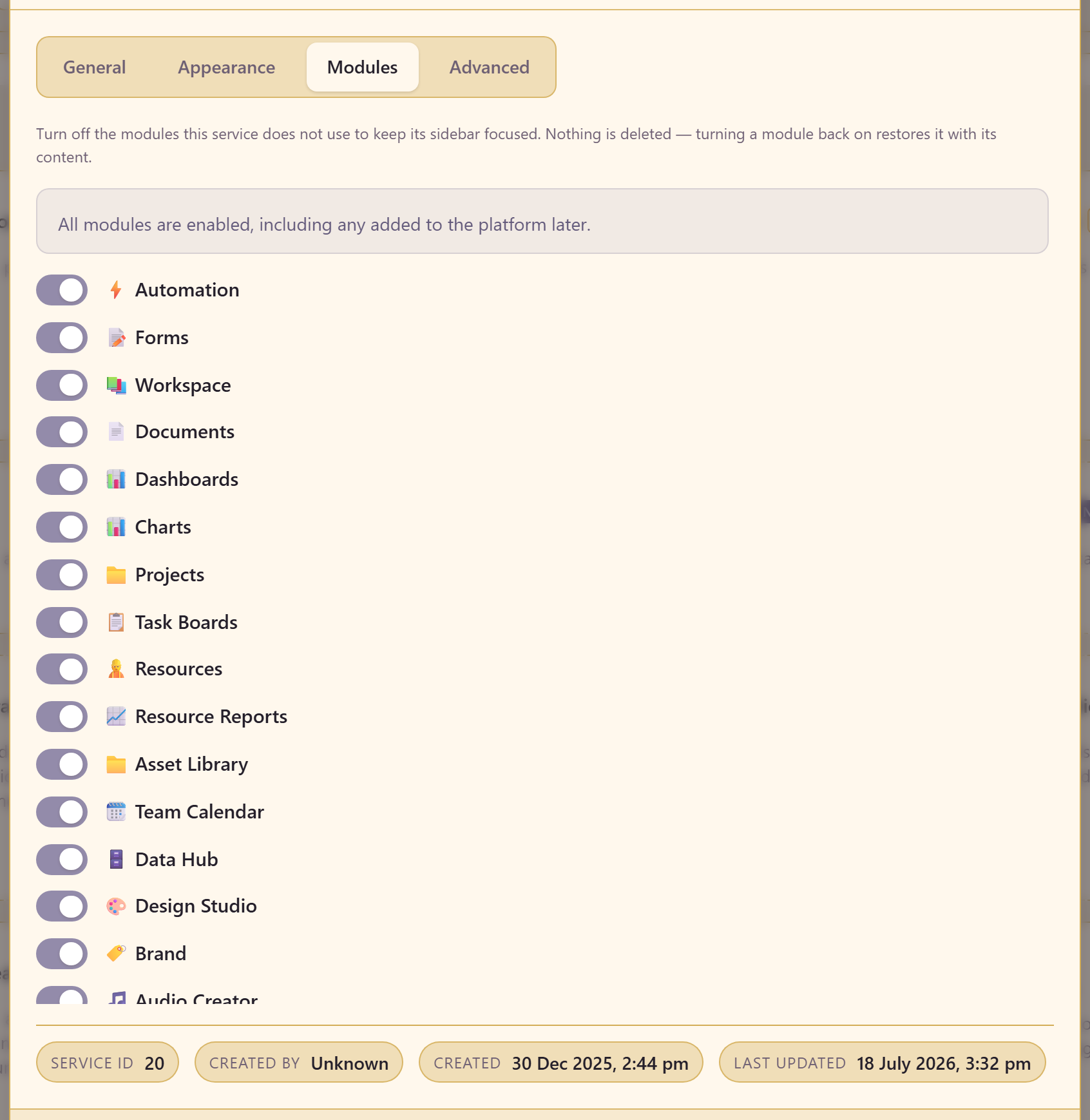
Everything is on by default, including modules added to the platform later. Turn off the ones this service has no use for.
Nothing is deleted. Turning a module back on restores it with its content, so this is a safe decision to revisit.
A service showing twenty modules when the team uses four is a service people scroll past rather than read. Switching the rest off makes the sidebar mean something.
4. Let people in
Section titled “4. Let people in”Open Team.
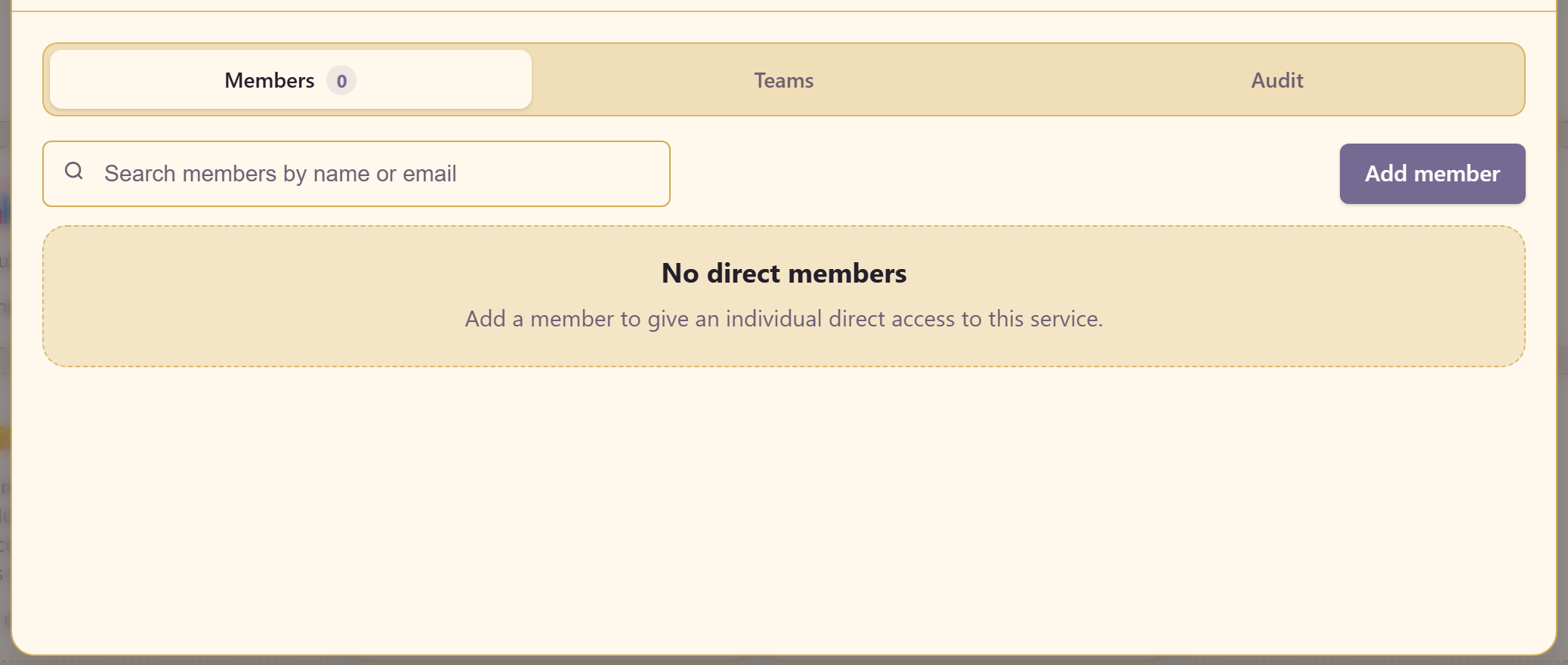
Members gives an individual direct access. Teams links a platform team so everyone in it gets access at once.
Prefer linking a team where one exists. Individual members have to be maintained one at a time, and they are the reason someone still has access two roles after they needed it.
The Audit tab records everything done in the service, filterable by action and by whether a human, an AI, a scheduled job, or the system did it.
5. Decide how far anything may be published
Section titled “5. Decide how far anything may be published”Open Content Access. This is the most consequential setting on the page, and the one most often misread.
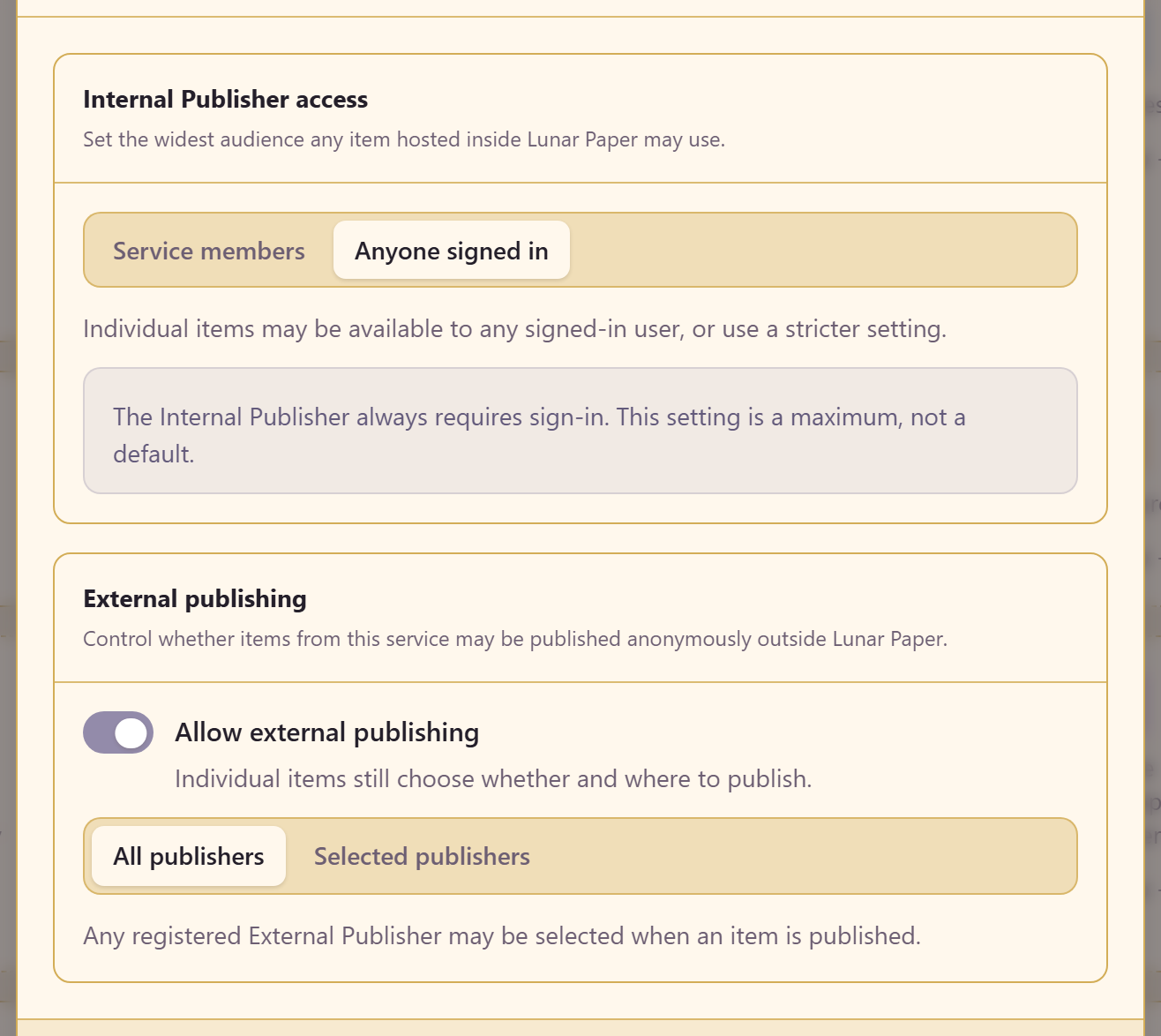
Internal Publisher access sets the widest audience anything hosted inside Lunar Paper may reach — either service members or anyone signed in.
Read that as a ceiling. It does not publish anything and it is not a default. Each item still chooses its own audience, and may be stricter. Setting the service to “anyone signed in” simply means an item is allowed to go that far.
External publishing controls whether anything here may be published anonymously outside Lunar Paper at all. If the answer is no, switch it off — that is one decision made once, rather than a judgement call on every item forever.
If external publishing is on, you can allow any registered publisher or restrict it to selected ones.
6. Create something
Section titled “6. Create something”Open the module for what you want to make, then use its create action. Each module now owns its setup and creation flow, so the choices and templates you see are specific to that type of work.
7. Check the URL
Section titled “7. Check the URL”Back in Service Settings, open Advanced.
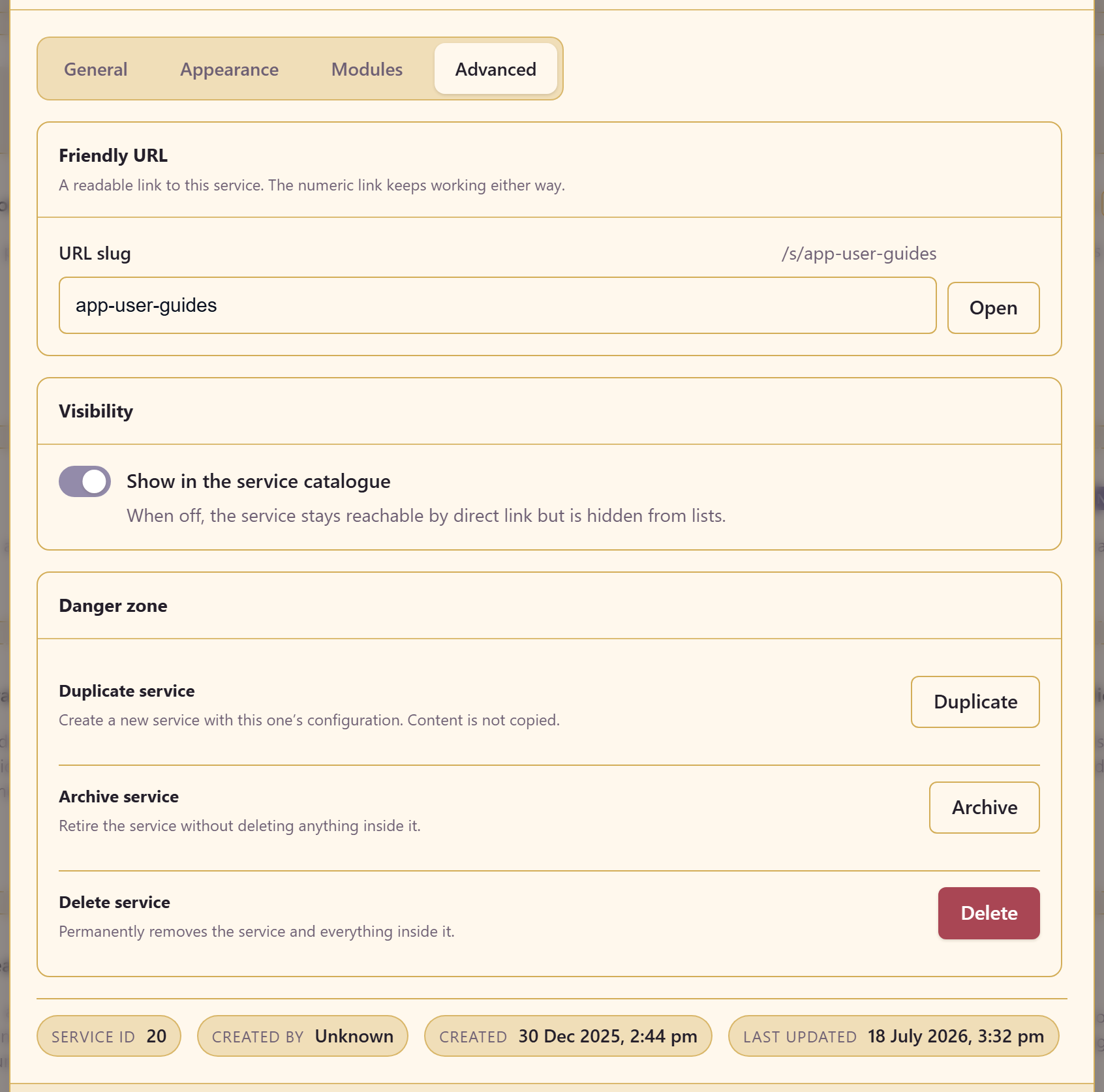
Set a URL slug so the service has a readable address such as /s/app-user-guides. The numeric link keeps working either way, so this costs nothing and makes links you paste into chat comprehensible.
Show in the service catalogue controls whether the service appears in lists. Turning it off keeps the service reachable by direct link but hides it from browsing, which suits a service that is not ready or not for general consumption.
What you have
Section titled “What you have”A service with a clear identity, only the modules it needs, the right people in it, and an explicit limit on how far its content may travel.
Manage people and access covers members, teams, and the audit log in depth. Once there is work inside, See how everything connects shows you the shape of it.