
Rehearse in presenter mode
Presenter mode shows how the deck will actually run in front of an audience, rather than how the slides look one at a time.
1. Select the starting slide
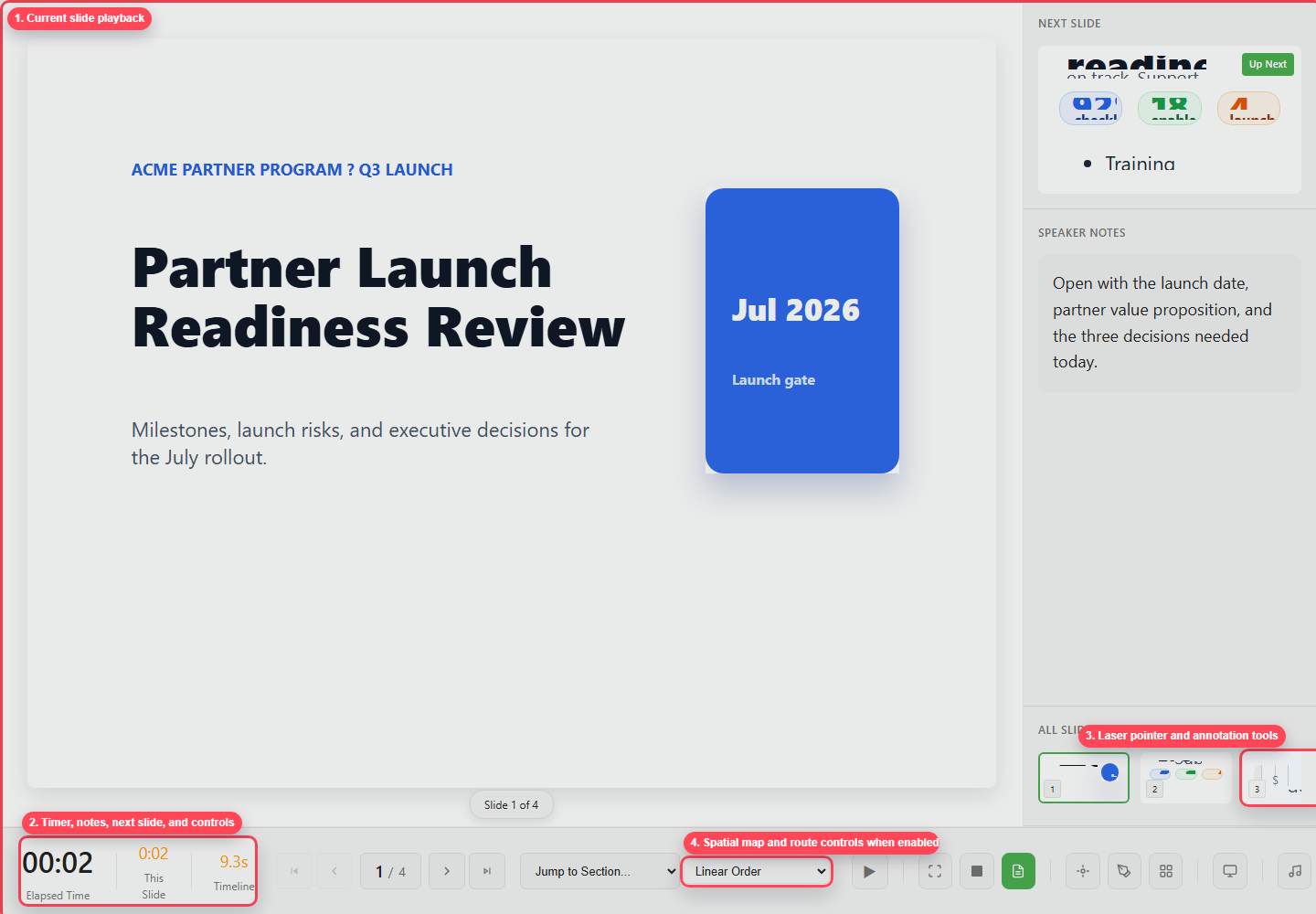
Section titled “1. Select the starting slide”Presenter mode starts from whichever slide is selected, so select the one you want to open on.
2. Click Present
Section titled “2. Click Present”Click Present in the toolbar.
3. Check speaker notes
Section titled “3. Check speaker notes”Check that the notes are short and easy to read at a glance. If any are too long, go back to the editor and rewrite them as prompts you can speak from.
4. Watch the timer
Section titled “4. Watch the timer”Use the timer to rehearse your pacing. Long narration or animation sequences should still leave time for discussion.
5. Test animations
Section titled “5. Test animations”Step through the click-triggered animations. Make sure you can control each reveal, so nothing appears before you are ready to talk about it.
6. Use laser pointer and annotations
Section titled “6. Use laser pointer and annotations”Use the laser pointer to point at something for a moment, and annotations when you need to mark up the slide while you speak.
7. Check narration and music
Section titled “7. Check narration and music”If the deck includes audio, rehearse with narration and background music turned on. Listen for music that competes with the spoken words.
8. Use spatial routes when needed
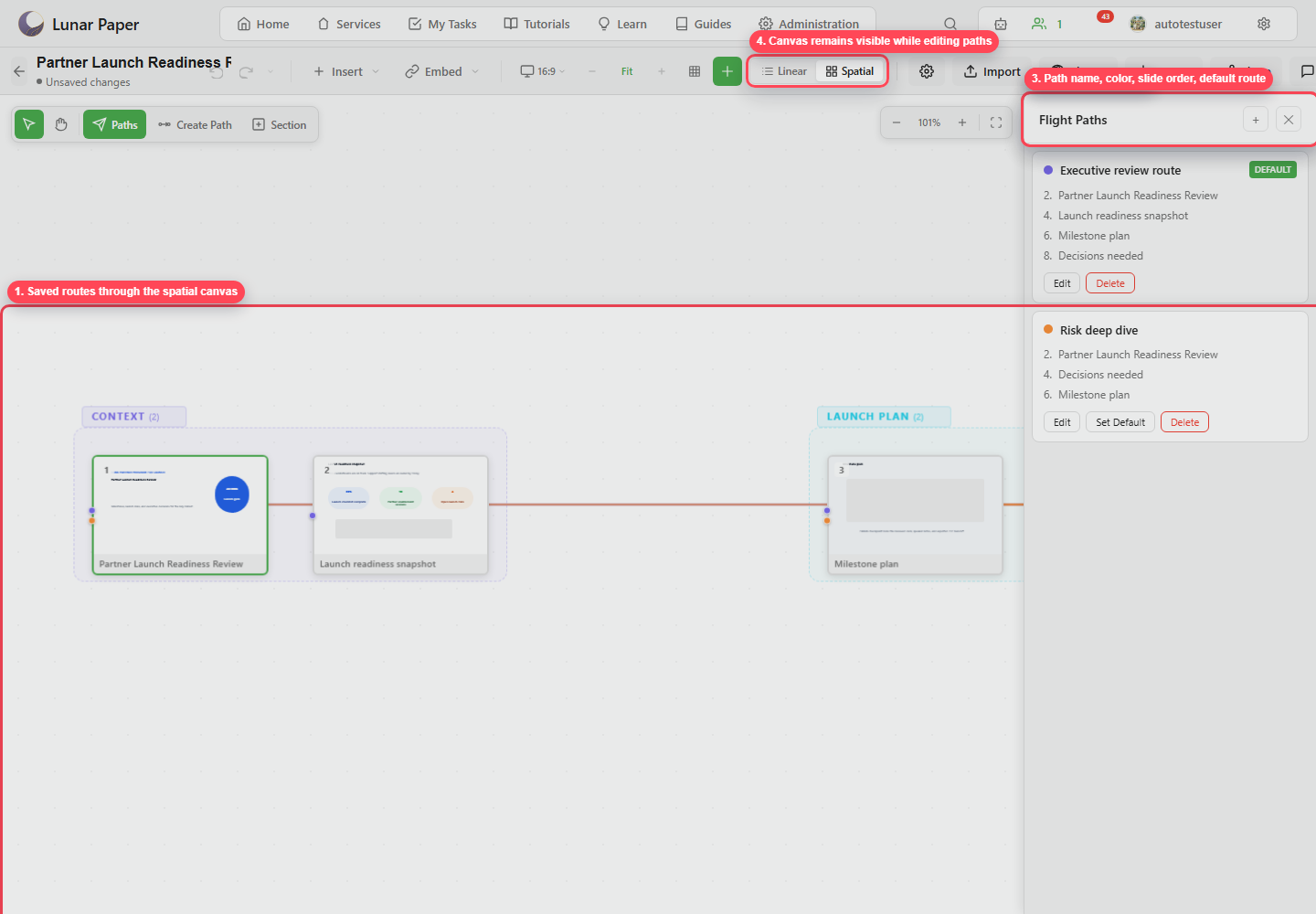
Section titled “8. Use spatial routes when needed”For a non-linear deck, choose the flight path you plan to use, or open the spatial map during rehearsal. Plan a spatial presentation covers how those routes are built.
9. Make a final publish snapshot
Section titled “9. Make a final publish snapshot”When the rehearsal is done, publish a version so the deck you deliver has a fixed snapshot behind it and later edits cannot change what the audience saw.