
Apply a brand
A design can draw on a brand rather than repeating its colours by hand.
Select the brand first
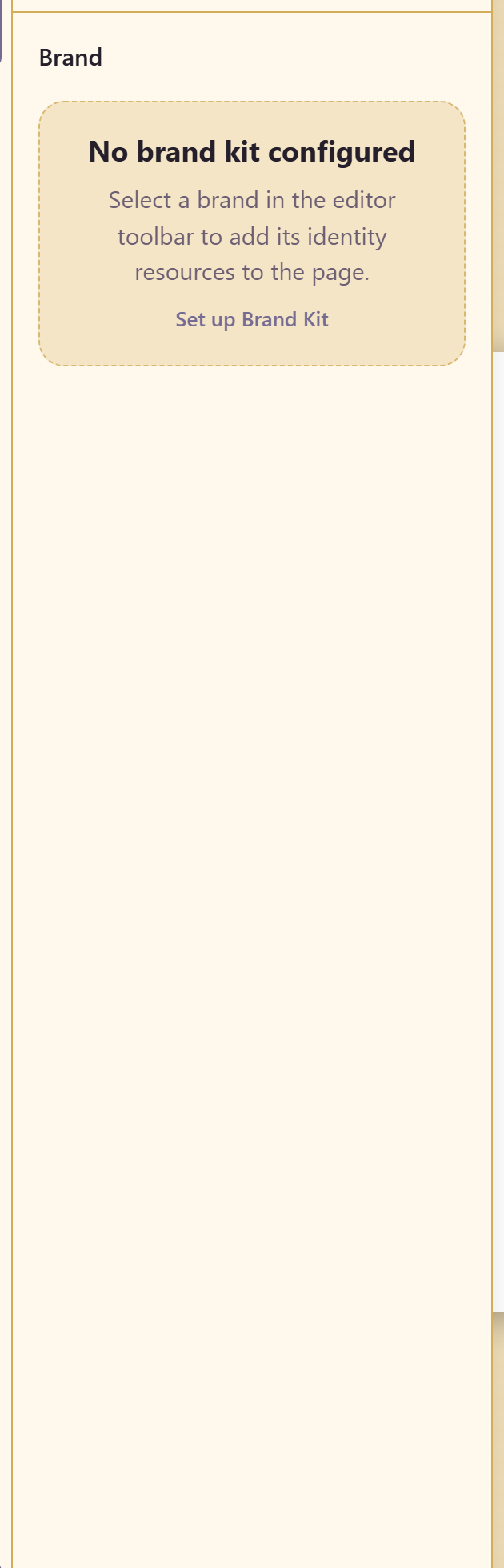
Section titled “Select the brand first”The Brand panel starts empty, and it says what to do: no brand kit is configured, and you select a brand in the editor toolbar to add its identity resources to the page.
So the order is Select Brand in the toolbar, then the Brand panel fills with that brand’s resources.
What it brings
Section titled “What it brings”The brand’s identity resources — its colours, type, and logos — become available on the page rather than needing to be recreated.
That is the difference between a design that stays on-brand when the brand changes and one that quietly drifts. A hex value typed into a design is a copy; a brand resource is a reference.
If the service has no brand
Section titled “If the service has no brand”Set one up first. Create a brand covers it, and a brand with nothing but colours and a logo is already worth pulling in.
Related
Section titled “Related”Brand is the module that defines the identity. Generate with AI has a Brand-led colour option that uses it from the start.