
Use the Asset Store
The Asset Store is the library of prebuilt pixel art you can place into a project: characters, enemies, items, weapons, tiles, and effects. It is the quickest way to drop in a believable placeholder or a common asset such as a knight, a coin, or a torch flame, instead of drawing one from scratch.
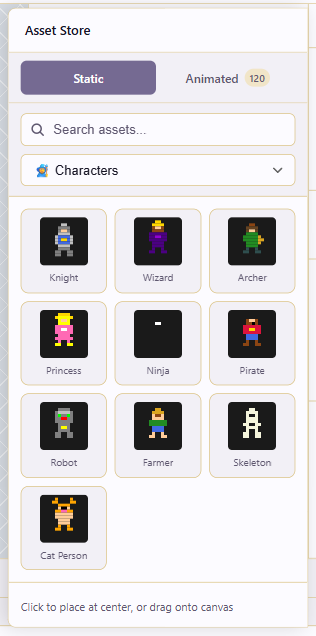
Open the store
Section titled “Open the store”Click Asset Store in the top toolbar. Two tabs appear: Static (single images) and Animated (frame sequences).
Browse or filter
Section titled “Browse or filter”Use the category filters to narrow the list: Characters, Enemies & Monsters, Items & Collectibles, Weapons & Tools, Nature & Environment, Buildings & Structures, UI Elements, Food & Consumables, Vehicles & Transport, Effects & Particles. Use the search box for specific items (knight, wizard, torch).
Place a static asset
Section titled “Place a static asset”There are two ways to place a static asset. Click an asset to put it at the centre of the canvas, or drag it onto the canvas to place it at a specific spot.
The asset becomes pixels on the active layer and frame, so it behaves like any other pixels afterward: select it, move it with Move (V), recolor, erase, or merge.
Insert an animated asset
Section titled “Insert an animated asset”Switch to the Animated tab and pick an asset (a torch flame, an explosion). Insert it, and the asset arrives as a frame sequence, with the frames added so the animation plays correctly. Check the timeline afterward to confirm the frame count and durations landed where you expected.
Adjust after placement
Section titled “Adjust after placement”Placed assets are not locked, and they arrive with their own colors. Two adjustments are common.
A store asset in 32 colors placed into a 16-color piece will look out of place, so recolor it to fit. Use Hue/Saturation for a broad shift, or select matching colors with the Magic Wand and Fill them with palette colors.
Pixel art doesn’t scale cleanly, so prefer placing an asset whose native size matches your canvas. If you genuinely need to resize, expect to clean up the silhouette by hand.
Place on a fresh layer
Section titled “Place on a fresh layer”Drop assets onto a new layer (Ctrl+Alt+N) so you can move, hide, or delete them without disturbing your art. This is especially useful for animated assets, where the inserted frames are otherwise interleaved with your existing layer content.