
Create a project from a template
Open a service in Lunar Paper, go to Creative Modules, and click Audio Creator. Click Create Project.
The dialog offers six starting points:
| Template | Use it for |
|---|---|
| Blank Project | Building from scratch with no preloaded sections or tracks. |
| Podcast Intro | A music bed plus a voice track for podcast openers. |
| Presentation BGM | Background music that sits under slides and videos. |
| Video Score | Cinematic scoring with layered instruments. |
| Ambient Scene | Immersive soundscapes for relaxation, focus, or atmosphere. |
| Beat Making | Multi-track beat production with drum and instrument lanes. |
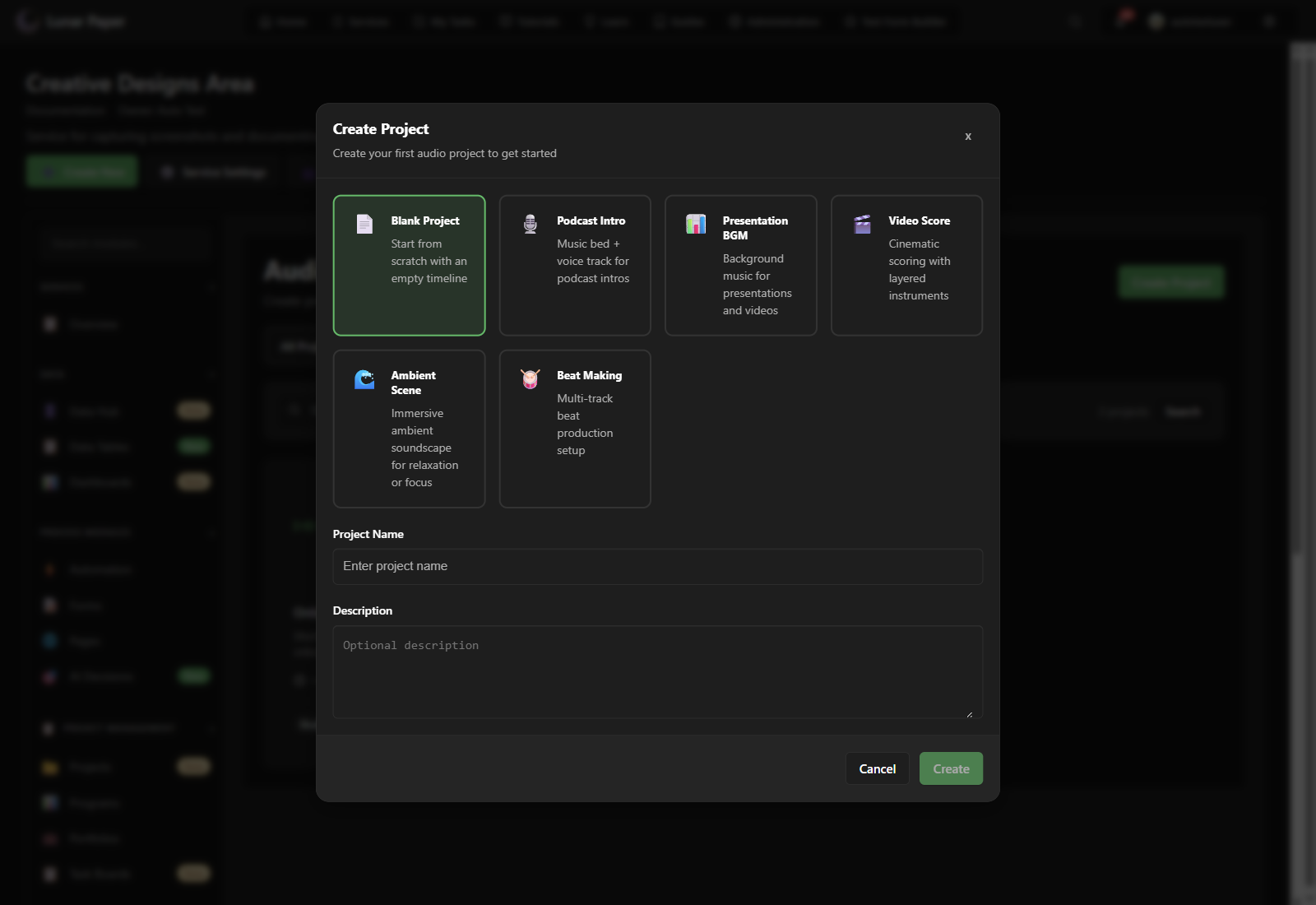
Pick the template that matches your output. A Podcast Intro template may open with a music section and a voice lane already labeled. A Beat Making template may have separate tracks for drums, bass, and melody.
Type a meaningful project name. Avoid placeholders such as test or Untitled. A good name makes the project library, version history, and exported files easier to understand (Lunarcast Intro).
Click Create. Audio Studio opens with the template structure on the timeline.
Starting from a blank project
Section titled “Starting from a blank project”If none of the templates fit, choose Blank Project. You get an empty timeline and a single track to build from.
With the project open
Section titled “With the project open”With the project open, Build an arrangement with sections is the usual next step, followed by Work with tracks to fill those sections in. Once several tracks are playing together, Use the Mixer helps you balance them.