Add narration and music
Narration turns a deck into a guided presentation. Use it for async reviews, training, product updates, and web exports.
1. Write speaker notes first
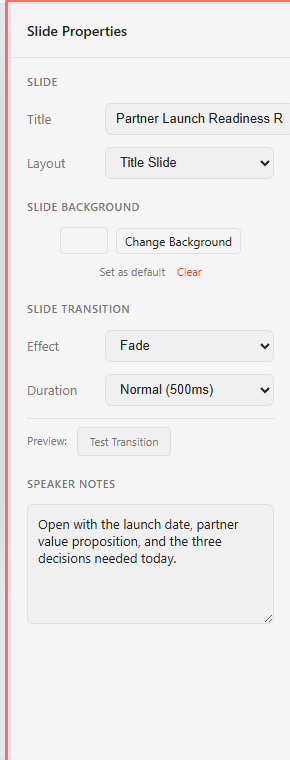
Section titled “1. Write speaker notes first”Write notes in Slide Properties before you record or generate narration. The notes give the narration a clean script to work from and make later edits easier.
2. Open the animation timeline
Section titled “2. Open the animation timeline”Expand Animation Timeline. The audio tools sit next to the animation timing because narration and motion usually have to line up.

3. Record narration
Section titled “3. Record narration”Use Record to capture microphone narration for the current slide. Review the take, then save it as a narration block.
4. Import narration
Section titled “4. Import narration”Use Import when narration already exists as an audio file. Choose narration as the target and assign the correct language when prompted.
5. Generate AI voiceover
Section titled “5. Generate AI voiceover”Use AI Voice to generate narration from speaker notes or slide content. Generate one slide first, review the voice and timing, then generate more slides if the style works.
6. Manage language tracks
Section titled “6. Manage language tracks”Use the active language control on the timeline to edit a translated narration. Finish each language track before you export files in that language.
7. Add background music
Section titled “7. Add background music”Enable background music when the deck needs mood or pacing. Set volume low enough that narration remains primary.
8. Use ducking during narration
Section titled “8. Use ducking during narration”Turn on ducking so music volume lowers while narration plays. Tune the duck volume after listening to a full slide.
9. Align audio with animation
Section titled “9. Align audio with animation”Set animation delays and durations so each element appears shortly before or during the narration line that explains it. Animate slide content covers the timeline controls in detail.
10. Export with audio
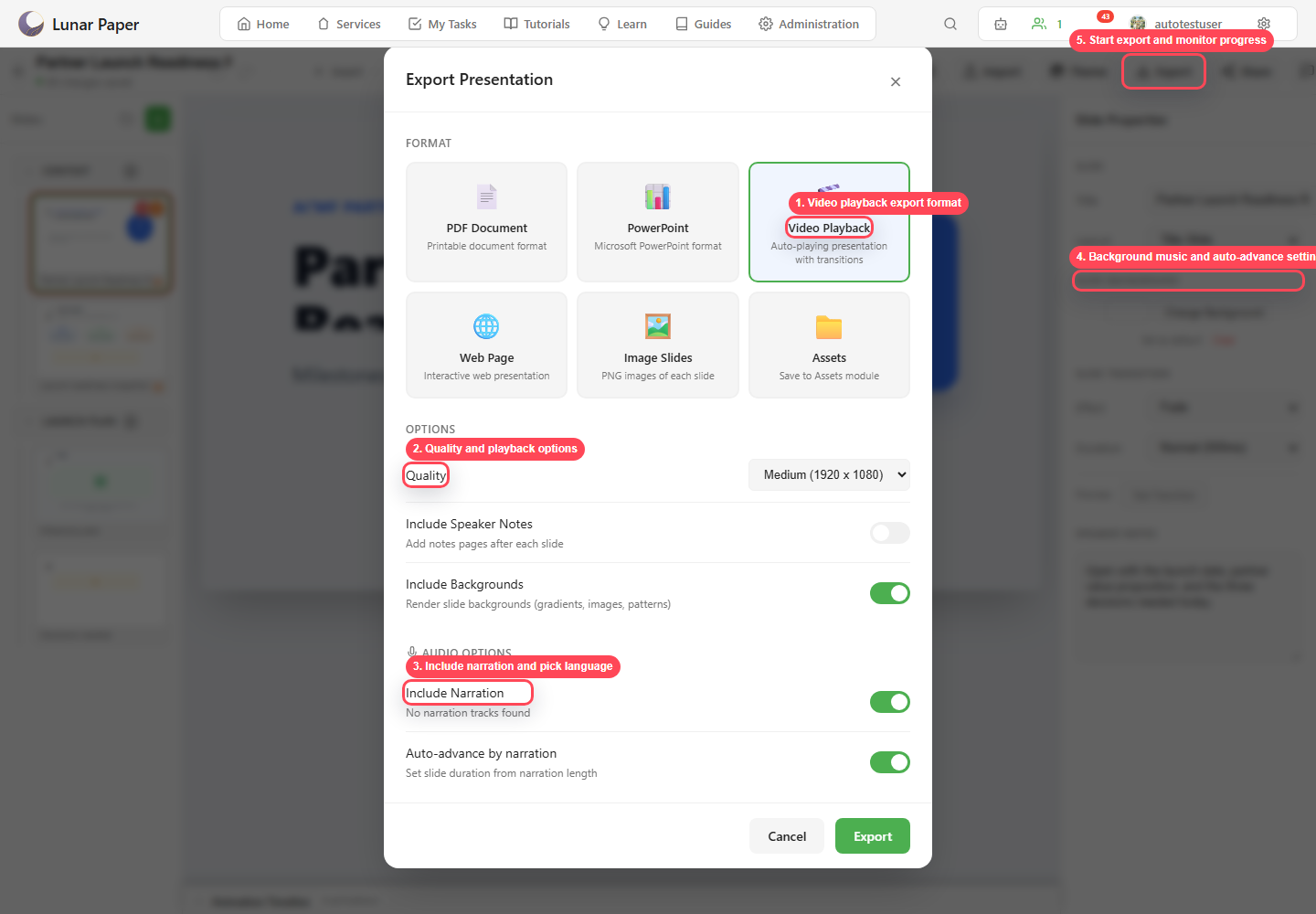
Section titled “10. Export with audio”Choose Video Playback or Web Page export. Turn on narration, select the narration language, include background music if you want it, and turn on auto-advance by narration so viewers watching on their own do not have to click through the deck.