
Vocal Booth
Double-click empty space on the timeline to open the instrument picker, then choose 🎤 Vocal Booth.
A voice recorder with eight effects you can audition and adjust after recording.
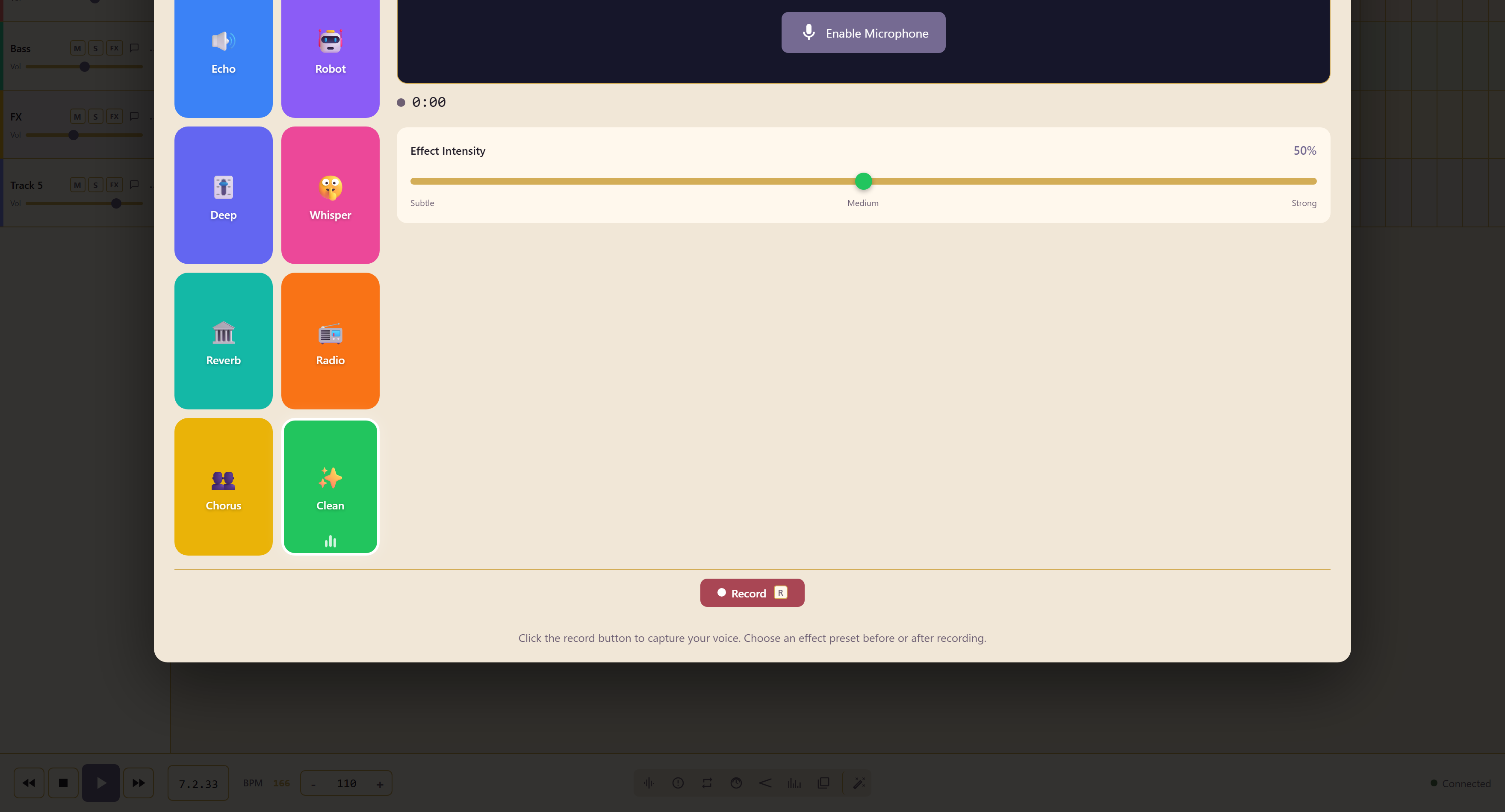
Recording
Section titled “Recording”Enable Microphone first — the browser asks for permission, and nothing records until it is granted. A timer runs while you record, and Record, or R, starts and stops the take.
Eight effects
Section titled “Eight effects”Echo, Robot, Deep, Whisper, Reverb, Radio, Chorus, and Clean.
Clean is the one to record with unless you are certain about the effect, because you can pick a preset before or after recording. Record clean, then audition the effects against the arrangement.
Effect intensity
Section titled “Effect intensity”Effect Intensity sets how hard the preset is applied, with Subtle, Medium, and Strong as marked positions.
Most presets are better at Subtle than the name suggests. Radio at Strong is a novelty; Radio at Subtle is a usable narration texture.
Reopen and edit the recording
Section titled “Reopen and edit the recording”Switch to Performance to view the original waveform, adjust trim points and fades in seconds, change gain, and edit the effect and intensity. These edits preserve the source recording. Switching back to Instrument retains an uncommitted microphone take.
Saving stores the source audio with the service. An older unavailable recording needs Relink source audio and the original file. Edit recorded performances covers the controls and save options.
Related
Section titled “Related”Vocal Synth sings typed lyrics when no voice is available. Use the Mixer covers sitting a voice against the rest of a mix.