Review with comments
Comments keep review discussion attached to the deck instead of scattered across messages.
1. Open Comments
Section titled “1. Open Comments”Click Comments in the top toolbar.
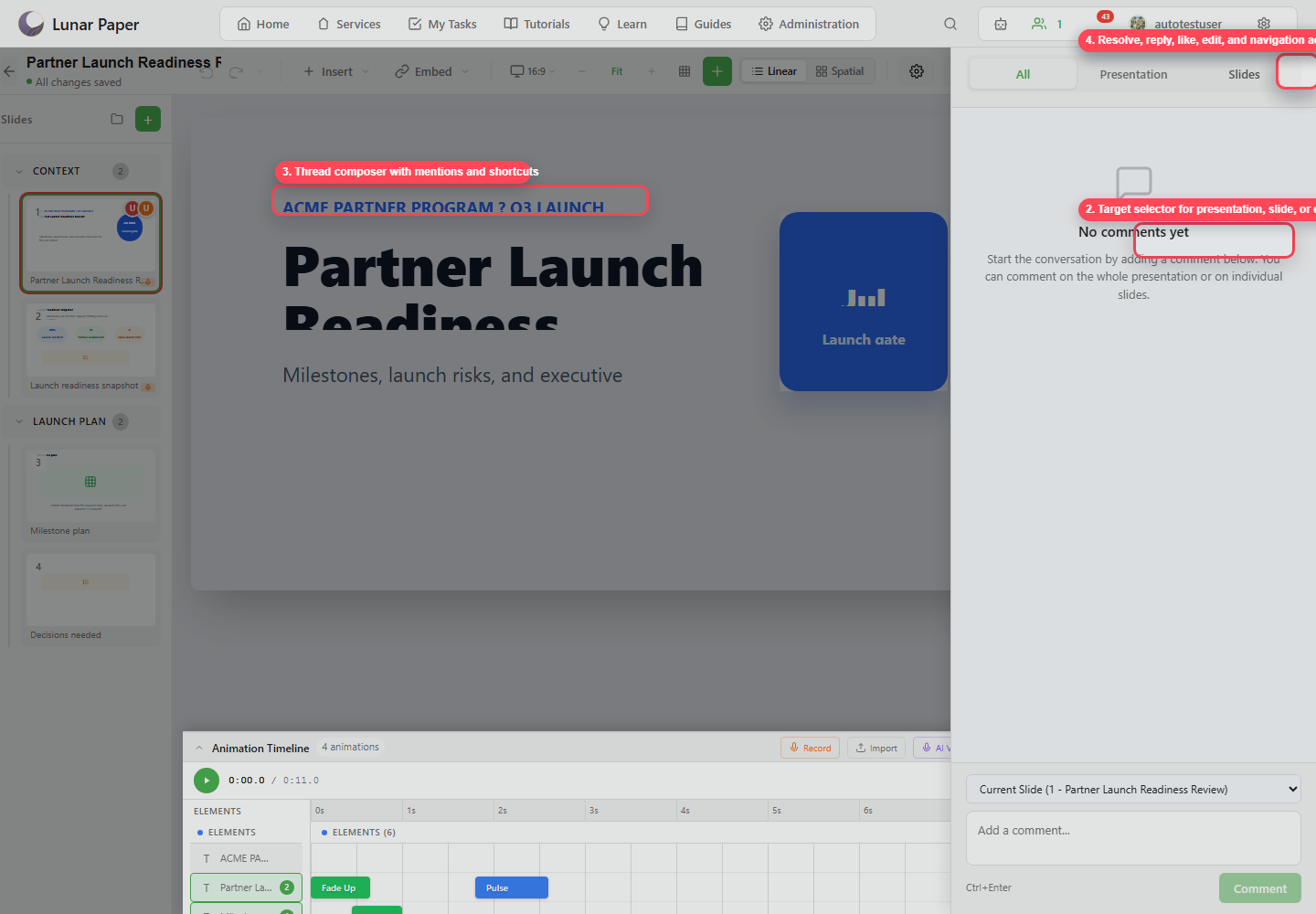
2. Choose a target
Section titled “2. Choose a target”Use the target selector to comment on the whole presentation, the current slide, or another slide. Comment on the presentation for broad feedback, and on a slide when you are asking for a specific change.
3. Write the comment
Section titled “3. Write the comment”Use the composer at the bottom of the comments panel. Mention teammates when a thread needs a specific response.
4. Navigate from threads
Section titled “4. Navigate from threads”When a comment belongs to a slide, use the thread navigation action to jump to the relevant slide.
5. Reply and react
Section titled “5. Reply and react”Reply inside the thread so the discussion stays in one place. Use a like to acknowledge a comment when no written reply is needed.
6. Resolve review items
Section titled “6. Resolve review items”Resolve a thread once you have made the change, or once the team decides not to act on it. Reopen the thread if the issue comes back.
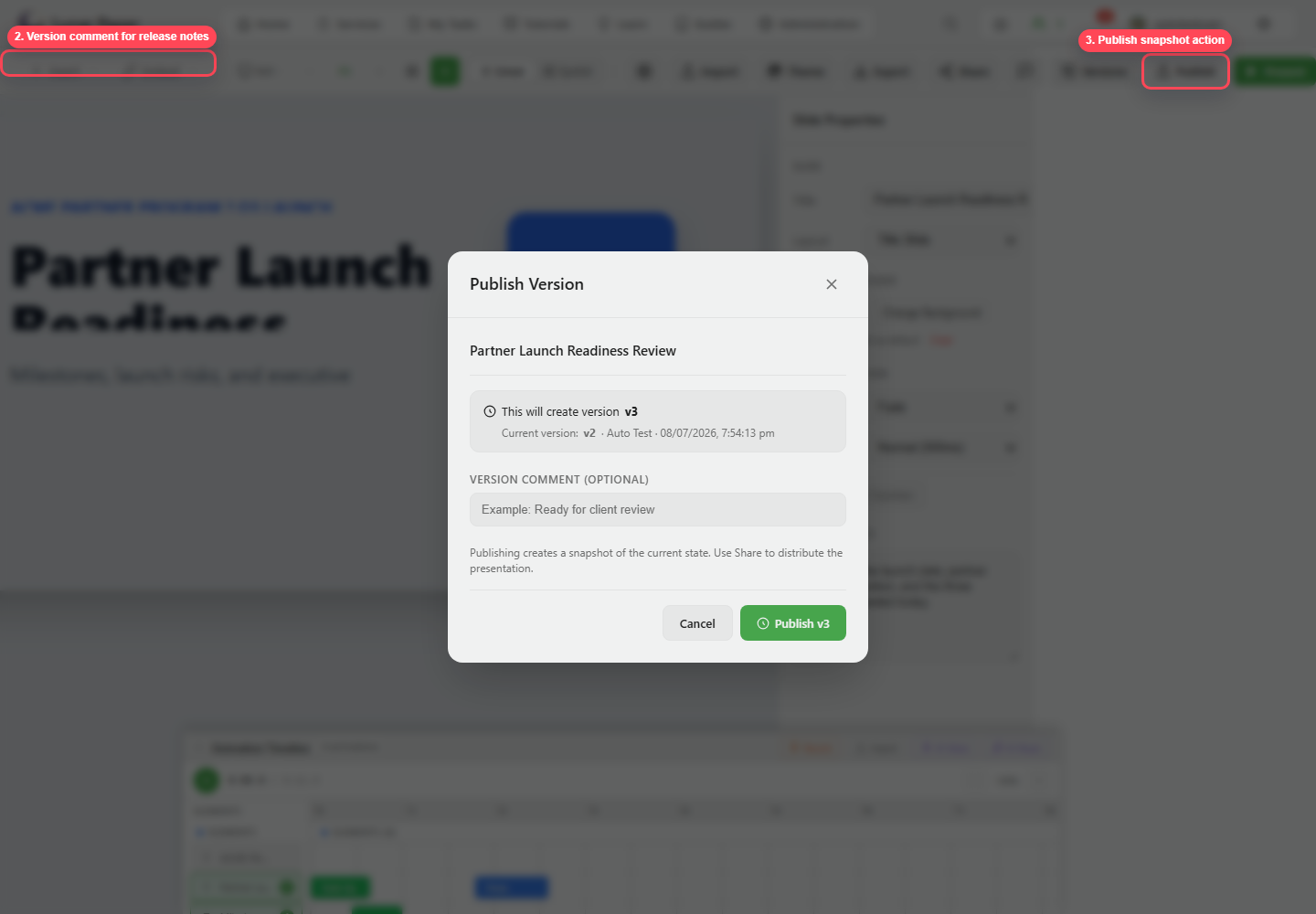
7. Publish the reviewed version
Section titled “7. Publish the reviewed version”When comments are resolved, click Publish and add a version comment that names the review milestone.
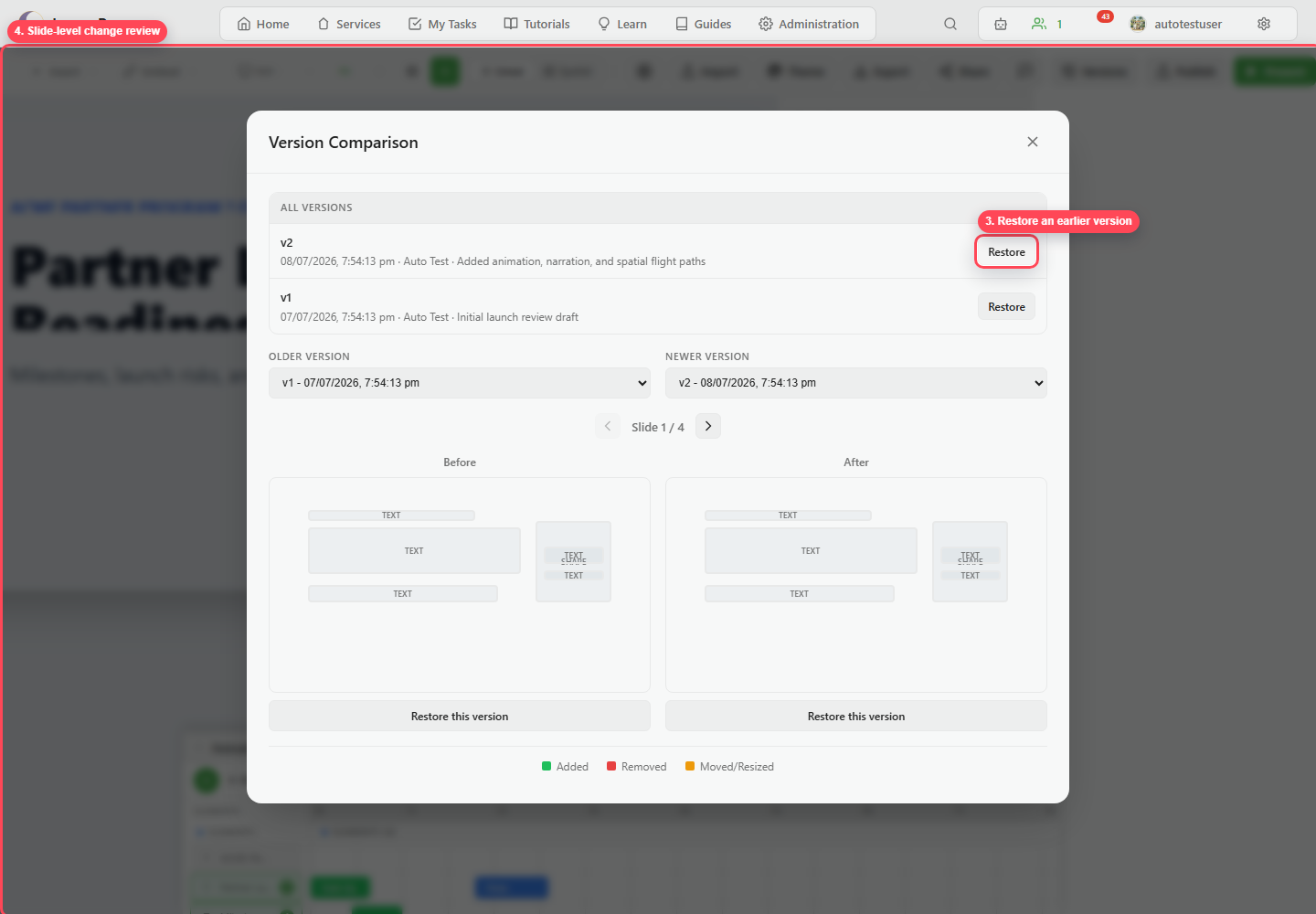
8. Compare if needed
Section titled “8. Compare if needed”Use Versions to compare the reviewed state against the earlier draft, which shows the team exactly what their feedback changed. Publish, share, and version a deck covers the comparison and restore controls.