
Build the resource pool
The resource pool is the service’s directory of people who can be put on projects. Each entry carries a role, a capacity, a skill list, and a running utilisation figure across every project they are allocated to.
Open the pool
Section titled “Open the pool”Choose Resources under Project Management.
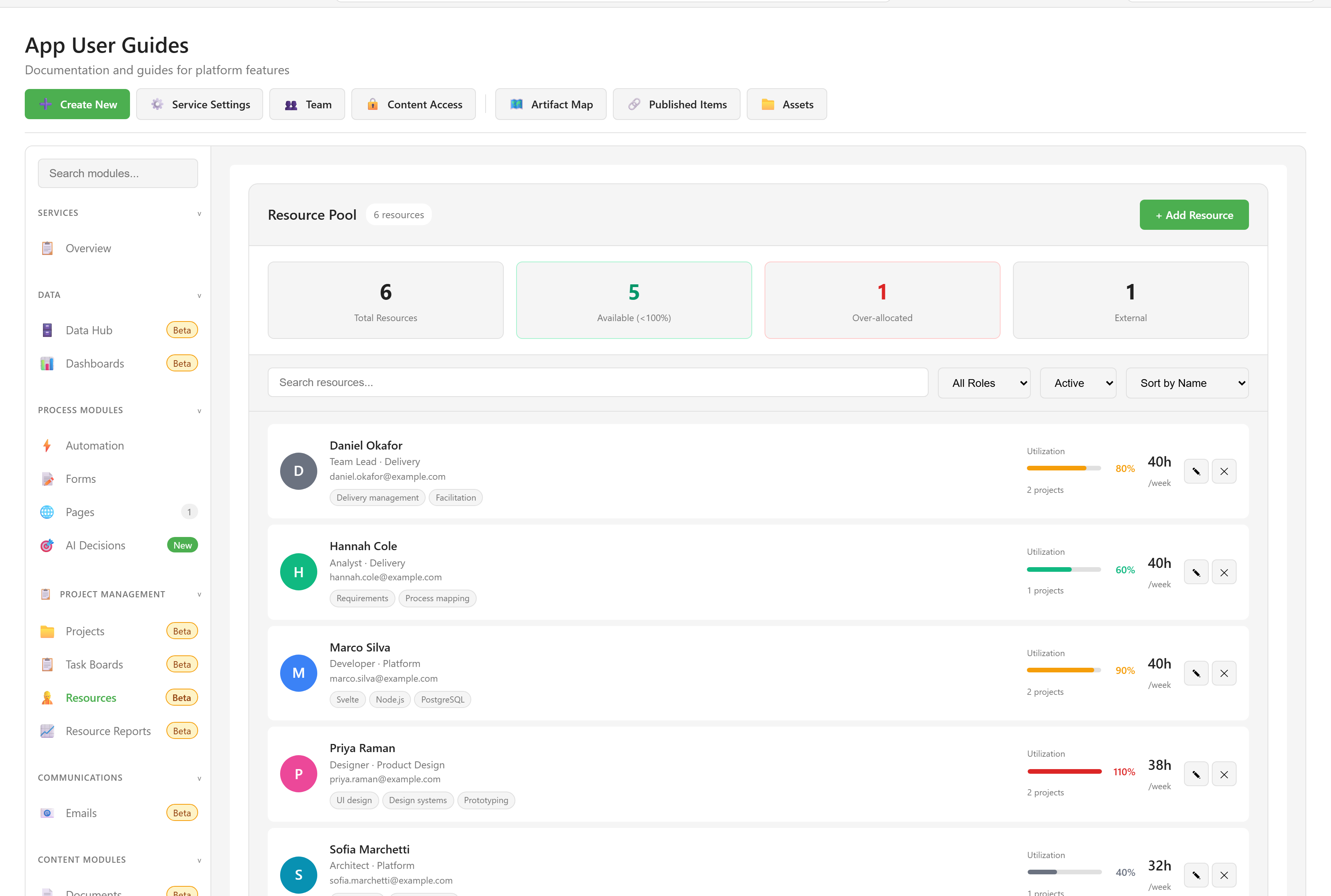
Four tiles summarise the pool: Total Resources, Available (<100%), Over-allocated, and External. Note that these tiles and the count beside the heading describe the whole pool, not the filtered list below them, so they do not change as you search.
Add somebody
Section titled “Add somebody”Choose + Add Resource. The dialog offers two routes.
From Platform User searches people who already have a Lunar Paper account, and hides anyone already in the pool. Type at least two characters. You then set a Role and Department. Everything else takes its default, which means a resource created this way always gets the standard 40-hour capacity.
Manual Entry is for people without an account — contractors, agency staff, a supplier’s engineer.
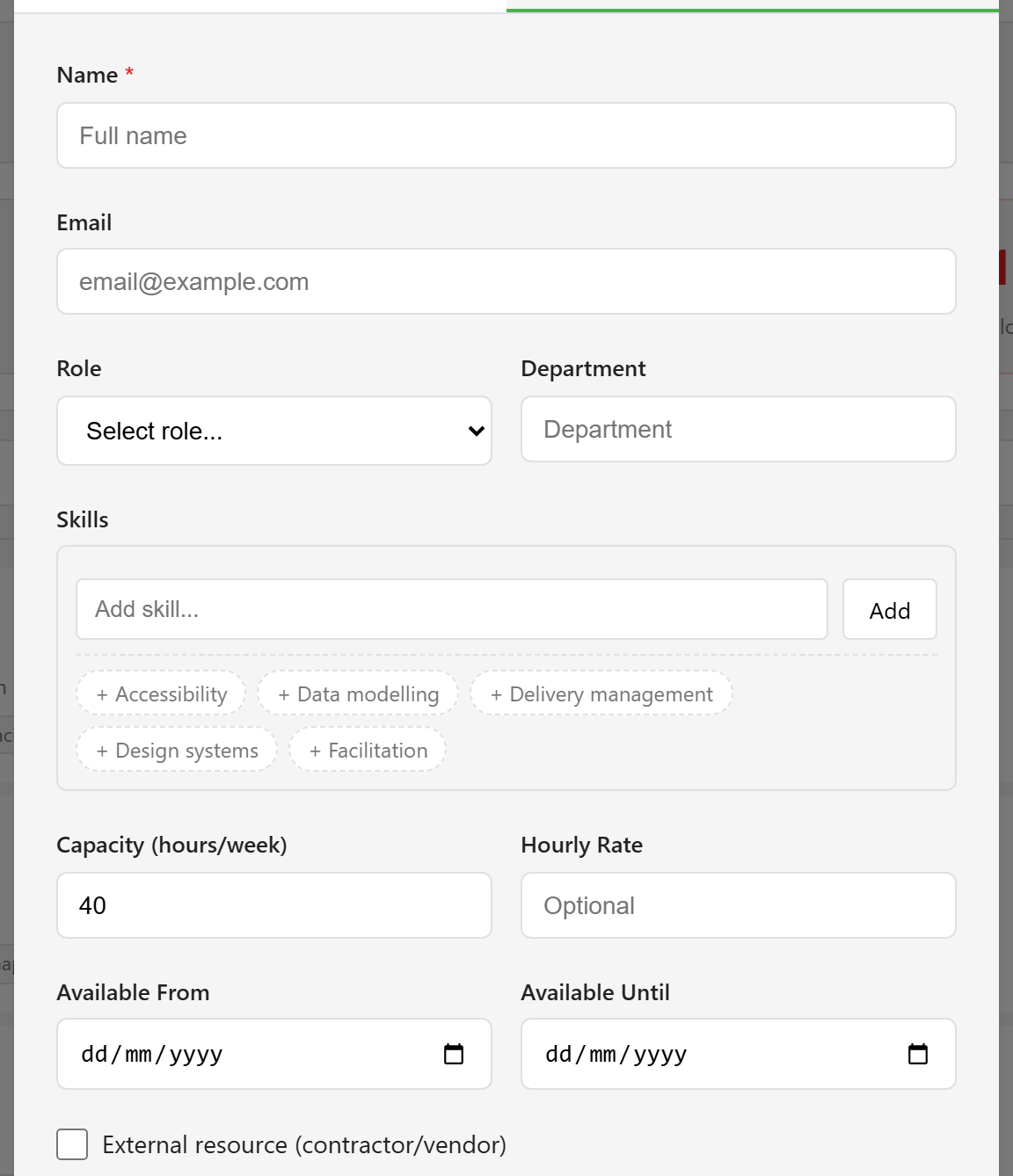
| Field | Notes |
|---|---|
| Name | Required. |
| Optional but worth having. | |
| Role | Manager, Developer, Designer, Analyst, Tester, Architect, Team Lead, Consultant, or Other. |
| Department | Free text, shown under the name. |
| Skills | Added one at a time; the card shows four then a count. |
| Capacity (hours/week) | Defaults to 40, accepts 1 to 80. |
| Hourly Rate | Optional. |
| Available From / Until | Optional window. |
| External resource | Marks the person as a contractor or vendor, and adds an External badge. |
Read a resource card
Section titled “Read a resource card”Each card carries the person’s role and department, their email, up to four skills, and two numbers that are easy to confuse.
Utilization is the sum of their active allocation percentages across every project in the service. Under 50% shows grey, 50–79% green, 80–100% amber, and above 100% red.
Capacity is the hours per week you recorded. It is displayed and it is summed in capacity forecasting, but no calculation turns a percentage into hours. A person at 100% is fully allocated regardless of whether their capacity says 40 hours or 8.
Keep it honest
Section titled “Keep it honest”Two things fill this pool without anyone visiting it. Adding a person to a project team creates a resource for them, and so does assigning them a task on a board linked to a project. Expect entries you did not create, and use the Active / Inactive / All filter when the list grows.
Deactivating a resource takes an administrator, and it ends all their active allocations. The confirmation says so.
To put anyone here onto a project, see Allocate people to a project. Every field is listed in the resource fields reference.