
Review and publish
A chart that only its author has read is a draft, whatever the status says. This covers getting it checked and then getting it out.
Get it reviewed first
Section titled “Get it reviewed first”Share gives other people access to the chart itself. Comments lets them leave feedback on it, including on individual shapes.
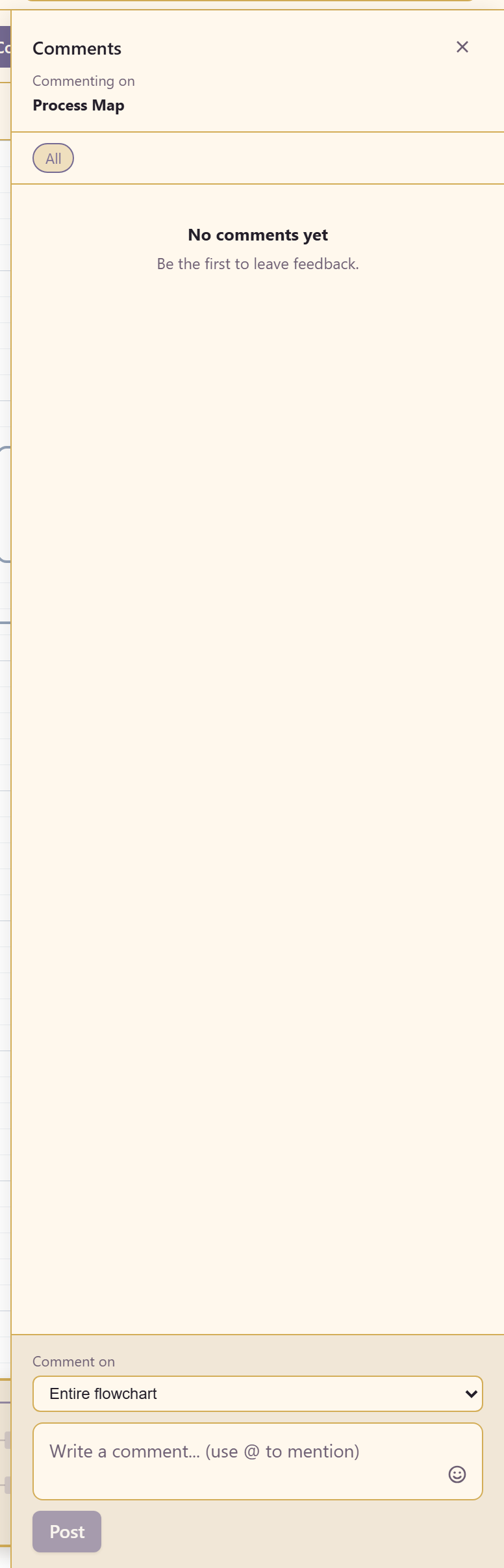
Shape-level comments are worth using rather than a general note. “This step is wrong” attached to the step is unambiguous; the same sentence in a list of comments is not.
The workspace has a Needs review status and a count for it, so a chart waiting on someone is visible rather than sitting in a drafts pile.
Ask the right question
Section titled “Ask the right question”Reviewers tend to confirm what they are shown. Two questions get past that.
“What happens when this goes wrong?” finds the exception paths that are missing.
“Which step here do you actually do?” finds the steps that were described by someone who does not perform them.
Publish
Section titled “Publish”Choose Publish.
The dialog offers the Internal Publisher, which hosts a read-only copy inside Lunar Paper. Viewers must be signed in, and the internal access rules decide which of them can open it.
Allow comments lets signed-in viewers leave feedback on the published copy. Switch it on when the chart describes something people will spot errors in, which is most process maps.
Write a version history note. It is the only label the version gets, and “as-is process confirmed with the support team” is worth more in six months than a timestamp.
Check what readers get
Section titled “Check what readers get”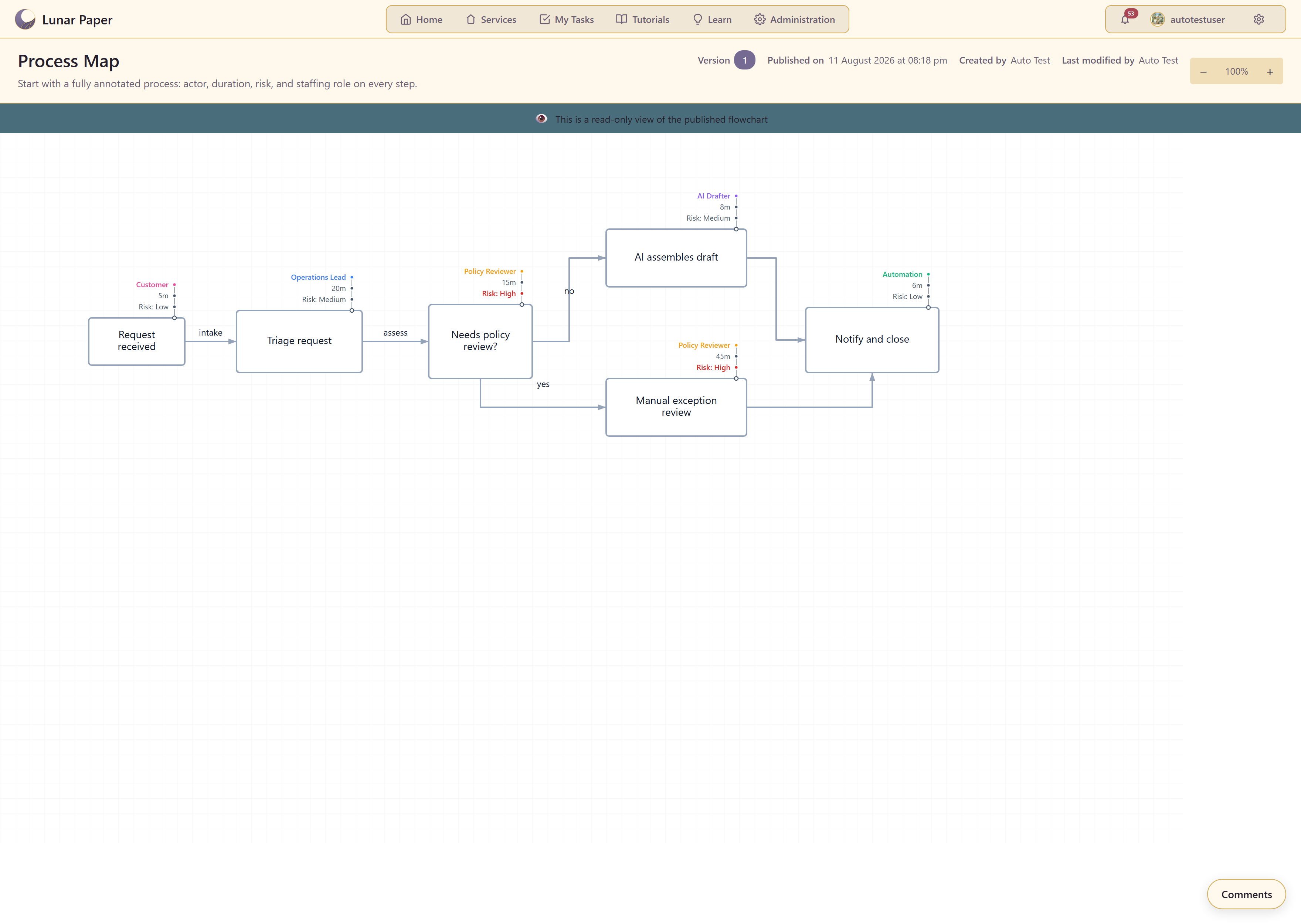
The published view shows the chart name, the version number, when it was published, who created it and who last modified it, and the description. A banner makes clear the view is read only, and zoom controls let readers get close to a dense diagram.
Open it yourself before sending the link. A chart that reads well at your zoom level in the designer can be unreadable at the default zoom in the viewer.
Share the link
Section titled “Share the link”Copy link in the chart’s Actions menu gives you the published address.
Put it where the process is discussed rather than in a message that scrolls away. The chart’s value is being findable in a year.
Republishing
Section titled “Republishing”Editing after publishing does not change what readers see. Publish again when the change is worth their attention, with a note saying what moved.
Not every edit deserves a new version. Fixing a typo does not; changing who owns a step does, because someone may have made a decision based on the old answer.
Related
Section titled “Related”Export a chart covers getting the picture into slides and documents. Permissions covers who can publish.