
Editor reference
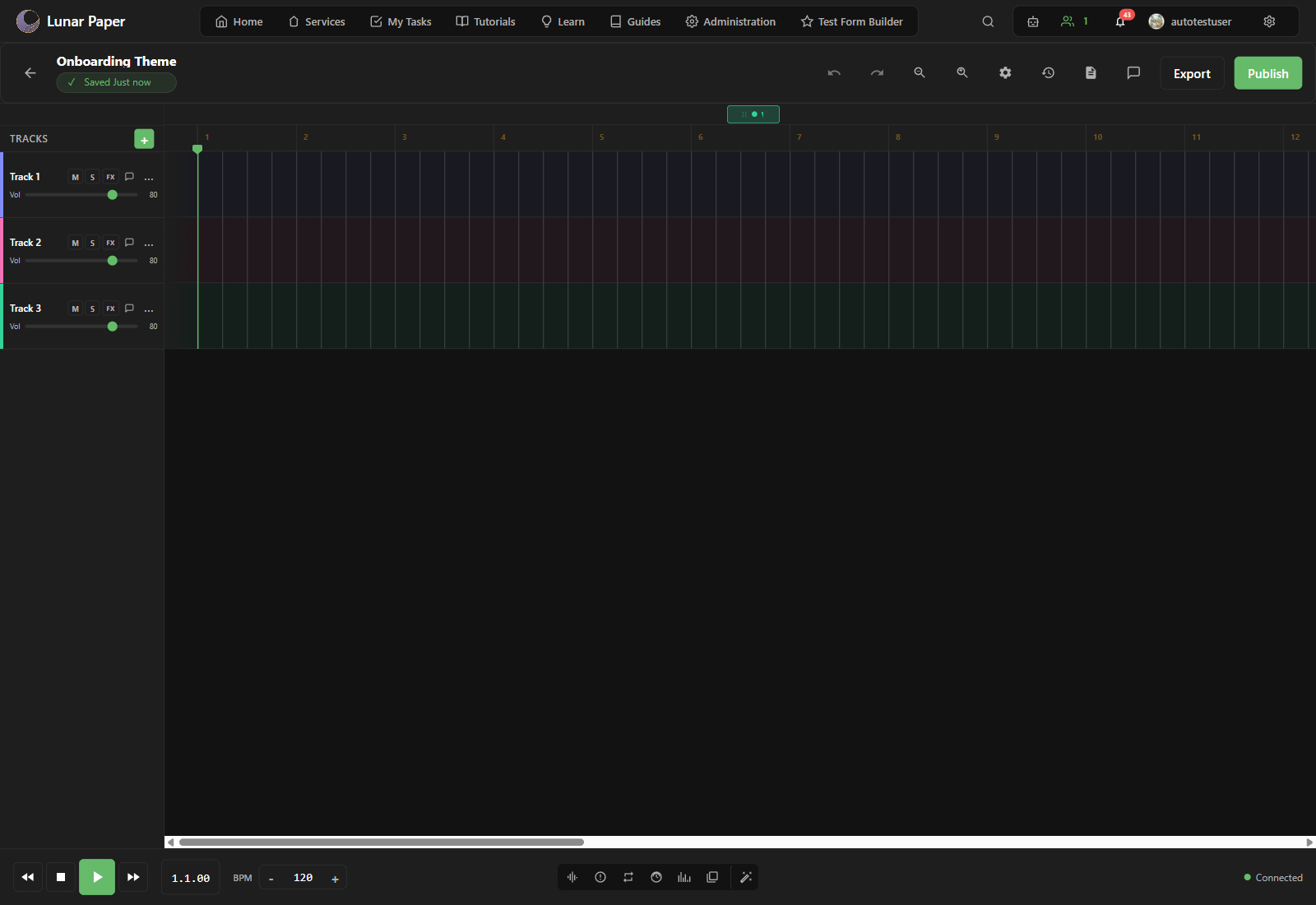
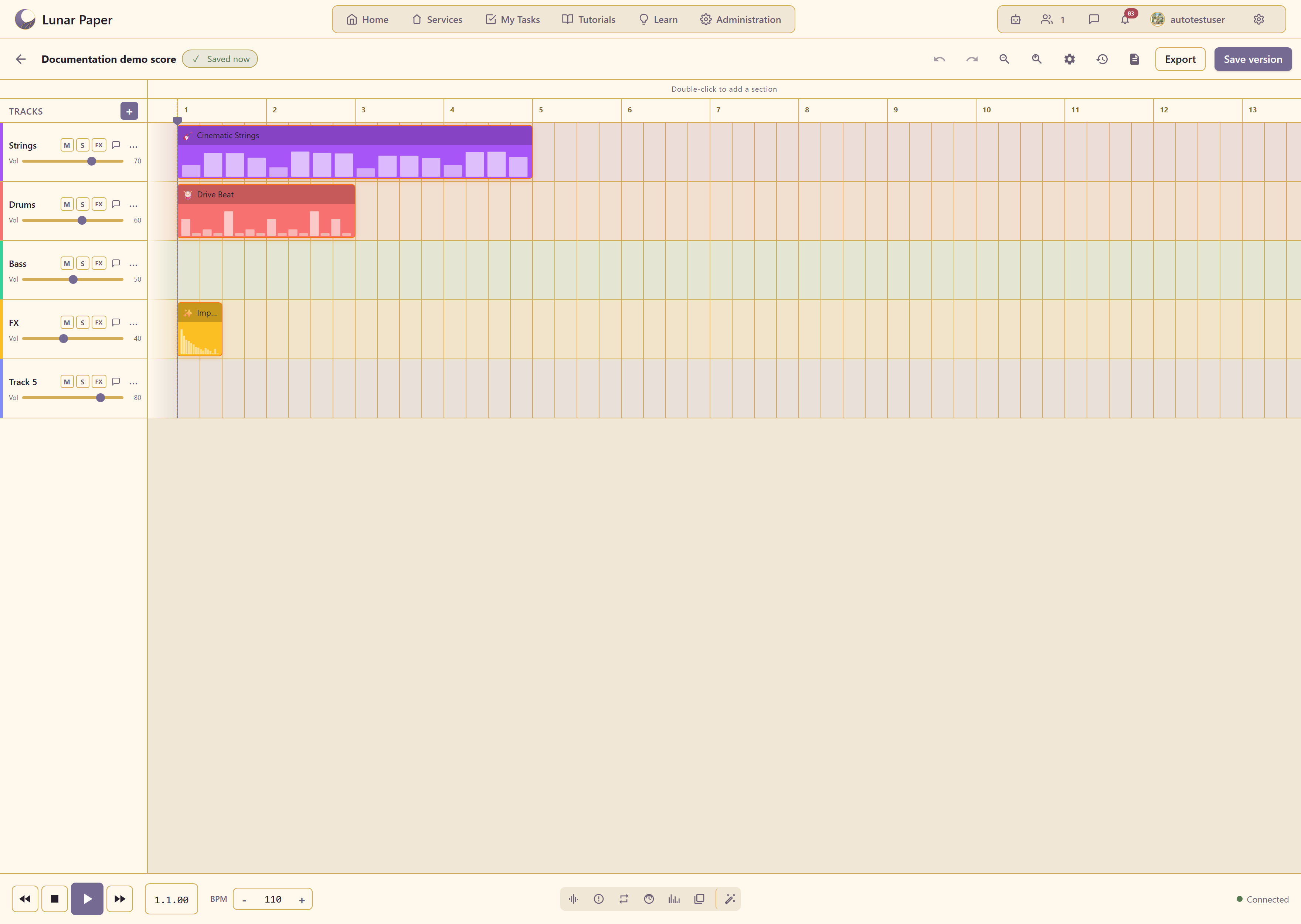
Audio Studio is the editor for Lunar Paper audio projects. It is split into a top toolbar, a left track panel, a center timeline, and a bottom transport bar.
Top toolbar
Section titled “Top toolbar”| Button | Purpose |
|---|---|
| Back | Return to the service module view. |
| Project title | Shows the current project name. |
| Saved status | Shows the last saved time. |
| Undo / Redo | Step through edit history. |
| Zoom out / in | Change the timeline zoom level. |
| Project Settings | Open project-level settings. |
| Version History | Open the version panel. |
| Edit Log | View the chronological edit history. |
| Comments | Toggle project comments. |
| Export | Open the export dialog. |
| Publish | Publish the current state as a milestone. |
Tracks panel
Section titled “Tracks panel”The left panel lists every track in the project. Each track shows:
- Name, which you can rename by double-clicking it.
- Mute (
M) to silence the track. - Solo (
S) to play only this track. - FX to open the track’s effect chain.
- Comments to open the track comment thread.
- More menu (
...) to rename the track, change its color, or delete it. - Volume slider to set the track level from 0 to 100%.
Timeline
Section titled “Timeline”The center area shows the arrangement. A bar/beat ruler runs across the top. Sections such as Verse appear as labeled blocks. Double-click an empty area to add a section. Drag a section to move it, or drag its right edge to resize it.
Instrument modal
Section titled “Instrument modal”Double-click an instrument clip to reopen its take. The header shows Instrument first, followed by Performance.
- Instrument restores the playable surface and settings. Its surface fits the modal height, with independent scrolling in the right control panel.
- Performance displays the saved actions or source waveform, timing and expression controls, Preview take, and Undo / Redo.
- Switching views keeps an unsaved recording intact. An active recording stops before its actions appear in Performance.
- The Performance footer keeps Cancel, Save as new clip, Save changes, and the optional Fit clip length to this take control accessible. Save options depend on whether you opened an existing clip.
Edit recorded performances explains how to review a new recording or update an existing clip.
Transport bar
Section titled “Transport bar”The bottom bar contains playback and tool toggles:
| Control | Purpose |
|---|---|
| Rewind | Jump to the project start. |
| Stop | Stop playback. |
| Play | Start playback. |
| Forward | Jump forward by a set amount. |
| Position display | Shows the current playhead position, for example 1.1.00. |
| BPM | Project tempo. Use the minus and plus buttons to adjust it, or type a value. |
| Mixer | Open the Mixer panel. |
| Spatial | Open the Spatial panel. |
| Loop | Open the Loop panel. |
| Tempo Automation | Open the tempo lane. |
| Dynamics | Open the dynamics lane. |
| Spectrum | Open the spectrum analyser. |
| Presets | Open the preset browser. |
| AI Assistant | Open the generative audio assistant. |
Side panels
Section titled “Side panels”| Panel | Purpose |
|---|---|
| Mixer | Track level meters and faders. |
| Spatial | Panning and depth placement. |
| Loop | Loop region settings. |
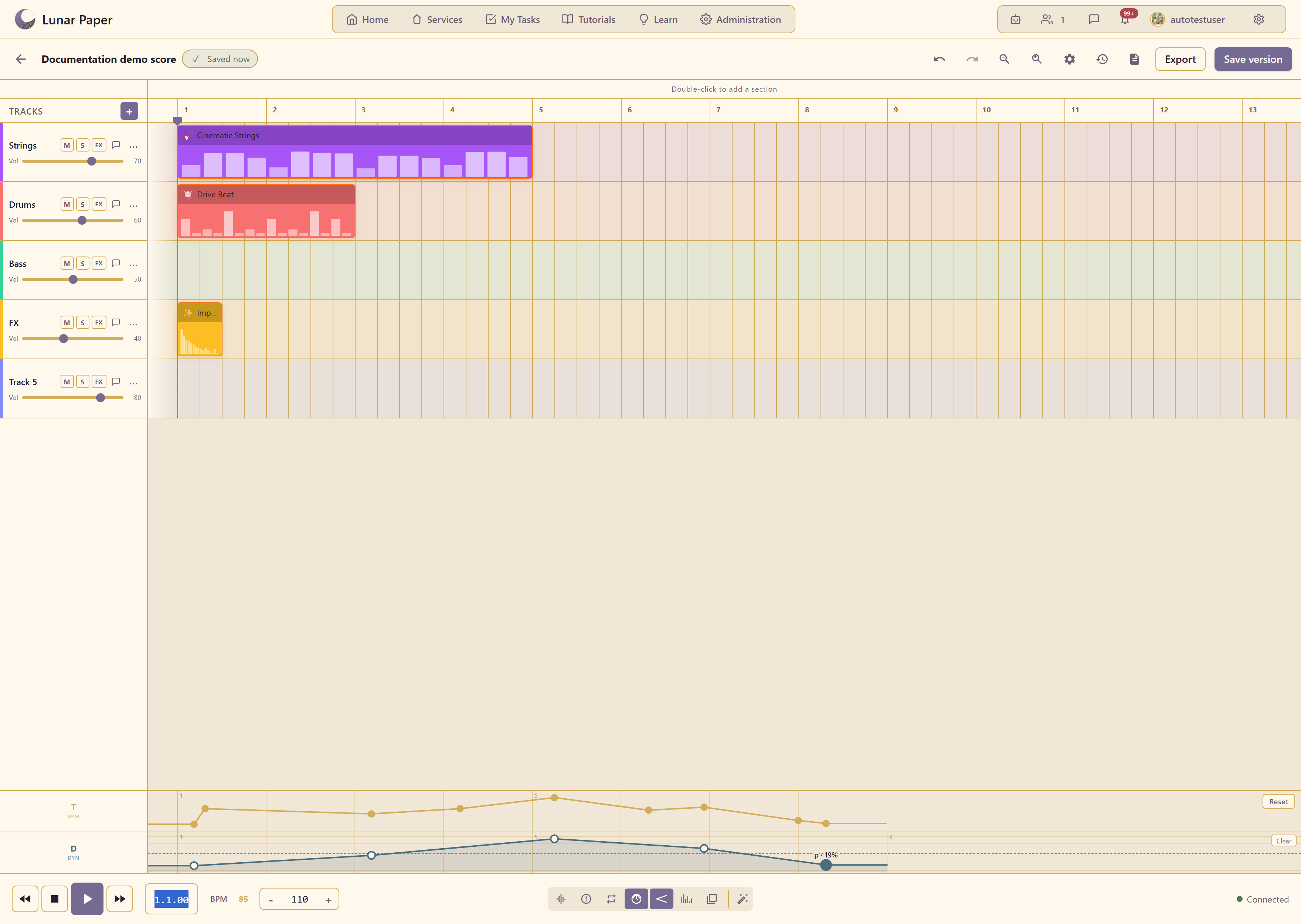
| Tempo Automation | Tempo changes over time. Shape tempo |
| Dynamics | A loudness curve over time. Shape dynamics |
| Spectrum | Real-time frequency analysis. |
| Presets | Instrument and effect presets. |
| AI Assistant | Text-to-audio generation. |
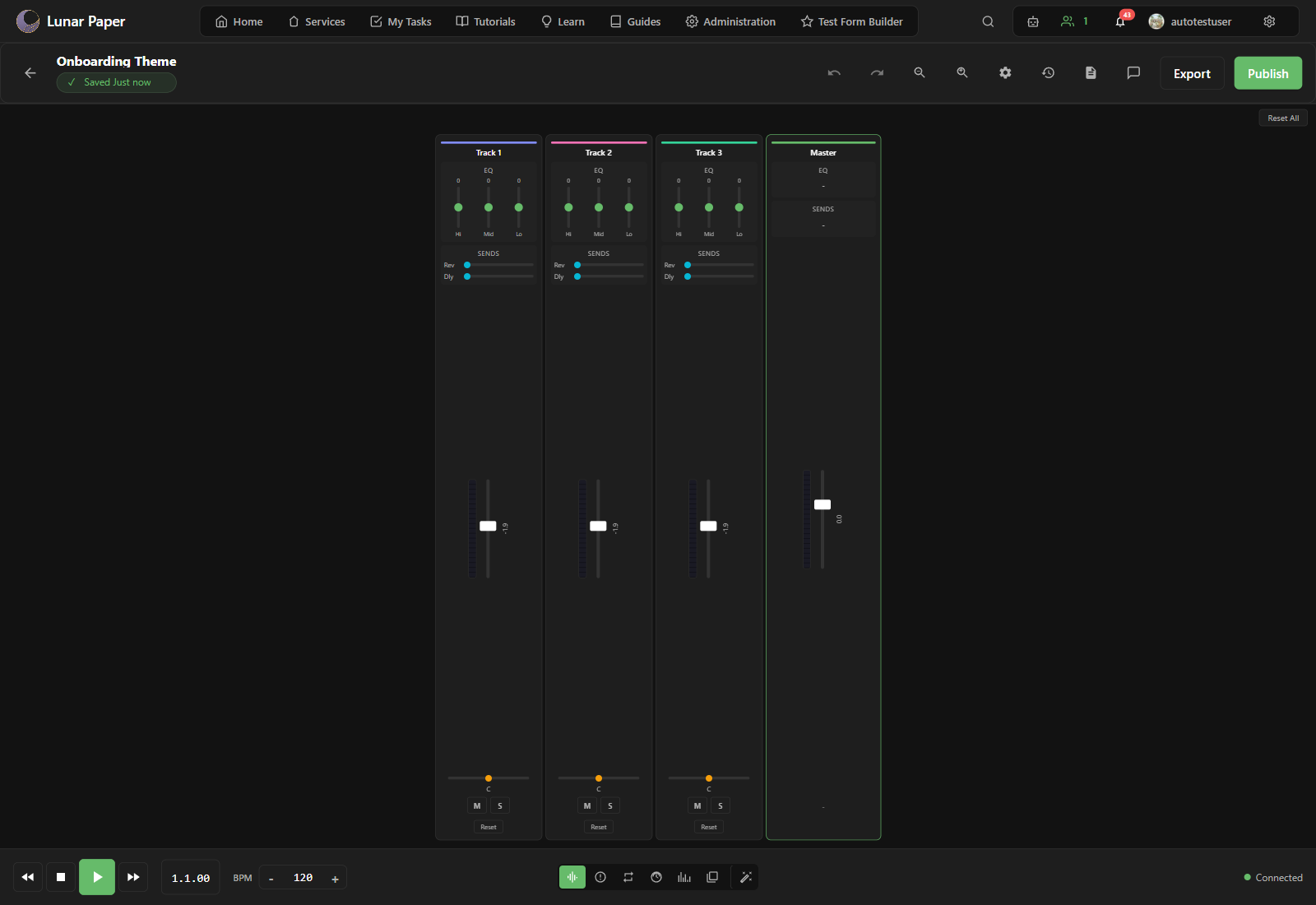
The Mixer, Spatial, Spectrum, Presets, and AI Assistant panels open over the lower half of the editor. The tempo and dynamics lanes behave differently: they are strips under the timeline that line up with its bars, and both can be open at once.
Controls at work
Section titled “Controls at work”- Keyboard shortcuts lists the same actions as key presses.
- Work with tracks puts the track controls to use.
- Build an arrangement with sections does the same for the timeline.