
Editor reference
The Slideshow editor is split into the top toolbar, left slide panel, center canvas, right properties panel, and bottom animation timeline.
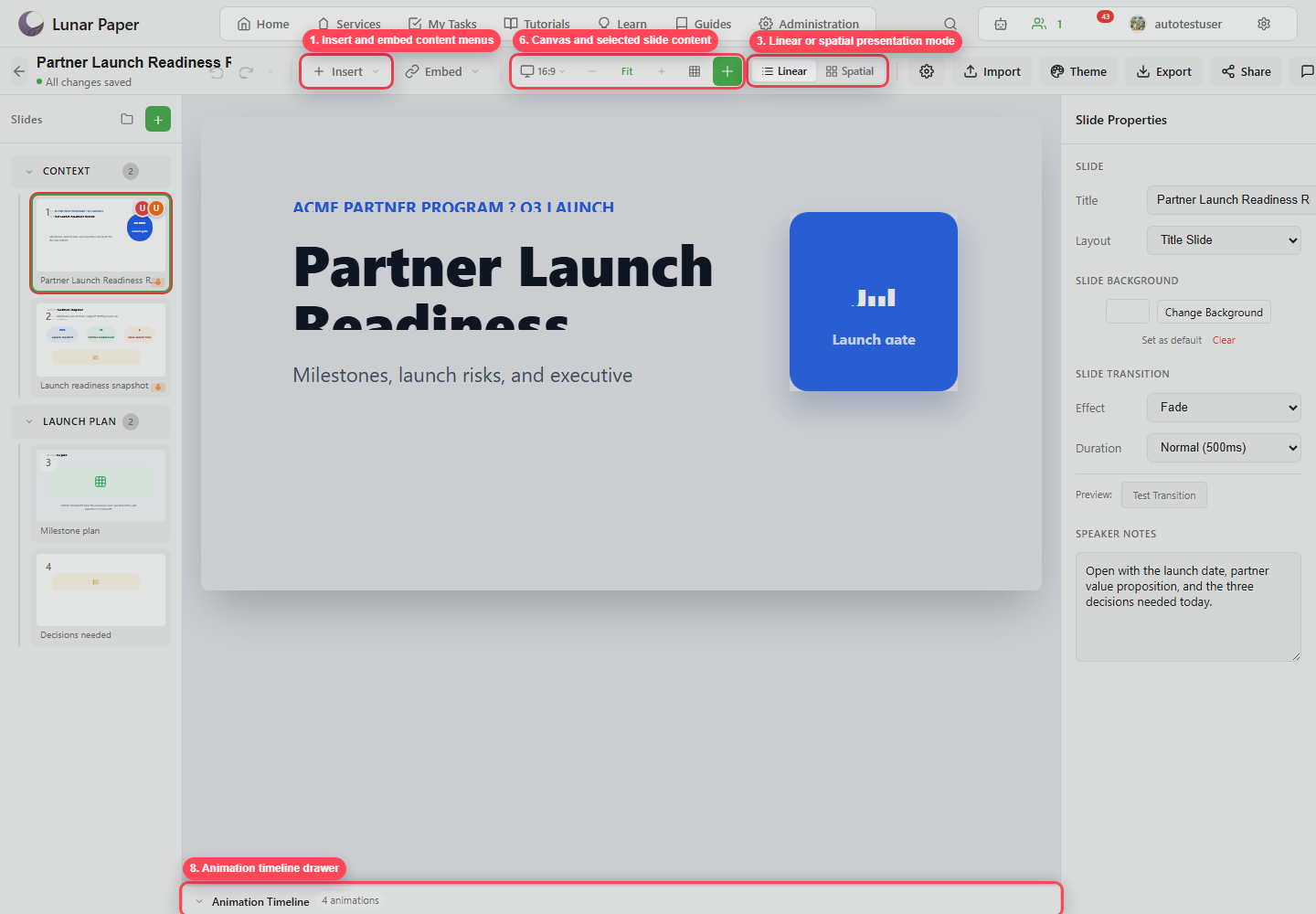
Top toolbar
Section titled “Top toolbar”| Control | Purpose |
|---|---|
| Back | Return to the Slideshow dashboard. |
| Saved status | Shows whether local edits are saved. |
| Undo / Redo | Step through editor history. |
| Edit History | Open the save/edit history view when available. |
| Insert | Add slide-native content: text, image, shape, chart, data chart, list, table, video, code, icon, audio, recording, and video recording. |
| Embed | Add connected content from the service: documents, charts, flowcharts, reports, dashboards, audio, and assets. |
| Device/aspect preview | Switch between deck ratio and responsive preview modes. |
| Zoom | Zoom out, fit the current slide, or zoom in. |
| Grid | Show or hide the canvas grid. |
| Smart Guides | Show or hide snap and alignment guides. |
| Linear / Spatial | Switch between ordered slide editing and spatial map planning. |
| Slideshow Properties | Open deck-level settings. |
| Import | Import deck content such as PowerPoint. |
| Theme | Open service branding and theme controls. |
| Export | Export PDF, PowerPoint, video, web, images, or assets. |
| Share | Publish to external or local destinations and manage access. |
| Comments | Open review threads. |
| Versions | Open published version history and comparison. |
| Publish | Save the current deck as a version snapshot. |
| Present | Start presenter mode. |
Slide panel
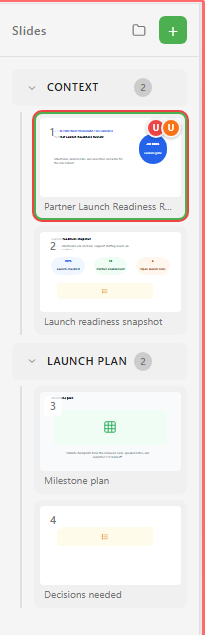
Section titled “Slide panel”The left panel shows sections and slide thumbnails. Use it to select slides, add sections, add slides, collapse groups, create slide comments, delete slides, and reorder the deck.
Canvas
Section titled “Canvas”The center canvas shows the selected slide. Add elements from Insert and Embed, then use the canvas, the alignment tools, the layers, and the properties panel to place and style them.
Properties panel
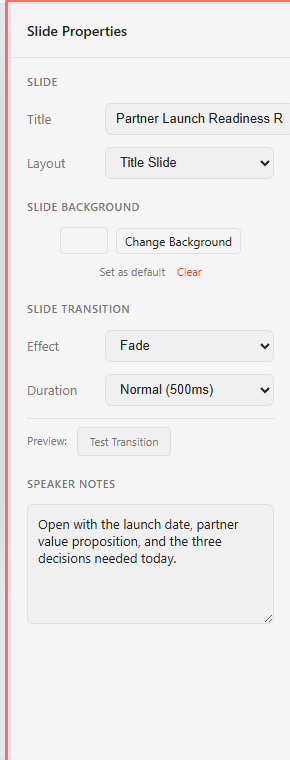
Section titled “Properties panel”The right panel changes with selection. With no element selected, it shows slide title, layout, background, transition, duration, preview, and speaker notes. With an element selected, it shows style, animation, position, responsive overrides, and link controls.
Animation timeline
Section titled “Animation timeline”The bottom panel expands into animation, narration, and background music lanes. Use it to preview timing, drag animation bars, resize durations, record or import narration, and manage AI voiceover or music tools.

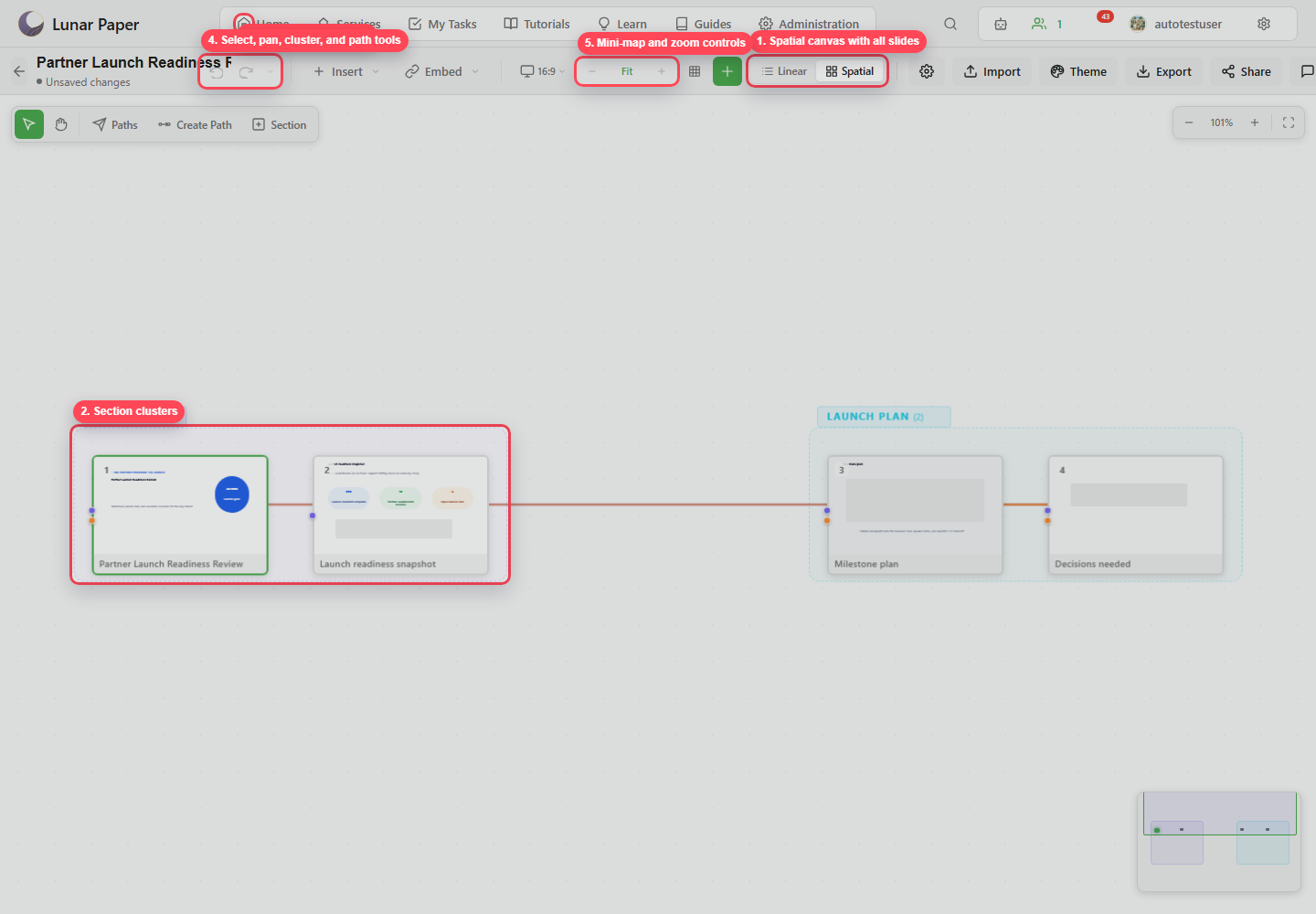
Spatial mode
Section titled “Spatial mode”Spatial mode replaces the single-slide canvas with an infinite planning canvas. Arrange slides, create section clusters, define routes, and edit flight paths.
Review and delivery
Section titled “Review and delivery”Use Comments for review, Publish for version snapshots, and Versions to compare or restore. Use Share for local or external access, Export for file handoff, and Present for rehearsal or live delivery.