
Drum Kit
The Drum Kit is a full kit you play from the keyboard. Eight pieces sit on screen as drum heads, each bound to a key, and the instrument can hold a groove underneath while you play over the top.
It is a different job from Beat Patterns, which programs a grid, and from Hand Percussion, which is played by hand on a single head.
Open it
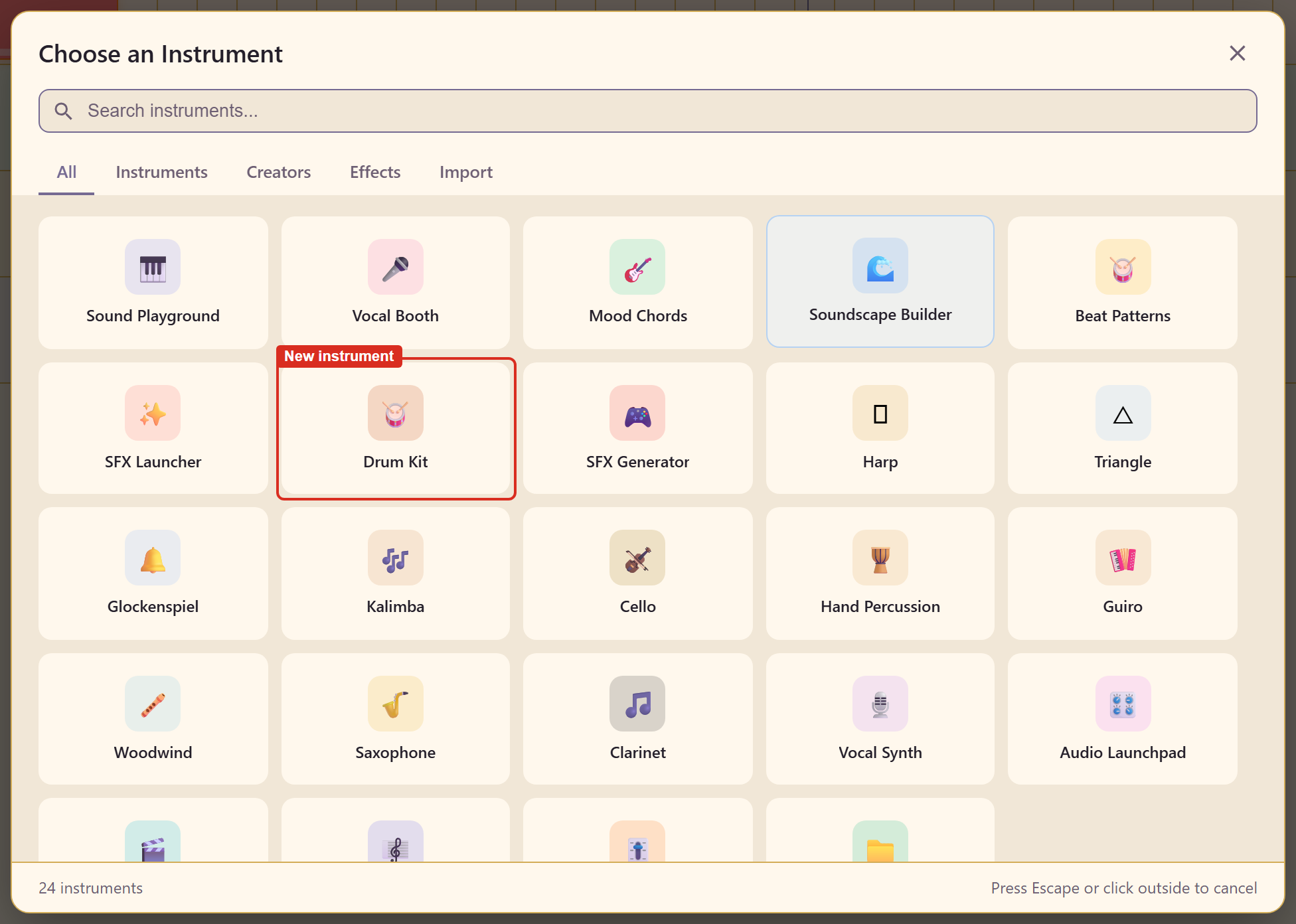
Section titled “Open it”Double-click empty space on the timeline to open the instrument picker, then choose 🥁 Drum Kit.
The kit
Section titled “The kit”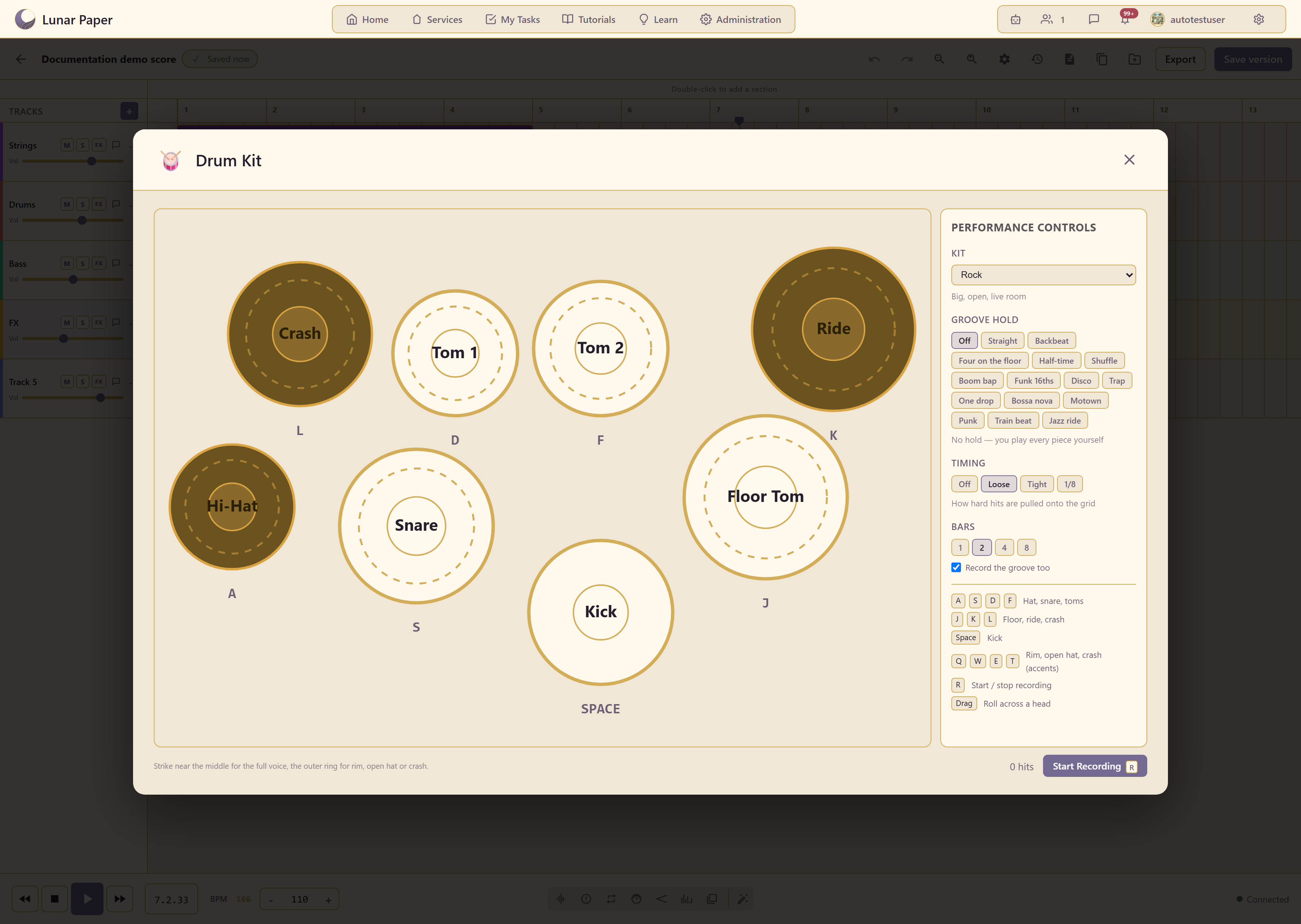
Eight pieces, each with its key printed underneath.
| Piece | Key |
|---|---|
| Hi-Hat | A |
| Snare | S |
| Tom 1 | D |
| Tom 2 | F |
| Floor Tom | J |
| Ride | K |
| Crash | L |
| Kick | Space |
The layout follows the hands: hats, snare, and toms on the left under A S D F, floor tom, ride, and crash on the right under J K L, and the kick on the space bar where a foot would be.
Q W E T play the accents — rim, open hat, and crash.
Where you strike matters
Section titled “Where you strike matters”Each head is drawn with a dashed inner ring, and the instrument tells you why: strike near the middle for the full voice, the outer ring for rim, open hat, or crash.
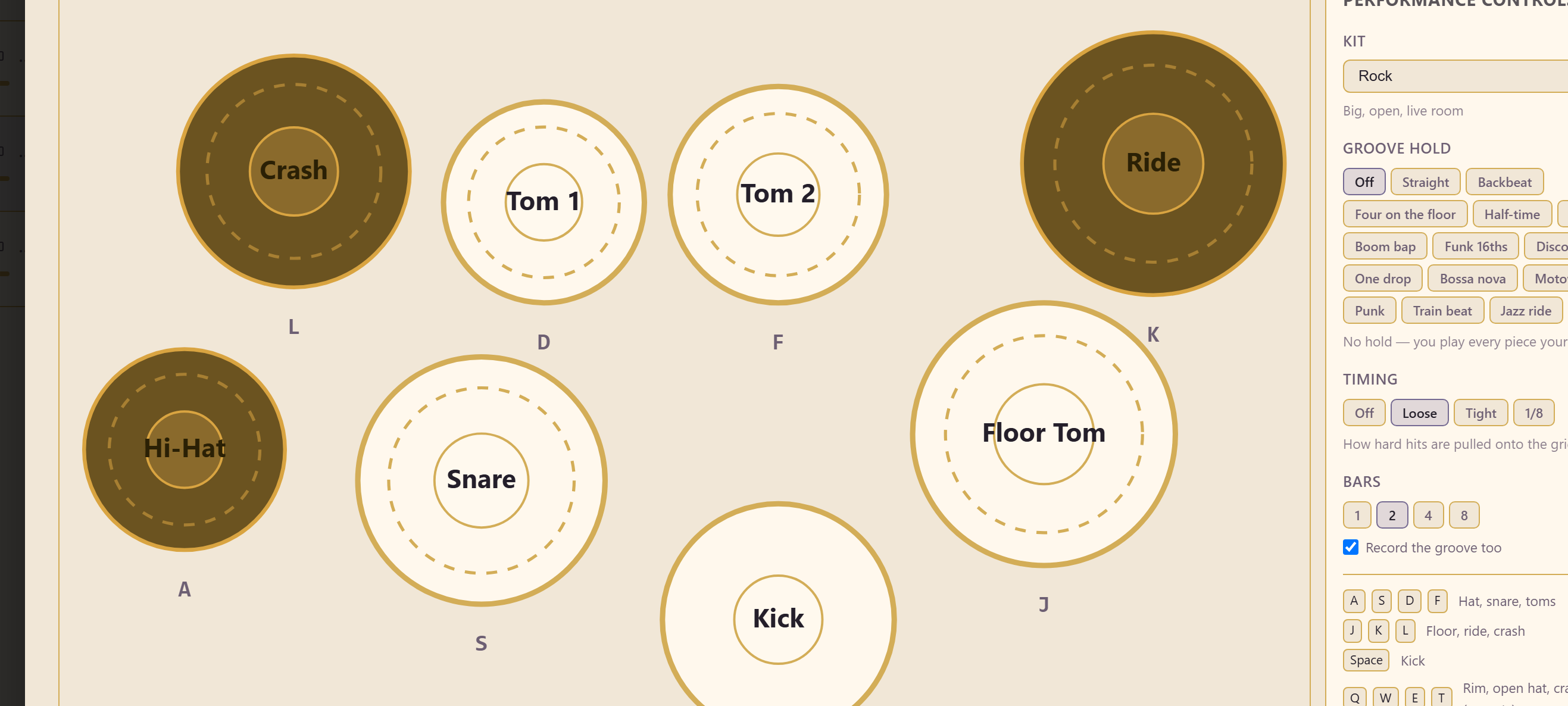
So a snare hit in the middle is the full backbeat and the same head struck near the edge is a rim click, without changing anything in the controls. Dragging across a head plays a roll.
Choose a kit
Section titled “Choose a kit”The KIT dropdown changes the whole sound. Six kits ship with the instrument.
| Kit | Character |
|---|---|
| Rock | Big, open, live room |
| Jazz | Brushes, ride-led, small room |
| 808 | Long sub, synthetic, hip-hop |
| 909 | House, punchy, club |
| Lo-fi | Dusty, tape-softened, mellow |
| Orchestral | Timpani, gran cassa, tam-tam |
The description under the dropdown updates as you change kits, so you can read the character before you play anything.
Hold a groove underneath
Section titled “Hold a groove underneath”GROOVE HOLD is the part that makes this playable by people who are not drummers. Pick a groove and the instrument keeps it running while you play over it.
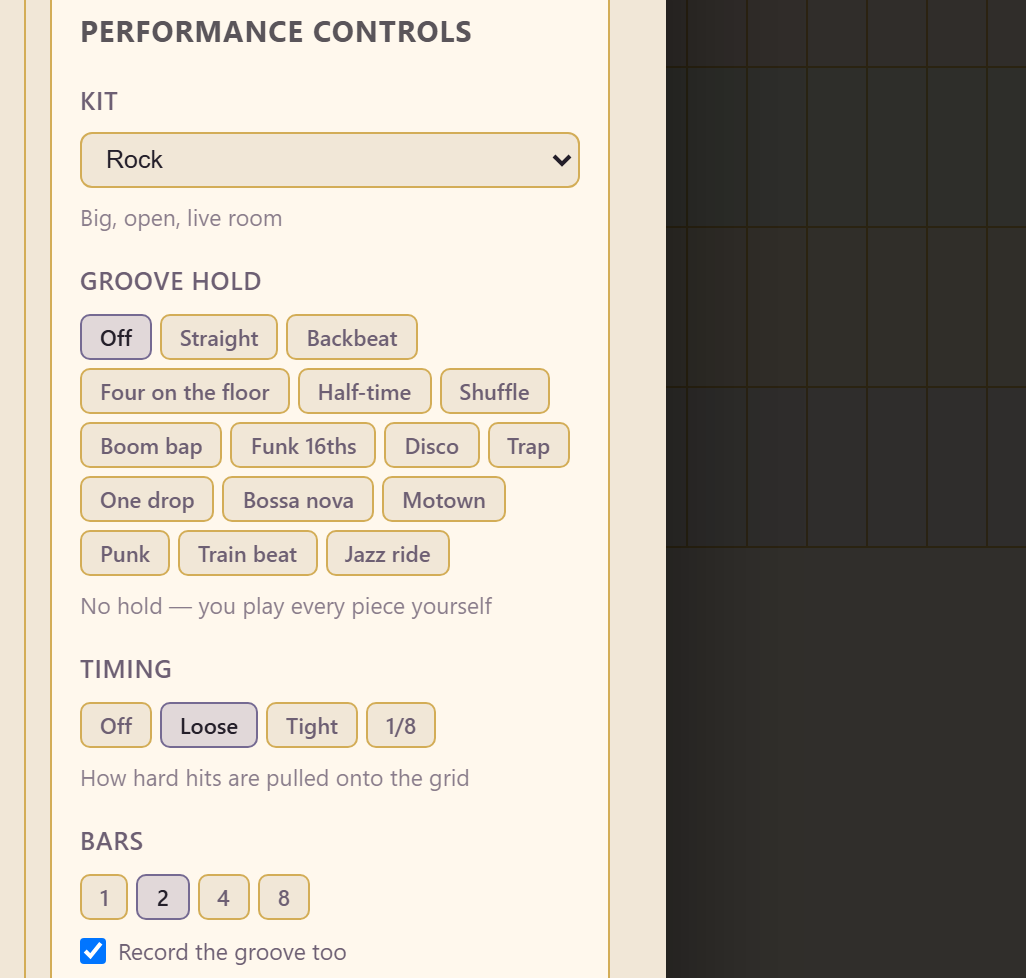
Off is the default, and the panel says what that means: no hold — you play every piece yourself.
The other fifteen each describe what they play.
| Groove | What it plays |
|---|---|
| Straight | Plain 4/4: kick on 1 and 3, backbeat, 8th hats |
| Backbeat | Straight with a pushed kick before 3 — pop and rock |
| Four on the floor | Kick on every beat, hats on the off-beats — house and dance |
| Half-time | One snare a bar on beat 3 — the pulse feels half as fast |
| Shuffle | Triplet feel — blues, swing and shuffle rock |
| Boom bap | Dusty hip-hop: swung 16ths, hard backbeat, snare ghosts |
| Funk 16ths | Syncopated kick, ghosted snare, unbroken 16th hats |
| Disco | Four on the floor with an open hat on every off-beat |
| Trap | Long 808 kick, clap on 3, hats rolling into the bar line |
| One drop | Reggae: beat 1 is empty, kick and cross-stick land together on 3 |
| Bossa nova | Ride 8ths, cross-stick clave, soft surdo kick |
| Motown | Snare on all four beats, loudest on 2 and 4 — soul and 60s pop |
| Punk | Driving 8th kick under a hard backbeat — fast rock |
| Train beat | Country: ghosted snare 8ths running under the backbeat |
| Jazz ride | Spang-a-lang on the ride, hats on 2 and 4, feathered kick |
Pick the groove by the description rather than the name. “Half-time” and “One drop” both leave gaps, but they leave them in different places, and the description tells you where.
Tidy up the timing
Section titled “Tidy up the timing”TIMING decides how hard your hits are pulled onto the grid: Off, Loose, Tight, or 1/8. It starts on Loose.
Loose is the useful default. It corrects the hits that land clearly late without flattening the small variations that make a part sound played rather than programmed. Use Tight when the part has to lock to a sequenced track, and Off when you want exactly what you played.
Record a take
Section titled “Record a take”BARS sets the length of the take: 1, 2, 4, or 8 bars, starting at 2.
Record the groove too decides whether the held groove is captured alongside your hits. Leave it on to record the whole part; switch it off to record only what you played and keep the groove as a guide.
Start Recording, or the R key, begins the take. A counter shows how many hits have landed while you play.
When the take ends you get a review step rather than a committed clip.
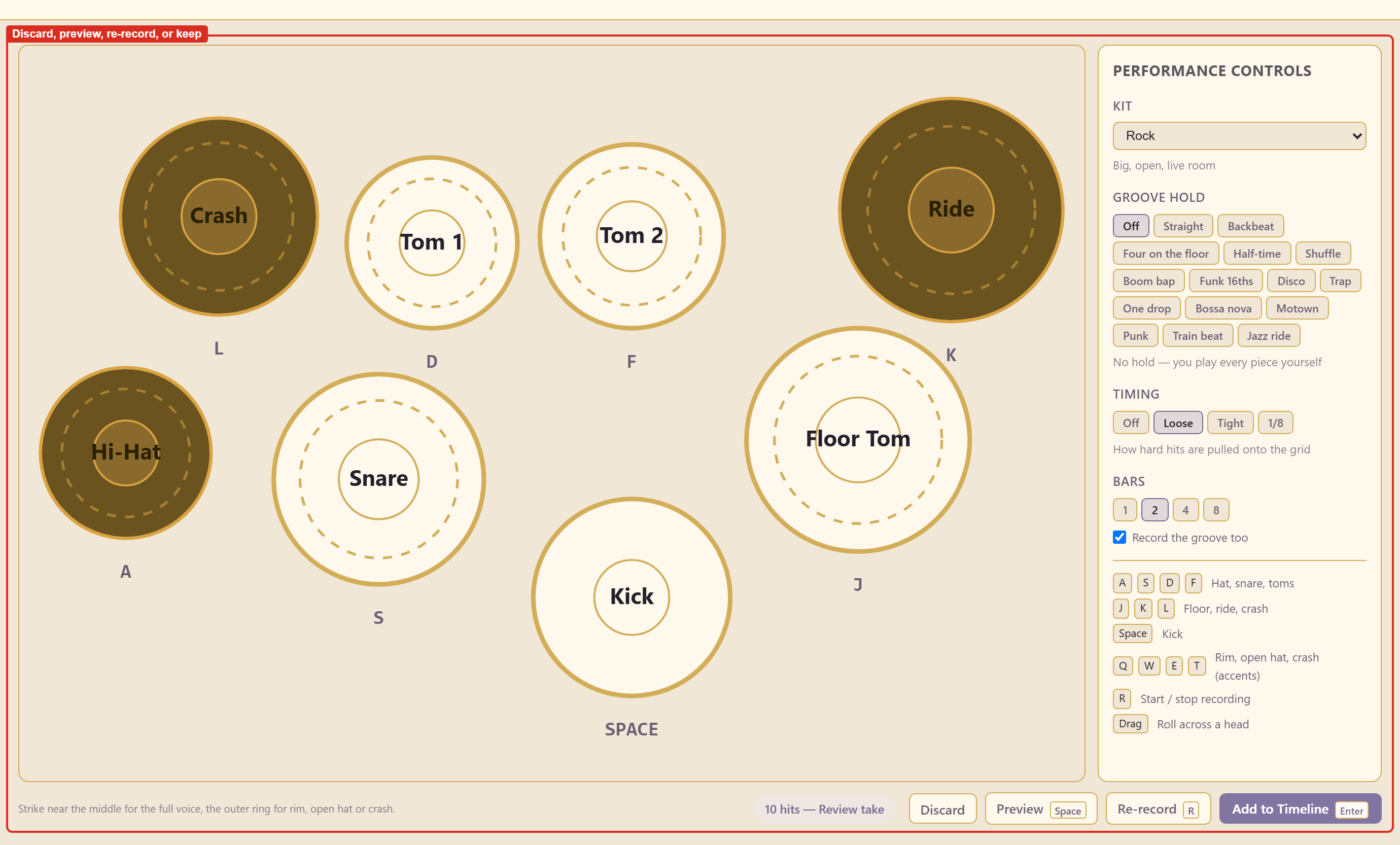
| Action | Key | What it does |
|---|---|---|
| Discard | Throws the take away | |
| Preview | Space | Plays it back before you decide |
| Re-record | R | Starts again |
| Add to Timeline | Enter | Keeps the take as a clip |
Open Performance in the header to adjust individual hit timing, drum piece/zone, and velocity before committing. You can switch back to Instrument without losing the take. After saving, double-click the clip to reopen and edit the same performance.
Edit recorded performances covers correcting a hit, append/overdub recording, and saving changes or a copy.
A working order
Section titled “A working order”Pick the kit first. It changes the character more than anything else, and playing to the wrong kit wastes the take.
Then the groove. Set it to Off if you can play the whole part, and pick one if you want to concentrate on fills and accents.
Then play, before you touch timing. Record something loose and listen. If it sits well, leave Timing on Loose; only tighten it if the part is fighting a sequenced track.
Keep the bars short. Two bars is usually enough to cover a section and makes review easier. Correct an isolated mistake in Performance, or re-record when you want to change the feel of the whole take.
Related
Section titled “Related”Hand Percussion and Guiro are the hand-played percussion. Beat Patterns is the programmed alternative. Instrument catalogue lists all 24.