
Upgrades and rollback
Select a published platform version from
GitHub Releases, update
LUNAR_PAPER_VERSION, and replace the platform container using your installation
guide. The installation examples target 0.8.1. PostgreSQL uses the official
image and is versioned independently; a platform update does not require a
matching database image.
After installing a new image, Lunar Paper may stay in maintenance until an administrator verifies and activates the release through setup. Some releases also have database migrations. Even when both databases are healthy and the migration count is zero, release activation may still be required.
Before you upgrade
Section titled “Before you upgrade”- Write down the version you are running now, in case you need to roll back.
- Have your
SETUP_KEYready. You will find it in.env, or in the block of settings you saved if you used docker run. - Take a complete manual backup and check that you can restore it. Setup does not create a backup for you.
- Do not change any keys or passwords as part of the upgrade.
Upgrade
Section titled “Upgrade”Follow the steps for your installation:
Complete the database upgrade
Section titled “Complete the database upgrade”The web GUI verifies and upgrades the application schema and activates the installed platform release. It does not download container images or upgrade the PostgreSQL engine. Fresh databases use first-time initialization through the same keyed setup flow; existing databases retain their migration history.
Setup has four stages: Overview, Details, Execute and Complete. The screenshots below show a local development release that needs activation but has no pending database changes. Your public release’s version numbers will differ. A release with migrations also shows the database changes and reminds you to back up before proceeding.
Unlock setup
Section titled “Unlock setup”Open your APP_URL and choose Administrator? Unlock setup. You can also
open /setup at that same address. Enter the SETUP_KEY from your deployment
configuration and select Unlock setup. Never put the key in a URL or share
it in a screenshot.
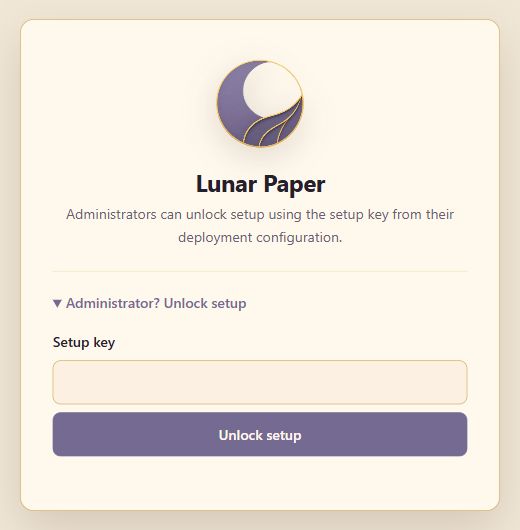
Unlocking only opens the wizard. It does not start an upgrade.
1. Review the overview and back up
Section titled “1. Review the overview and back up”Check the current and target versions, the counts of schema changes, seed updates and migrations, and the status of the Platform Database, Intake Database and Platform release. Database checks can show OK while the Platform release still shows Upgrade needed.
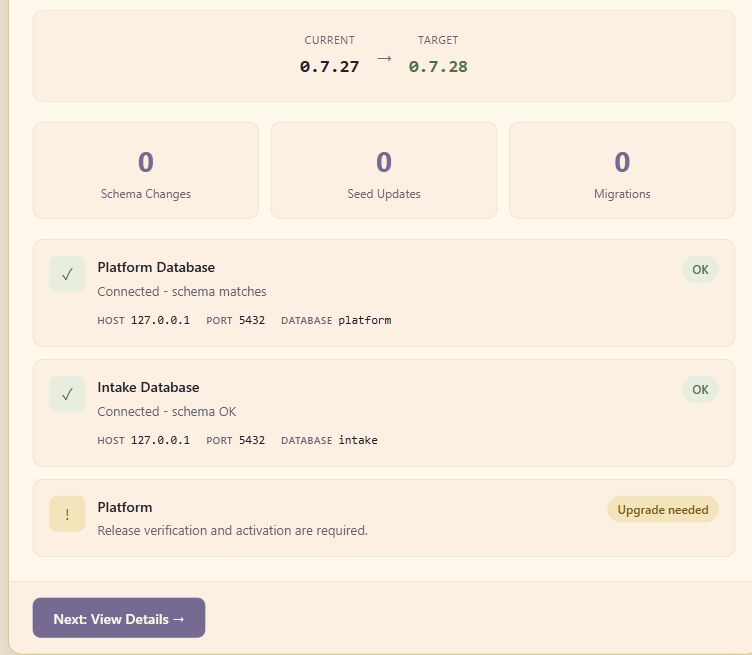
Before proceeding, make a complete manual backup and keep it in secure storage. Include both databases, Redis, uploads, SeaweedFS and your private environment file. The current wizard has no Create backup or Download backup action; reviewing the overview does not make a backup.
Select Next: View Details.
2. Review the details
Section titled “2. Review the details”Review the listed database changes and migrations. If only release activation is needed, the page is titled Platform Release Details and asks you to verify both databases before activating the release.
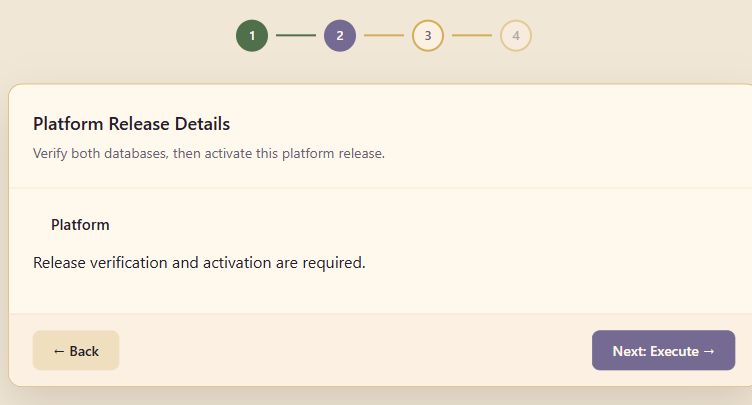
Select Next: Execute when you are ready. You can use Back to review the overview again; neither navigation button applies changes.
3. Execute and watch progress
Section titled “3. Execute and watch progress”On Execute Upgrade, review the warning and select the action shown:
- Activate Platform Release when the databases already match and only release verification and activation are needed.
- Upgrade Platform DB when database changes are required. Setup coordinates the checks and migrations for Platform and Intake; do not upgrade them separately.
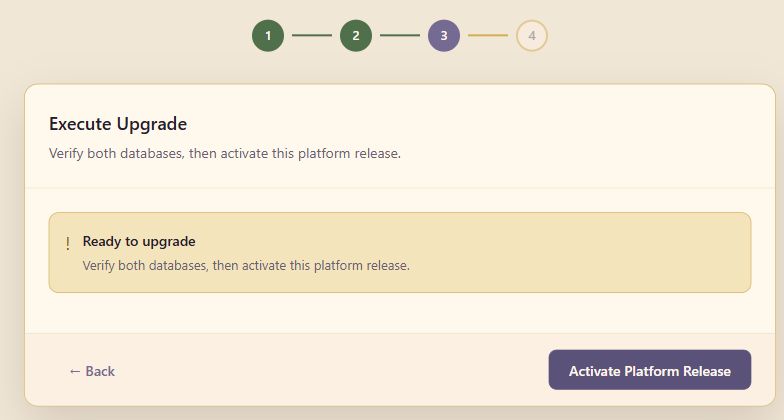
This action starts the upgrade. Watch the progress bar and migration log until setup reports completion. Verifying means final checks are still running; do not treat it as a completed upgrade or start another attempt.
If the connection drops, reopen setup and inspect the status before trying again. If setup reports a failure, keep the error details and use Copy report or Download logs if offered. Review these files for credentials and customer data before sharing them with support.
4. Confirm completion and open Lunar Paper
Section titled “4. Confirm completion and open Lunar Paper”Wait for Upgrade Complete!, then select Launch Application. A release activation reports that the platform release is active; a database upgrade also reports the applied changes.
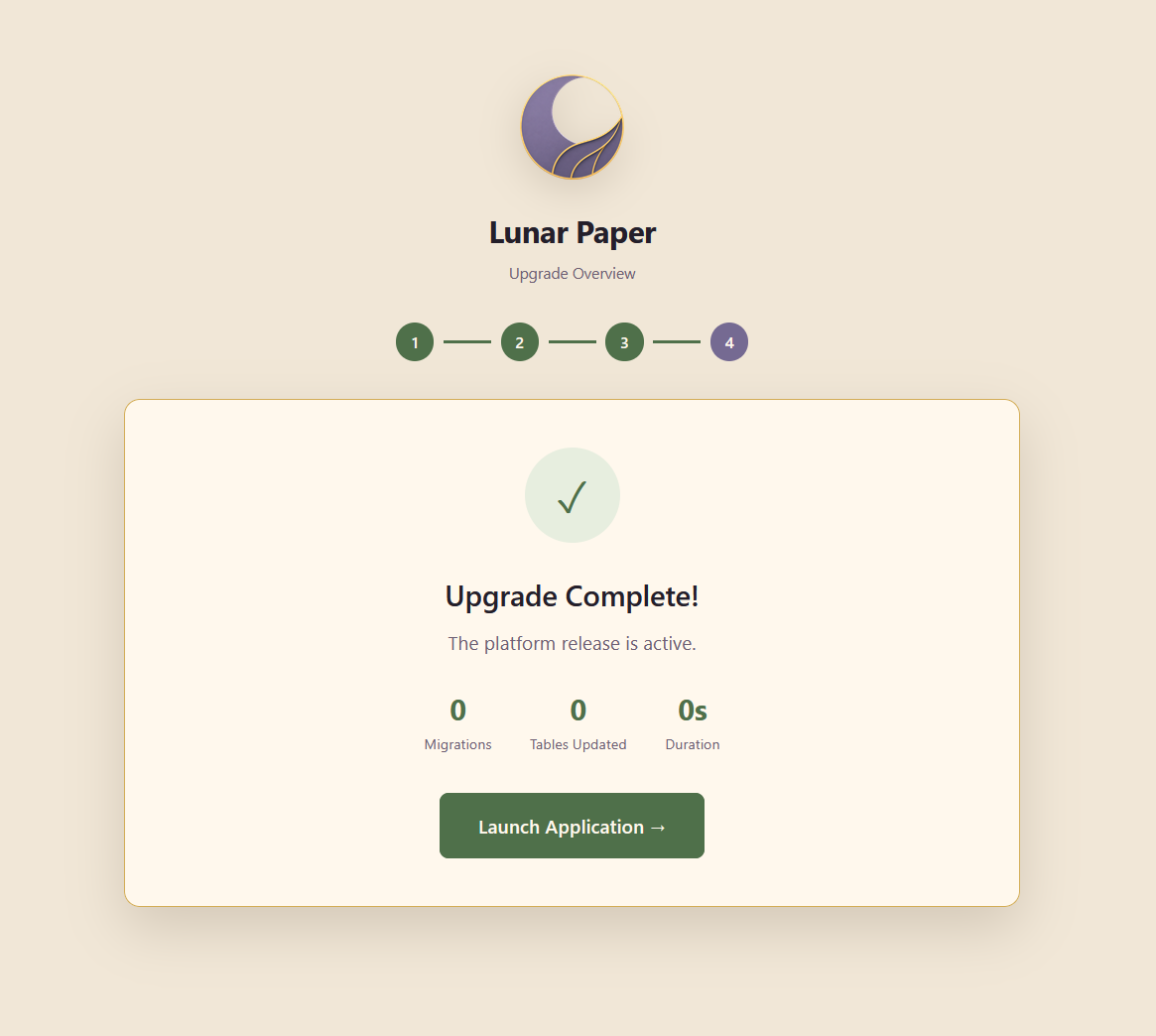
Zero migrations and tables updated is normal when only release activation was needed.
Check that /api/health/ready at your APP_URL returns HTTP 200. Then sign in,
upload a file, run a workflow and check that real-time collaboration works.
Problems
Section titled “Problems”- The key is rejected. Make sure you are using the
SETUP_KEYthat Lunar Paper was started with, and that you opened the exactAPP_URLaddress. After several wrong attempts, wait a minute before trying again. - The setup session expired. A setup session lasts one hour. Open
/setupand enter the key again. - You lost the key. See Setup key.
- The browser lost its connection. Reopen setup and check its status before you try again.
- Both databases show OK, but the app is still in maintenance. Review the Platform status. A new release may still need Activate Platform Release, even when there are no migrations.
/setup/statussays Not Found. Open/setupon the exactAPP_URLand unlock it with yourSETUP_KEY. The status page is hidden until you have a valid setup session.- Initialization is offered for an installation that should contain data. Stop and check the Compose project, volume names and connection settings. Do not initialize an unexpected empty volume or overwrite an existing one.
- Partial initialization or missing database history. Preserve the data and error report. Resume only if setup recognizes its own interrupted operation; unknown partial state needs recovery, not a reset or another baseline import.
- An integrity or release-file error. Leave Lunar Paper in maintenance and do not edit anything. Send the error code and your version number to support, but do not include keys or setup links.
Rollback
Section titled “Rollback”If the database was not upgraded and the release’s rollback instructions allow it,
restore the previous platform version and configuration with the same project
name, private .env, access file and volumes. For docker run, restore the previous
platform image reference before recreating the application container.
If the database was upgraded, you cannot simply switch back. Instead,
restore the backup you took before the
upgrade, using the previous version and the same .env. Never try to undo
database changes by hand.
PostgreSQL engine updates
Section titled “PostgreSQL engine updates”Keep PostgreSQL on major version 17 for the standard installation. Schedule and
test PostgreSQL patch updates separately, with a backup and a restore rehearsal.
Changing to a new major version such as 18 requires PostgreSQL’s own data migration
procedure; changing an image tag or running Lunar Paper’s setup wizard is not that
procedure. Keep /var/lib/postgresql/data for the documented PostgreSQL 17 setup.
Move an older deployment off database-bootstrap
Section titled “Move an older deployment off database-bootstrap”Earlier development deployments may contain
a database-bootstrap service, a custom database image or private image names.
They need a separate review of their schema history, PostgreSQL base version,
setup key and volume identities before adopting official PostgreSQL. Rehearse
against a copy and preserve both databases, roles, encryption keys and file storage.
Contact support with the
version and error codes, keeping credentials private. Do not delete volumes or
replace image names to force an upgrade.