
Create a project
Creating a project takes three fields. Making it useful takes a pass through Project Settings afterwards, because the dialog deliberately asks for almost nothing.
Create it
Section titled “Create it”Choose + New Project on the project list. The dialog has Name (required), Description, and Status, which starts at Draft.
Name it after the outcome rather than the team or the quarter. Team Calendar GA survives a reorganisation; Q3 platform workstream does not.
Set the identity
Section titled “Set the identity”Open the project, choose the gear for Project Settings, and stay on General.
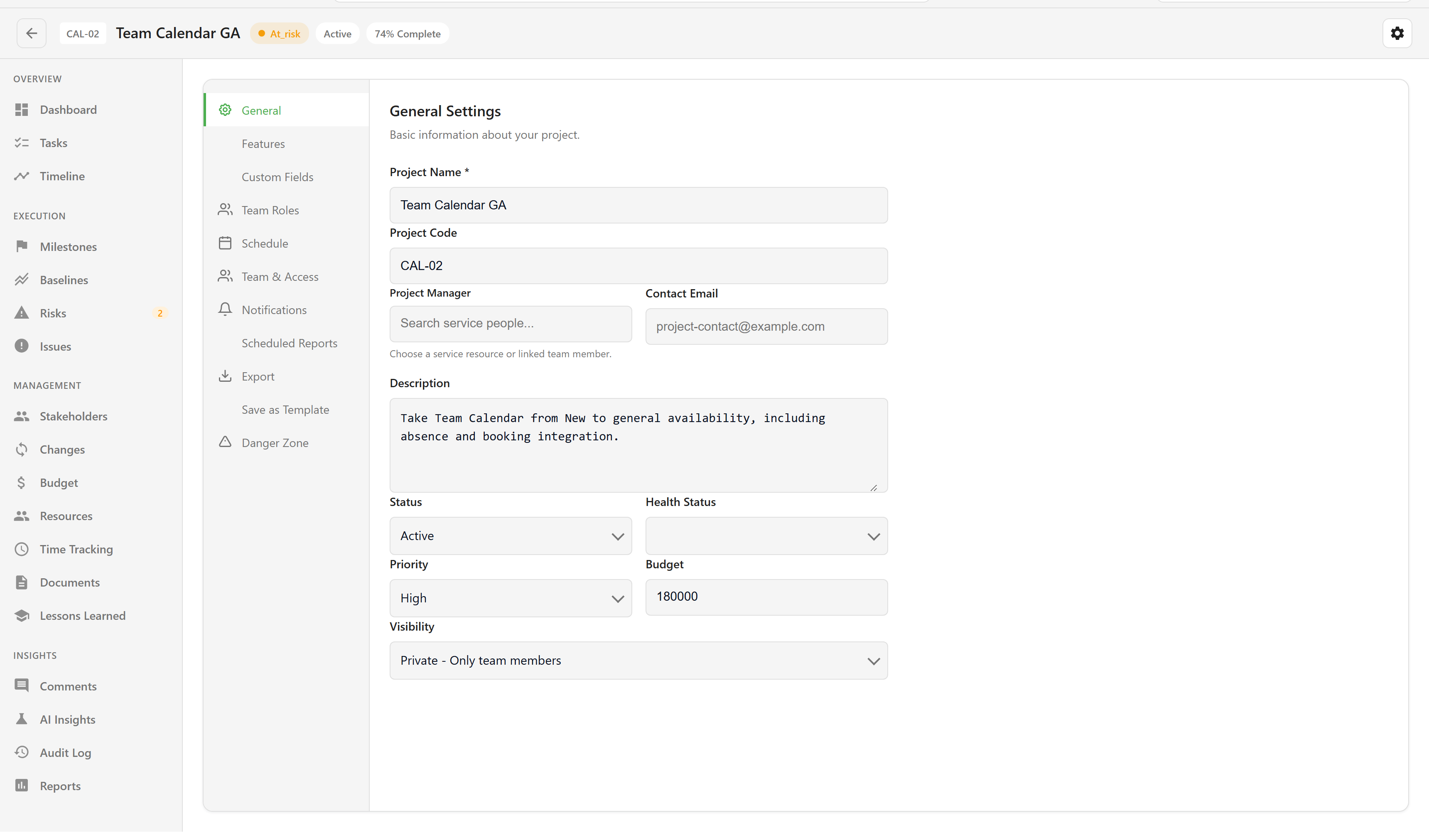
| Setting | Why it matters |
|---|---|
| Project Code | Appears on the card and in the project header. Short and stable, such as CAL-02. |
| Project Manager | Picked from the service’s people. Shown on the project and used by reports. |
| Status | Draft, Planning, Active, On Hold, Completed, or Cancelled. Drives the status filter on the list. |
| Health Status | On Track, At Risk, or Critical. This is a judgement you set, not a calculation. |
| Priority | Low, Medium, High, or Critical. |
| Budget | The total the project is working to. The budget tile and the card both read it. |
| Visibility | Private, Internal, or Public. |
Health is worth a word. Nothing computes it for you — it is the delivery manager’s call, and it stays as set until somebody changes it. That makes the health filter on the project list only as honest as the person maintaining it.
Set the dates
Section titled “Set the dates”Switch to Schedule and set Start Date and Target End Date. Leave Actual End Date until the project finishes.
Both dates are needed before the dashboard’s schedule tile shows anything; with neither, it reads “Schedule not configured”.
Choose which sections appear
Section titled “Choose which sections appear”Features controls which sections show in the project’s left navigation. Dashboard, Tasks, Timeline, and Settings are always available; the rest can be switched off for projects that do not need them.
Three sections are off by default on every new project: Earned Value, Workload, and Dependencies. If you want them, turn them on here.
Add your own fields
Section titled “Add your own fields”Custom Fields defines extra fields for projects, milestones, risks, issues, and documents across the whole service. A field defined here appears on every entity of that type, and a field marked required must be filled before the entity can be saved.
Set the team roles
Section titled “Set the team roles”Team Roles overrides the role list offered when somebody is allocated. The defaults cover Project Manager through Stakeholder; add your own if the team uses different titles.
Choose Save Changes. The bar at the bottom tells you when there is unsaved work.
With the shell in place, Plan the schedule adds milestones, and Link task boards connects the work that drives progress. Every field and its default is listed in the project fields reference.