
Quickstart - your first slideshow
This quickstart takes you from the Slideshow dashboard to a presentable first deck.
1. Open Slideshow
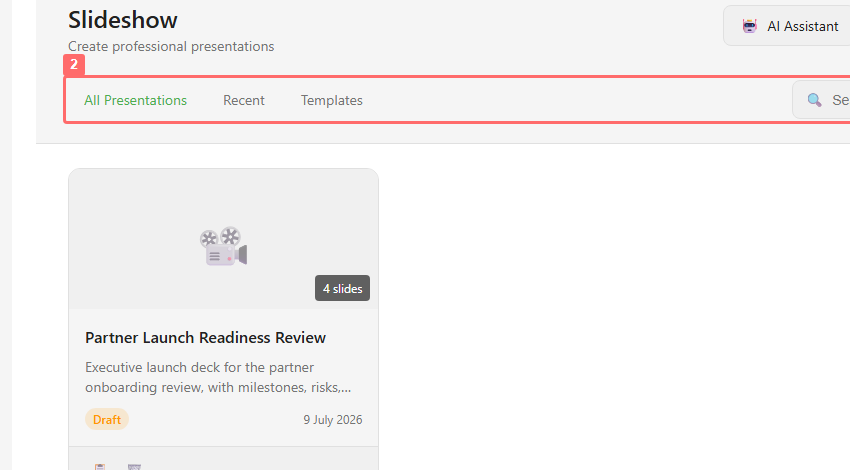
Section titled “1. Open Slideshow”Open your service in Lunar Paper. In the service sidebar, open Slideshow. The dashboard shows presentation tabs, search, templates, and Create Presentation.
2. Create the deck
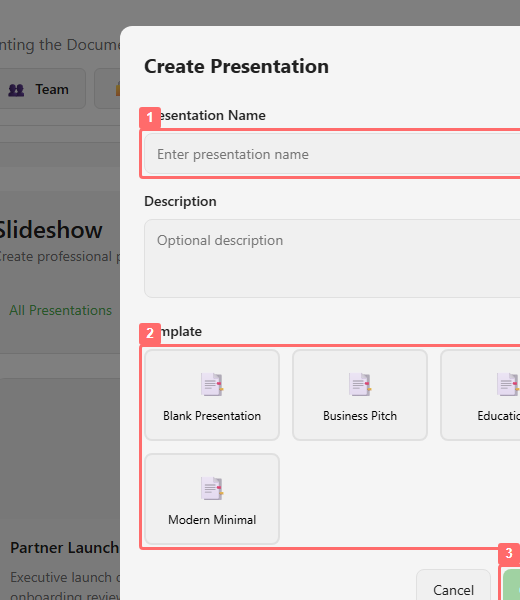
Section titled “2. Create the deck”Click Create Presentation. Add a specific deck name, write a short description, choose a template, and click Create.
3. Read the editor
Section titled “3. Read the editor”The editor opens with a left slide navigator, a center canvas, a right properties panel, a top toolbar, and a collapsed animation timeline at the bottom.
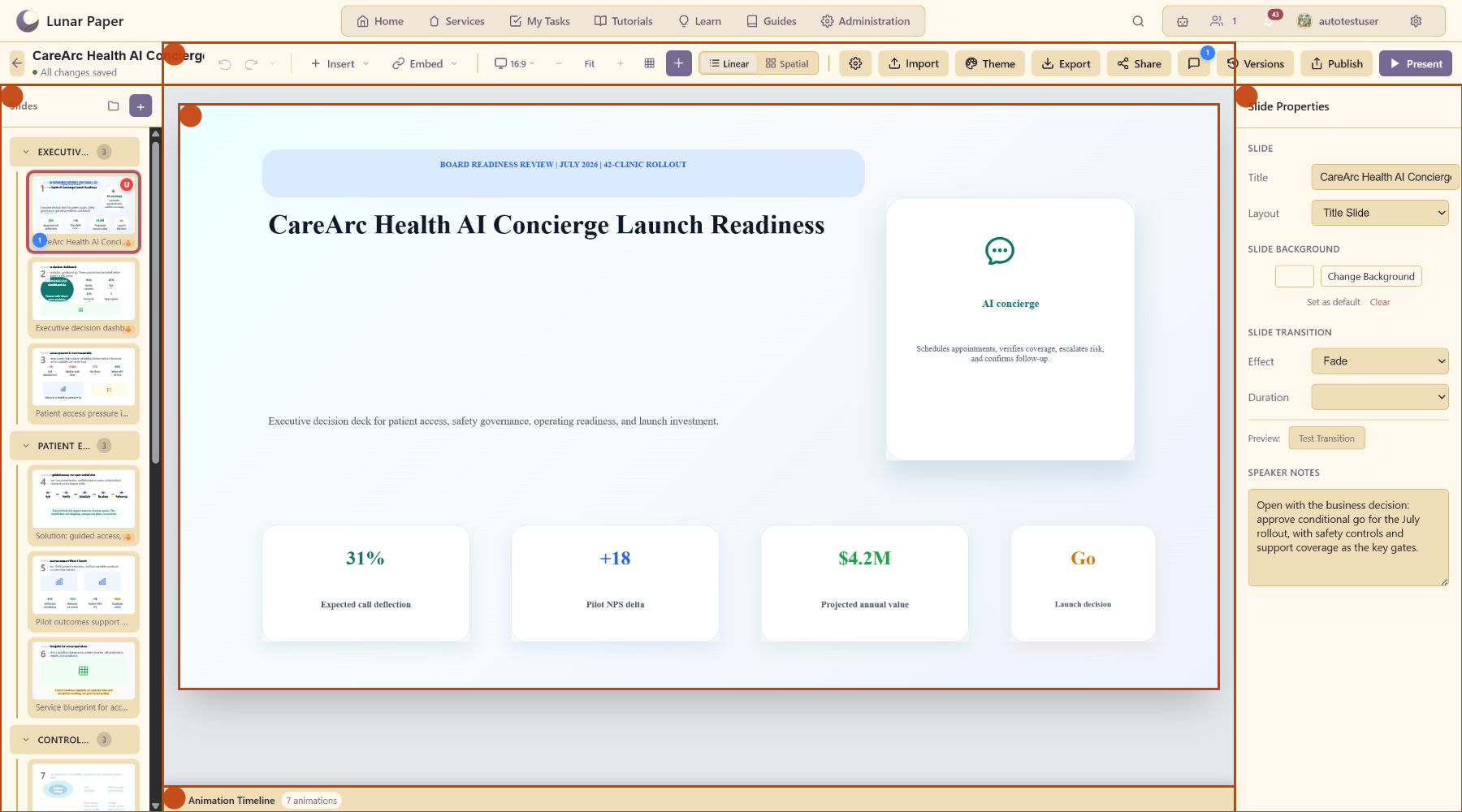
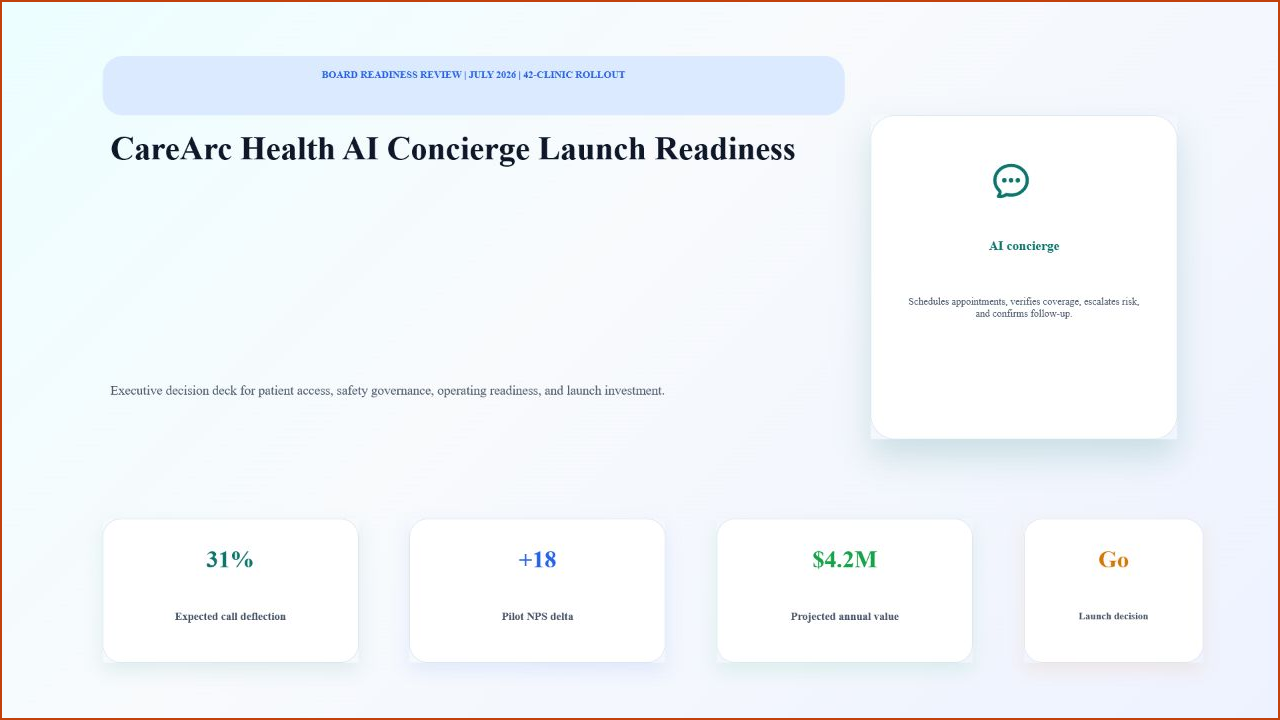
In the worked example the editor opens on a finished title slide rather than an empty canvas. The metric cards name the audience, the value, and the decision before you add any detail.
4. Organize slides into sections
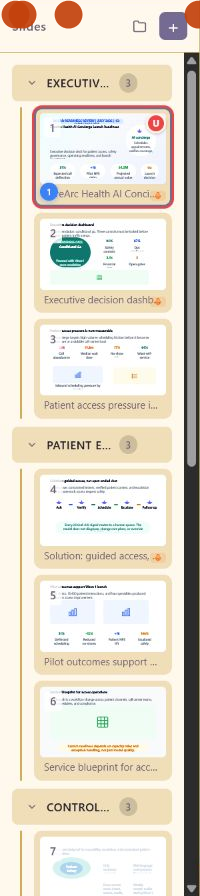
Section titled “4. Organize slides into sections”Use the left slide panel to select and add slides, add sections, collapse sections, and keep the deck ordered by topic.
5. Add speaker notes and transitions
Section titled “5. Add speaker notes and transitions”Click an empty part of the canvas to show Slide Properties. Set the slide title, layout, background, transition, duration, and speaker notes.
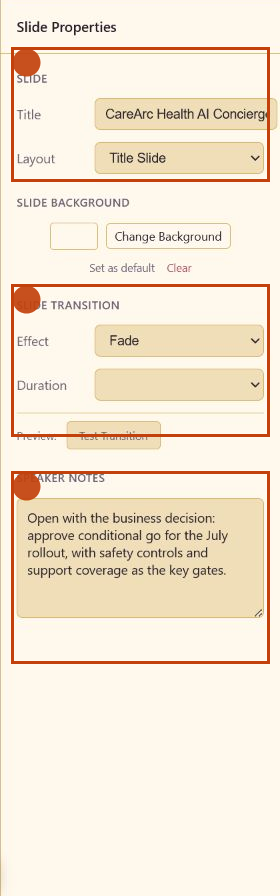
Put what you plan to say about the decision in the speaker notes. In the CareArc example, the opening note asks the presenter to approve a conditional go and name the safety and support gates.
6. Add or embed content
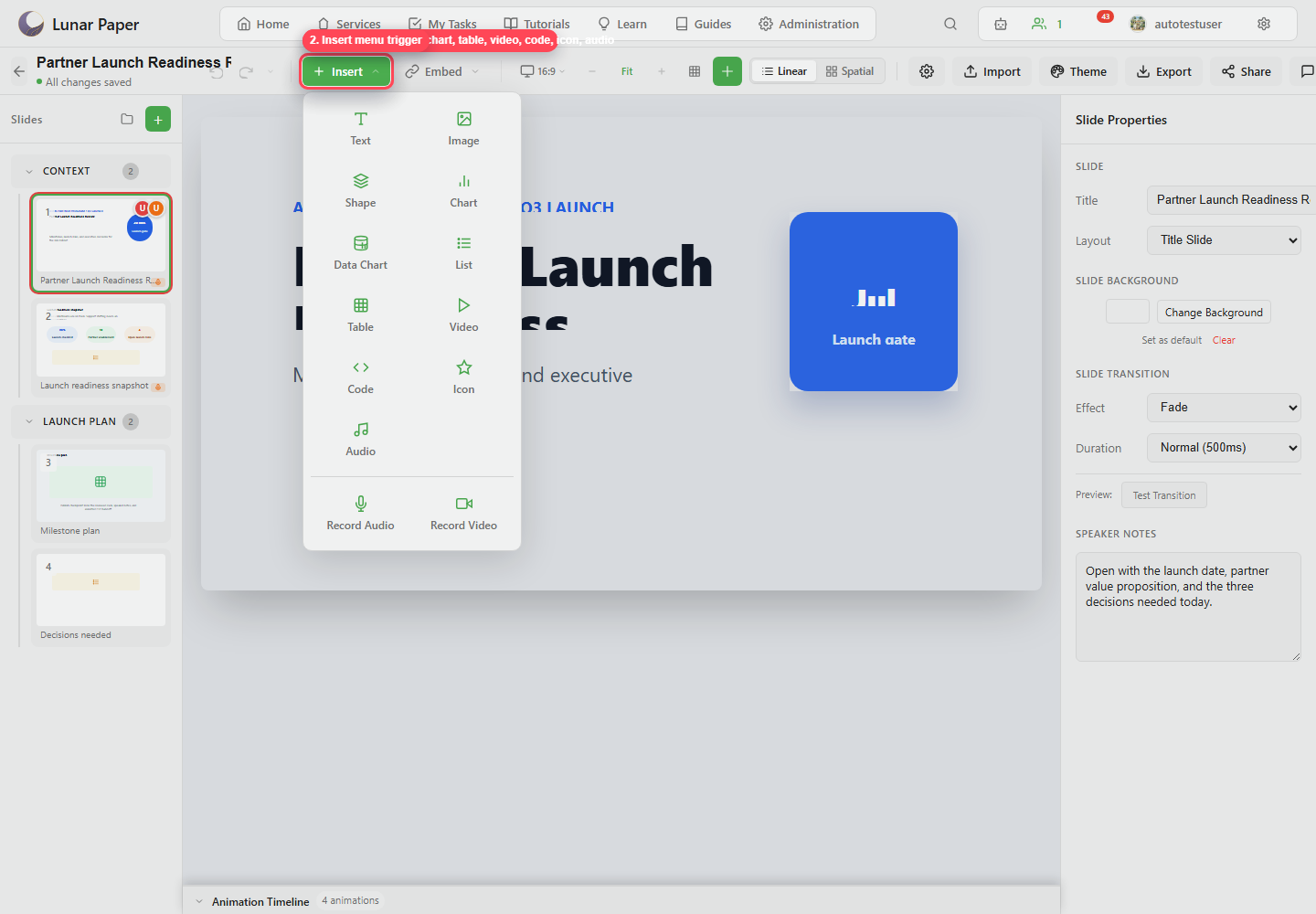
Section titled “6. Add or embed content”Use Insert for slide-native content such as text, images, shapes, charts, tables, video, code, icons, and audio. Use Embed to connect service artifacts such as documents, reports, dashboards, audio, and assets.
7. Check animation and narration timing
Section titled “7. Check animation and narration timing”Open Animation Timeline at the bottom of the editor when the deck needs content revealed in stages, narration blocks, or background music.

8. Present or export
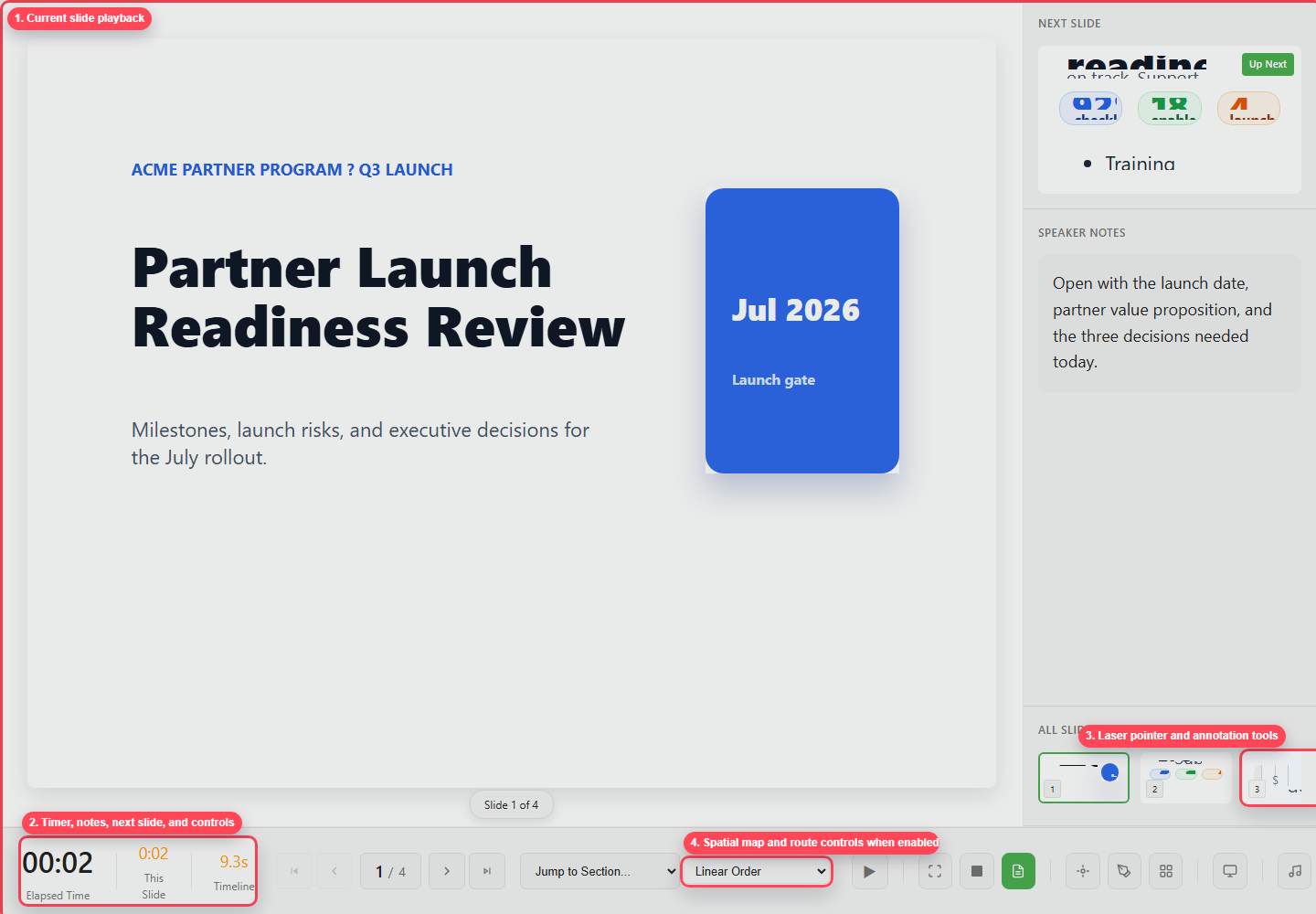
Section titled “8. Present or export”Click Present to rehearse in the browser. Click Export to create PDF, PowerPoint, video, web, image, or asset output.
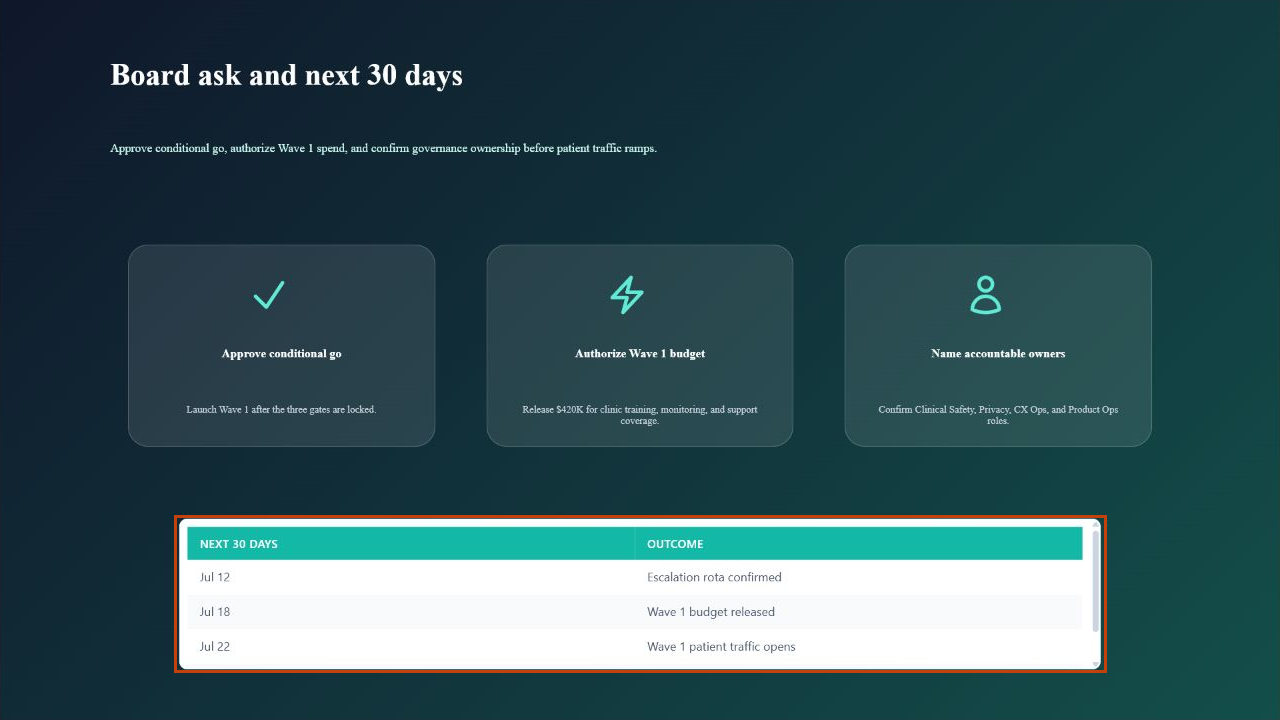
Finish the deck with a concrete ask rather than a generic thank-you slide. The example closes with the conditional go, the Wave 1 budget, the accountable owners, and dated outcomes.
Build a fuller deck with Build a launch review deck, then take the delivery further with Animate slide content and Plan a spatial presentation.