
Pixel Art Studio
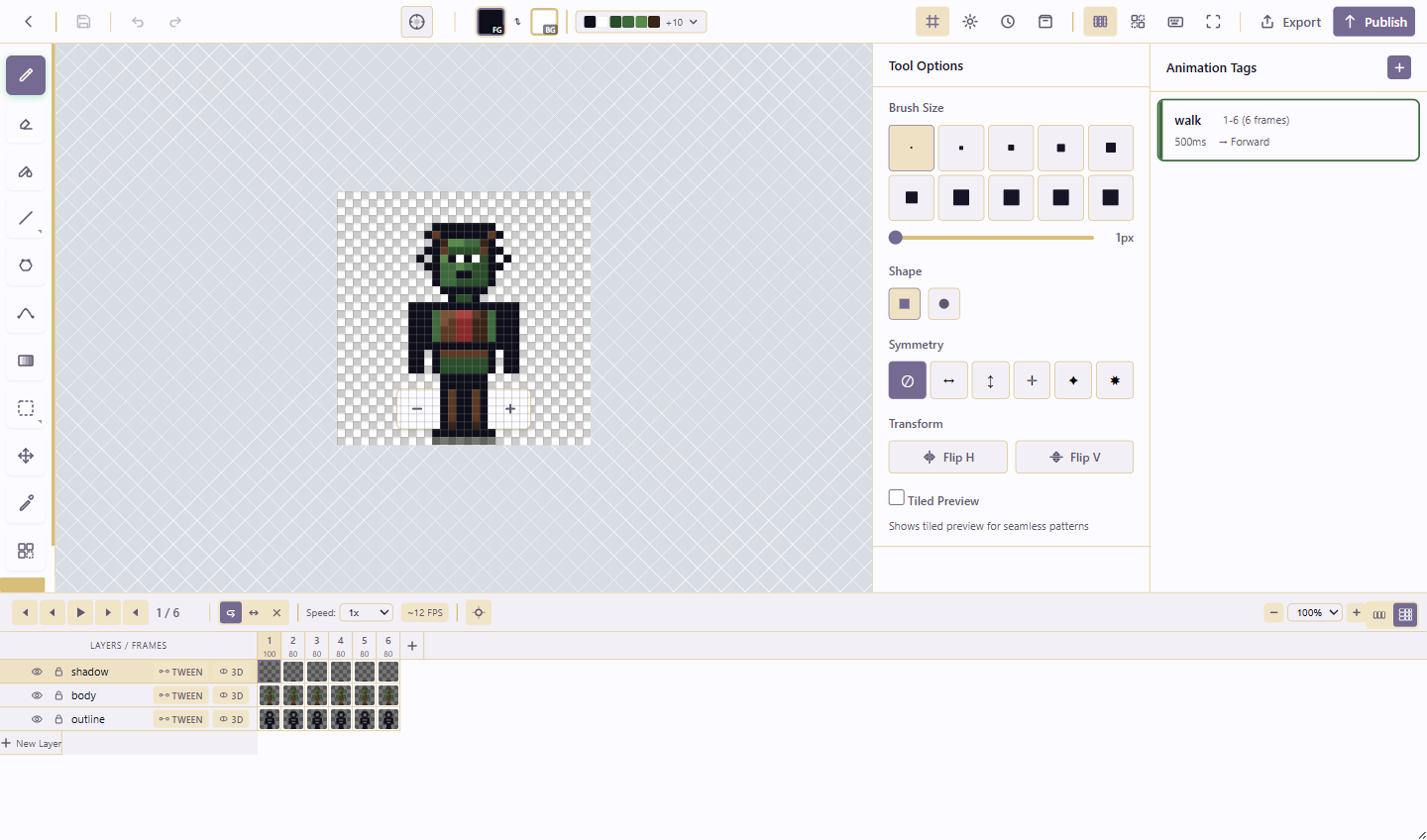
Pixel Art Studio is Lunar Paper’s creative module for sprites, tiles, icons, small game assets, UI pieces, and frame-based animation. It opens inside a service, so the artwork stays connected to the brief, the asset library, the publishing record, the team, and the surrounding documents and pages.
What you can do
Section titled “What you can do”Draw with a full set of tools, organise work across layers and frames, animate on a timeline, tag frame ranges for export, generate tweens and pseudo-3D spins, manage palettes and skin variations, reuse tiles and stored assets, and export PNG, GIF, or sprite sheets. Version history and publishing keep checkpoints you can roll back to.
New users should start with the Quickstart. For the editor layout, see Editor reference. The Guides hub lists every step-by-step walkthrough by task.
Use Pixel Art from an AI chat
Section titled “Use Pixel Art from an AI chat”An external AI chat can work on Pixel Art projects through Lunar Paper’s MCP connection. An administrator first enables Pixel Art MCP in Administration → Platform → MCPs. You then create a personal token in Profile → Security → Personal MCP token and connect your MCP client. The chat can only access services your account can read or edit.
Include the numeric service ID in your request. Replace 42 in these examples with the ID from your service URL:
Use the Lunar Paper Pixel Art MCP for service 42. List my Pixel Art projects.In service 42, create a 32×32 pixel art sunset with mountains and clouds drifting across eight frames. Set every frame to 140 ms, then show me an animation contact sheet.In service 42, find my "Sunset Landscape" project. Make the clouds warmer without changing the mountains, then preview the first frame and the animation contact sheet.The MCP can show individual PNG frames, onion skins, contact sheets, and looping GIF previews at normal or slow speed. It also supports frame cleanup, history restore, masked parts with pivots, and animation review checks. See Animate through MCP for a character workflow and example prompts. For the editor’s export options, use the animation export guide.
Where it lives
Section titled “Where it lives”Open a service, then choose Pixel Art from the Creative Modules section of the service sidebar. The module opens inside the service, not as a standalone file manager.
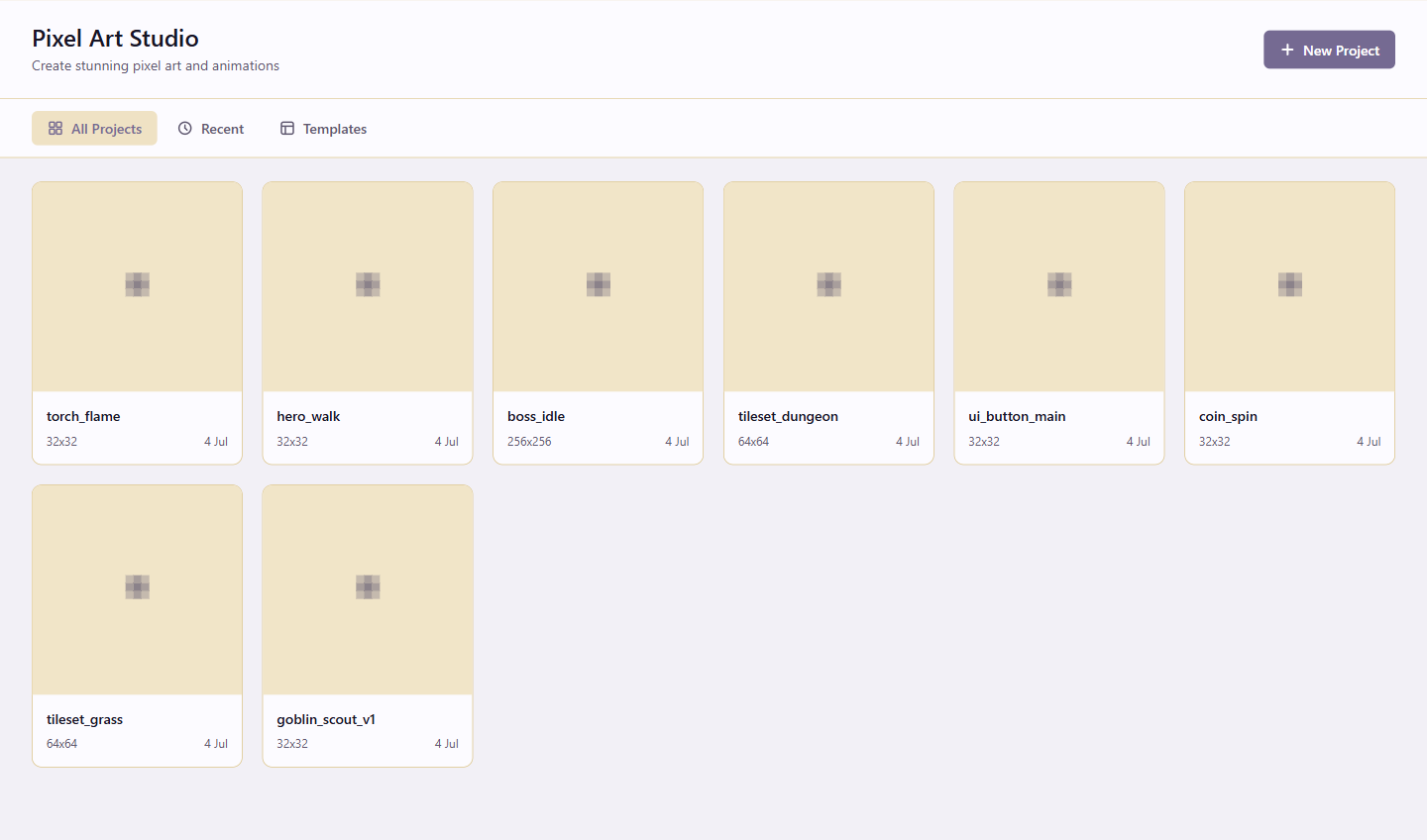
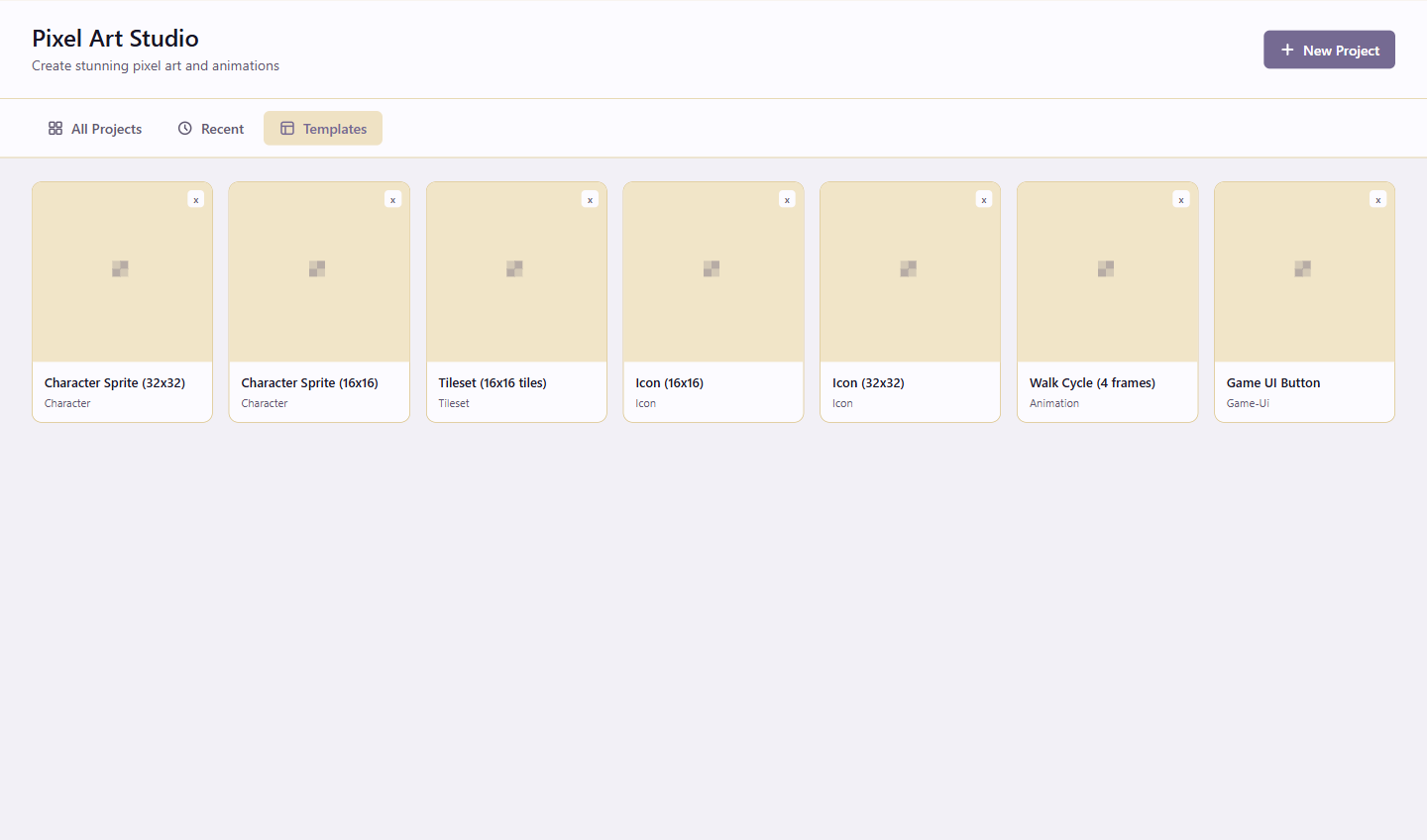
The project library has three tabs plus a New Project button. All Projects lists every project in the service. Recent shows recently edited projects. Templates offers starter canvases sized for common outputs: character sprites at 16×16 and 32×32, a 16×16 tileset, icons at both sizes, a 4-frame walk cycle, and a game UI button. New Project (the button at the top right of the library) starts a blank canvas at a size you choose.
Documentation Organisation
Section titled “Documentation Organisation”| Section | Use it when |
|---|---|
| Quickstart | You want one end-to-end first session. |
| Guides | You have a specific task in mind. |
| MCP connections | You want to connect an external AI chat. |
| Concepts (animation, export, workspace) | You want the “why” behind a feature. |
| Reference (editor, tools, shortcuts, AI actions) | You need to look something up. |
| Troubleshooting & FAQ | Something went wrong. |