
Quickstart — your first team calendar
Build a calendar a team would use, in about ten minutes. At the end you will have a recurring meeting, a milestone, somebody on leave, and a clear idea of which view answers which question.
1. Open Team Calendar and create a calendar
Section titled “1. Open Team Calendar and create a calendar”Open the service that owns the work and choose Team Calendar under Resources. A service with no calendars offers Create a calendar.
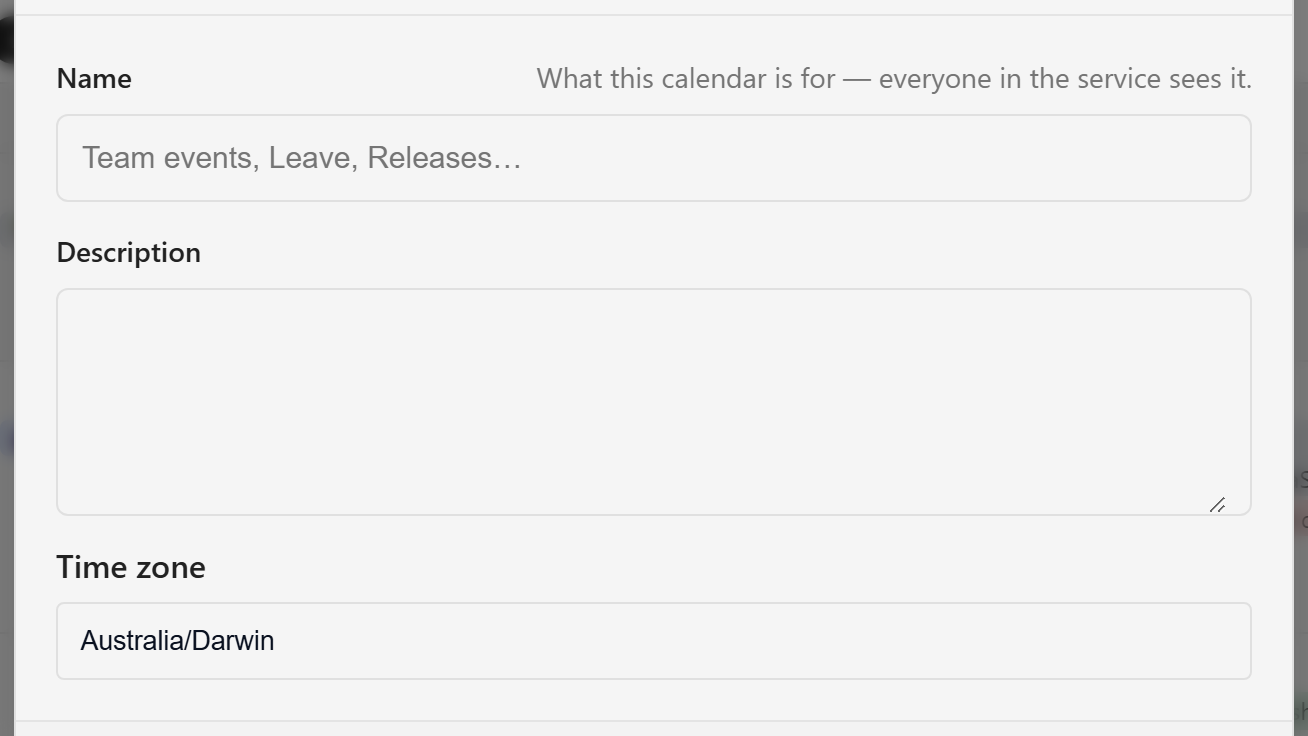
Give it a name that says what it is for. The placeholder suggests Team events, Leave, Releases…. For this walkthrough use:
- Name:
Platform Team - Description:
What is on and who is away across the Lunar Paper platform team.
The Time zone decides which calendar day an all-day event belongs to. Set it to the team’s working zone rather than your own if the two differ. Choose Create calendar. You should land on an empty month grid with the calendar’s name and time zone in the header.
2. Add a recurring meeting
Section titled “2. Add a recurring meeting”Choose New event. Enter a title, pick a Type of Meeting, and set the time. For a 09:30 sprint planning, set Starts to 09:30 and Ends to 10:30.
Turn on Repeats, choose Week, and select the weekday it lands on. Save.
The event now appears on every matching day. Lunar Paper does not store a copy for each day. It stores one row and a rule, and expands them each time the calendar is read, so editing the event changes every occurrence.
3. Add a milestone everyone should see
Section titled “3. Add a milestone everyone should see”Choose New event again. This time set Type to Milestone, turn All day on, and give it a date. A release date works well. All-day events sit in a band above the timed ones rather than at a clock position.
4. Mark somebody away
Section titled “4. Mark somebody away”Choose New event and set Type to Out of office. The form changes: a Who is away field appears, and the event must cover whole days.
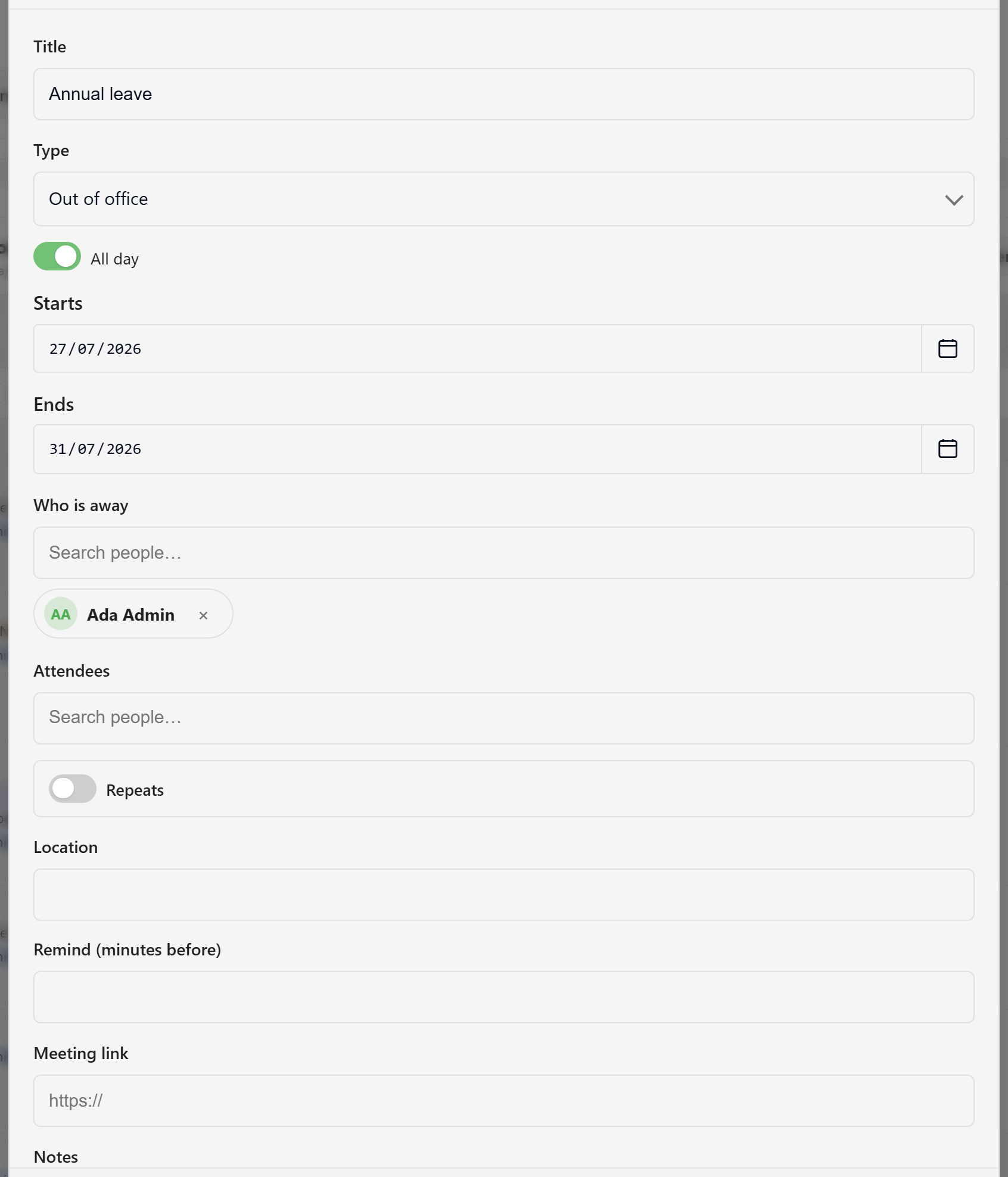
Pick the person, set the dates, and title it with the reason, such as Annual leave or Conference — SaaS North. Save.
This entry does more than fill a cell. Both the Away view and the platform’s availability checks read it, so get the dates right.
5. Read the result three ways
Section titled “5. Read the result three ways”Use the view switch at the top right.

- Month shows what the month looks like.
- Week shows what is happening today and when, laying timed events against an hour grid.
- Away shows who is out, with one row per person across a four-week window.
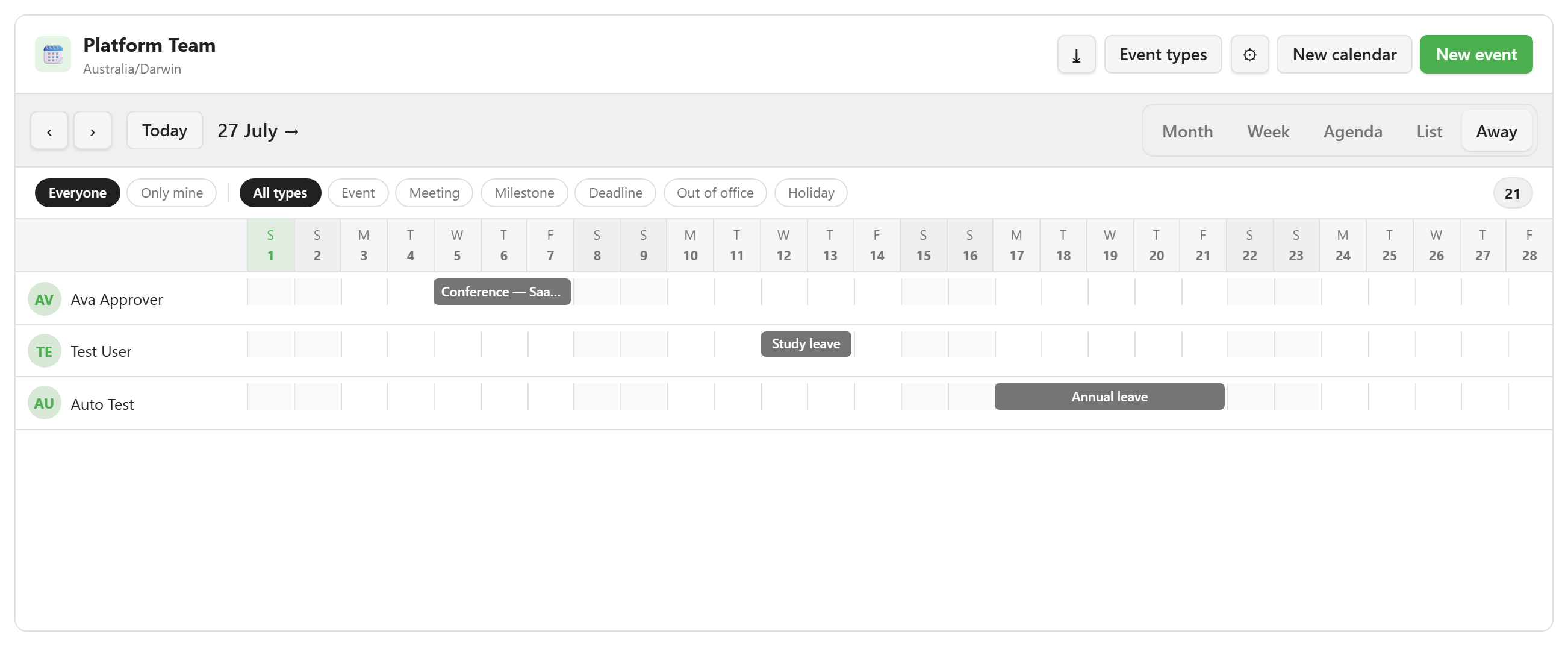
You should see your recurring meeting on every matching day, your milestone in the all-day band, and the person you marked away as a bar in the Away view.
For the full event form, read Add an event. For what an out-of-office entry changes elsewhere in the platform, read Absence and availability.