
Task details reference
Identity and summary
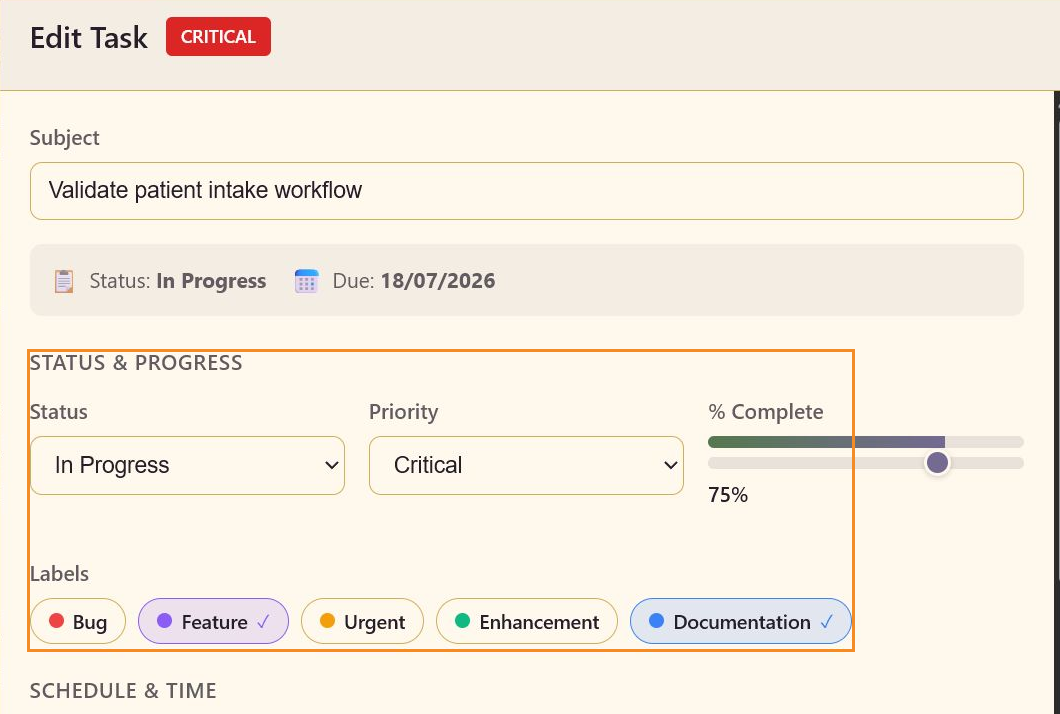
Section titled “Identity and summary”The task editor begins with the task title and a summary row showing current status and due date. The header also displays the task priority.
Status & Progress
Section titled “Status & Progress”| Field | Values or behavior |
|---|---|
| Status | Open, In Progress, In Review, On Hold, Blocked, Completed, or Cancelled. |
| Priority | Critical, High, Medium, or Low. |
| % Complete | Slider from 0% to 100%. |
| Labels | Built-in labels or the board’s configured custom labels. Multiple labels can be selected. |
Schedule & ownership
Section titled “Schedule & ownership”Use the due-date field to set the commitment date. Use Assigned To to choose a platform user, resource-pool member, or external contact when ownership is known.
Advanced mode adds Start Date, Estimated Hours, Actual Hours, Actual Start, Actual Completion, and Milestone.
Detail and completion context
Section titled “Detail and completion context”Use the description field for context that should stay with the task. Add subtasks for smaller checks, and use the Blocked control when the task cannot proceed. Advanced mode adds predecessor dependencies and time entries with hours, date, billable status, and work notes. Comments and Activity appear in the right-hand panel.
Actions
Section titled “Actions”Use Send to post a comment. Use Save to keep task edits and close the editor. Use Cancel to discard the current editing session. Delete removes the task after confirmation.
Use the feature reference for dedicated screenshots of dates, assignees, subtasks, dependencies, time tracking, and comments.