
Personalise with variables
A variable is a placeholder you write into the email once, which is replaced with the recipient’s own value when the email is sent. It is what turns “Hi there” into “Hi Alex”.
Open the panel
Section titled “Open the panel”Choose Variables in the toolbar.
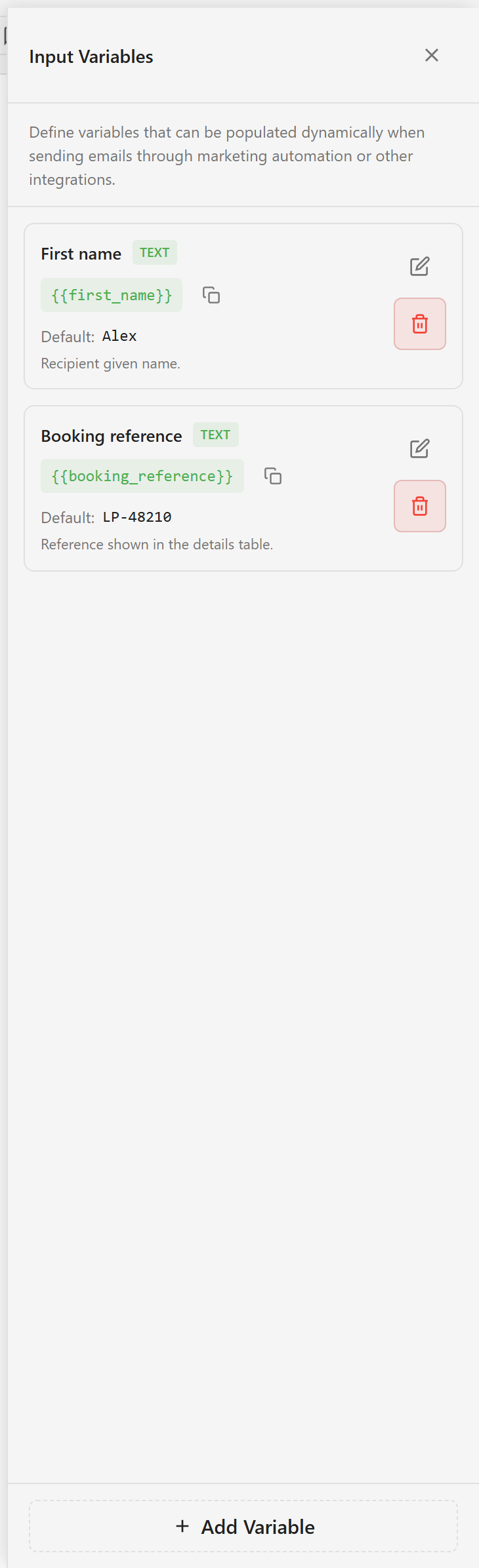
The panel explains what these are for: values filled in when the email is sent through marketing automation or another integration.
Add a variable
Section titled “Add a variable”Choose + Add Variable at the bottom and fill in four things.
The name is the machine-readable key — lowercase with underscores, like first_name. This is what the sending system matches against, so it has to agree exactly with the field name on the other side.
The label is the human name shown in this panel. “First name” rather than first_name.
The default value is what appears when no value is supplied. Choose something plausible rather than something obviously fake — the default is what a preview shows, and it is what a real recipient gets if the data is missing. Alex reads better than XXX.
The description says where the value comes from or where it is used. It is optional and it is the field that stops the next person guessing.
Each variable also carries a type, shown as a badge on its card.
Put it in the email
Section titled “Put it in the email”Each variable card shows its token — {{first_name}} — with a copy button beside it.
Copy the token and paste it into any text field: a text block, a heading, a table cell, even a button’s link URL. The doubled braces are part of the token and have to be there.
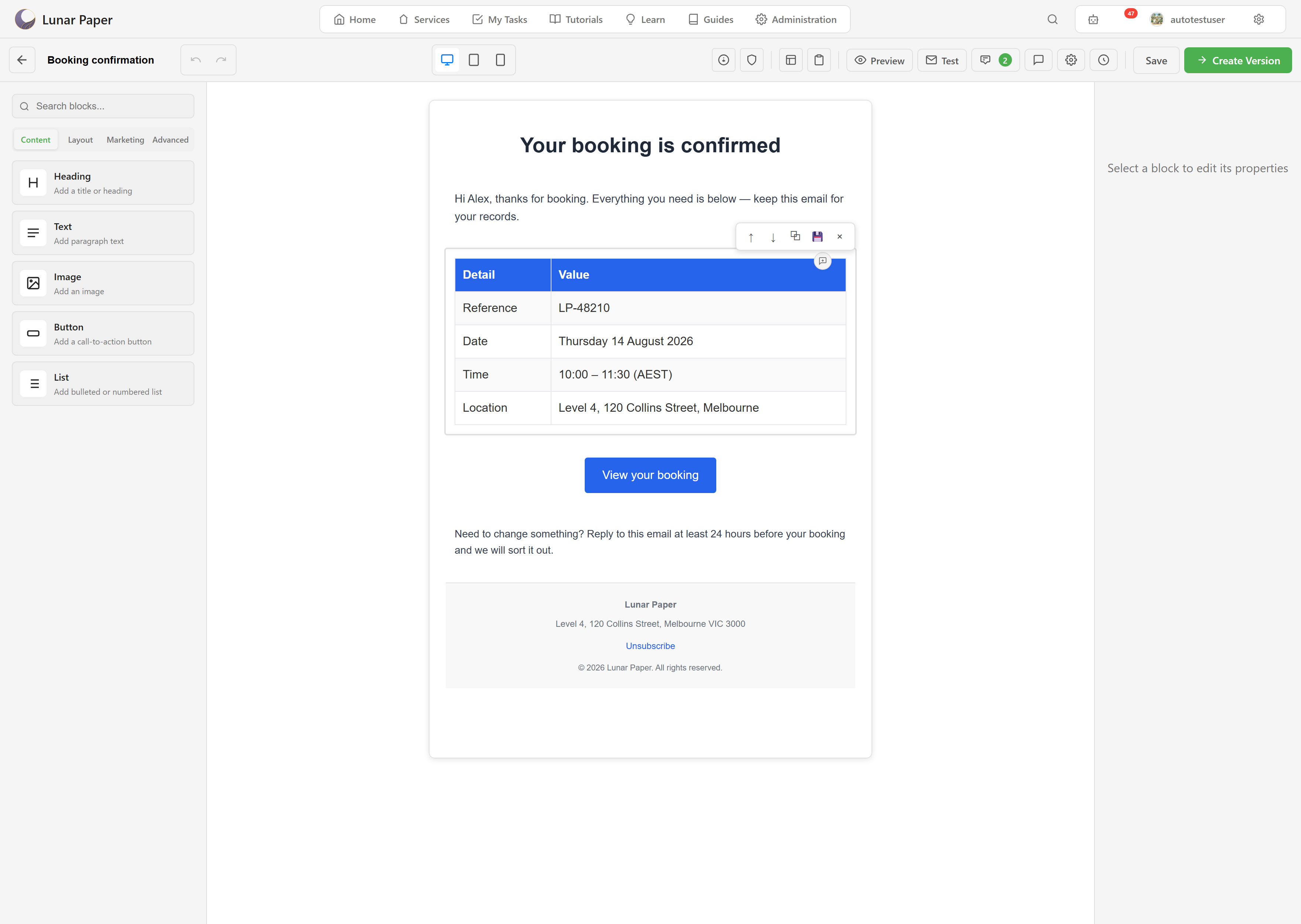
Text around a token stays as you wrote it, so Hi {{first_name}}, thanks for booking. produces Hi Alex, thanks for booking.
Where variables work
Section titled “Where variables work”Anywhere you can type. The booking confirmation in these screenshots uses {{first_name}} in a paragraph and {{booking_reference}} in both a table cell and a button link.
Check the defaults before you send
Section titled “Check the defaults before you send”Preview and test sends use the default values, because there is no recipient yet.
That makes defaults worth a second look. A default of {{first_name}} left as an empty string produces “Hi , thanks for booking”, and you will only notice it in a preview if the default is realistic enough for the sentence to read normally.
Write for the case where the value is missing
Section titled “Write for the case where the value is missing”Not every recipient record is complete. A greeting that reads “Hi Alex,” degrades to “Hi ,” if the name is absent, which looks worse than not personalising at all.
Two habits help. Give every variable a default that makes a complete sentence. And keep variables out of places where a blank breaks the meaning — a subject line reading “Your LP-48210 is confirmed” is fine, one reading “Your is confirmed” is not.
Check before you send runs the checkers over the finished email, and Send a test shows you what the defaults actually look like in an inbox.