
Kick off a new project task
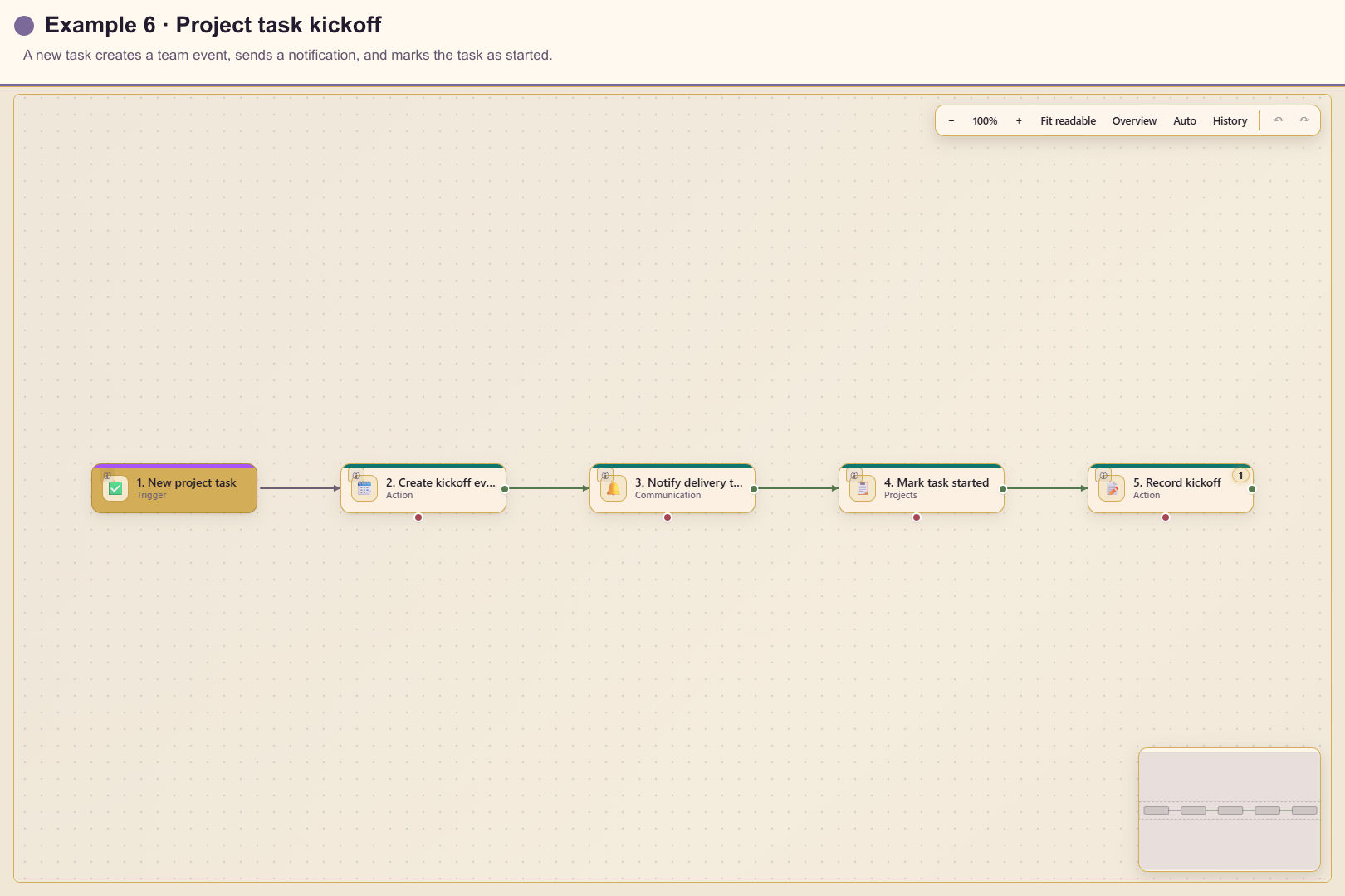
This workflow coordinates the first operational steps after a project task is created. The matching draft is Docs 06 - Project Task Kickoff (workflow 588) in service 20.
Outcome
Section titled “Outcome”A new task creates a kickoff event, notifies the delivery team, moves the task into progress, and records the task identifier.
Before you start
Section titled “Before you start”- Choose whether the workflow covers one project or every project in service 20.
- Select the team calendar and agree on how task dates map to event times.
- Choose the notification recipient.
- Confirm which task fields Automation is allowed to own.
Build the workflow from start to finish
Section titled “Build the workflow from start to finish”Create a blank workflow in service 20. Save the trigger, then add and connect each action in order so task context is available to every later card.
1. Add and configure the trigger
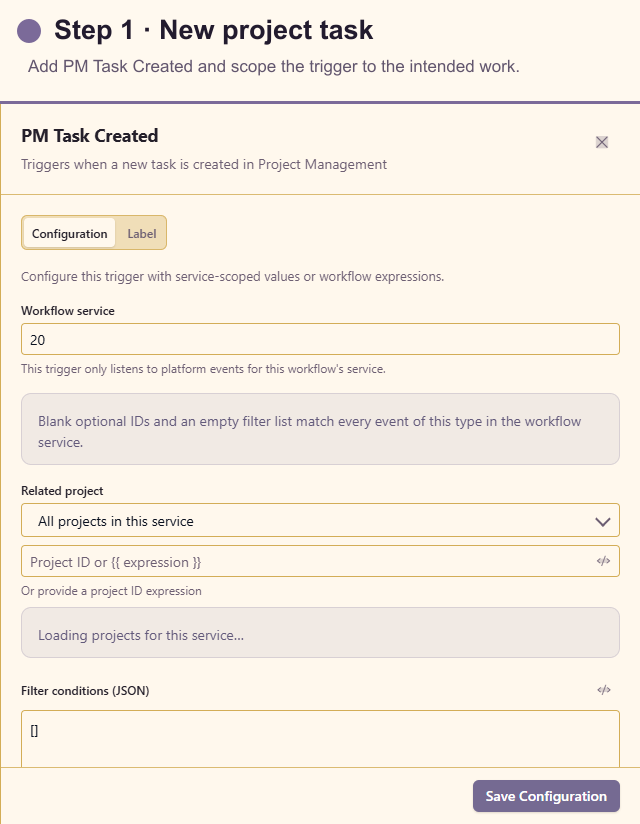
Section titled “1. Add and configure the trigger”Open Triggers and add PM Task Created. Select a project when the process is project-specific, or leave project scope broad only when every new service task needs kickoff. Add stable filters for task type or board when appropriate.
2. Add Create Team Event
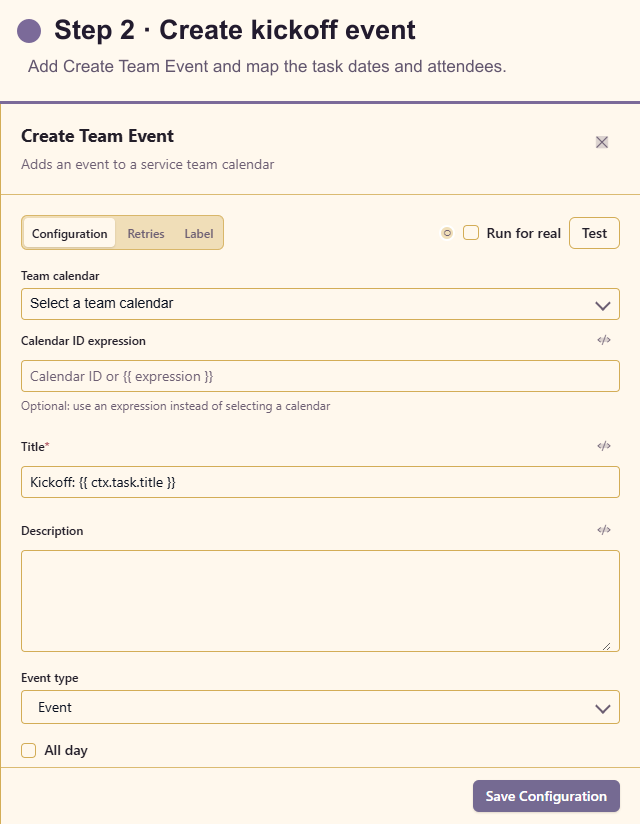
Section titled “2. Add Create Team Event”Open Actions and add Create Team Event. Select the team calendar, build the title from the trigger task title, set the event type, and map the start and end values. Define an intentional route for tasks without usable dates.
3. Add Send Notification
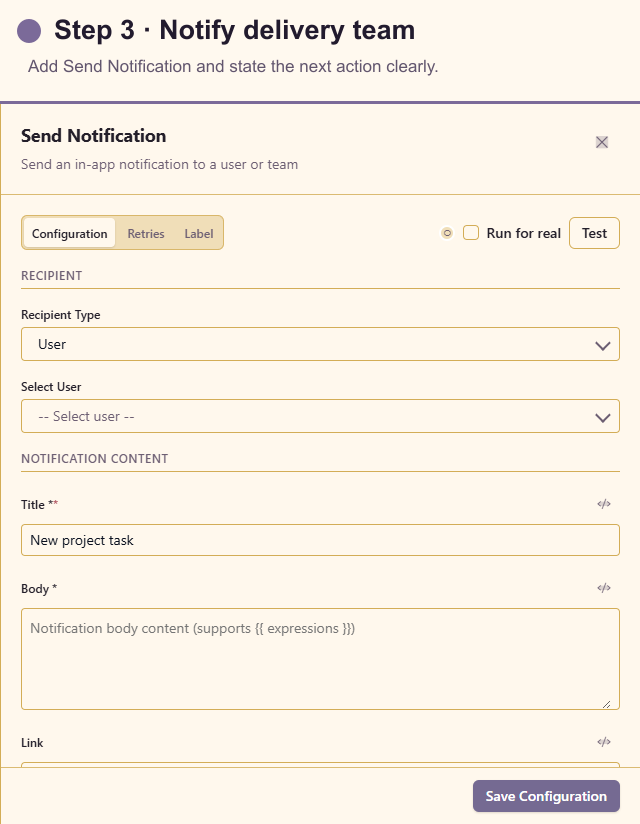
Section titled “3. Add Send Notification”Add Send Notification after the event. Choose the owning team, include the task title and link, and tell recipients what they need to do next.
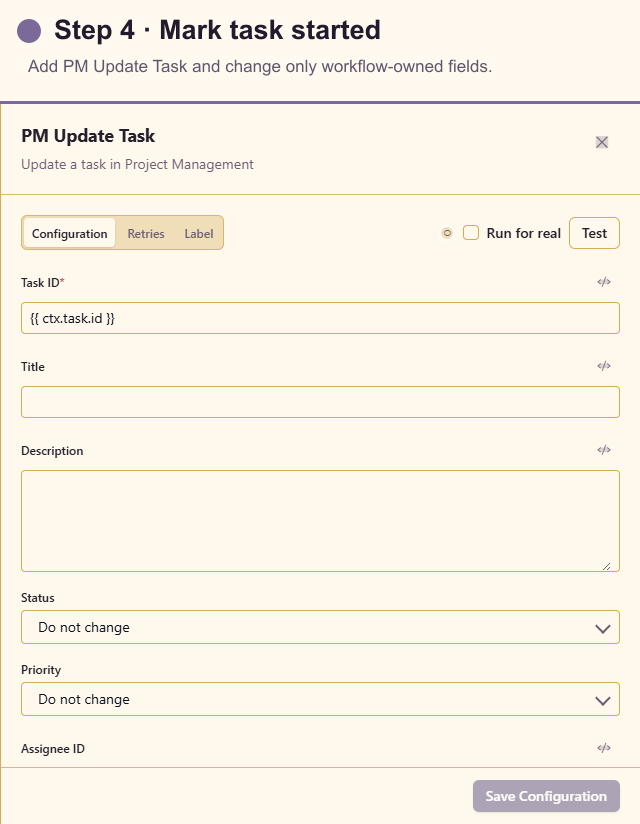
4. Add PM Update Task
Section titled “4. Add PM Update Task”Add PM Update Task after the notification. Insert the trigger task ID and set only approved workflow-owned fields, such as status in_progress and an automation-started label. Do not overwrite a human assignment or date unless the process explicitly owns it.
5. Add Workflow Log
Section titled “5. Add Workflow Log”Add Workflow Log last. Record the task ID and created event ID so support can trace the kickoff without exposing the full task description.
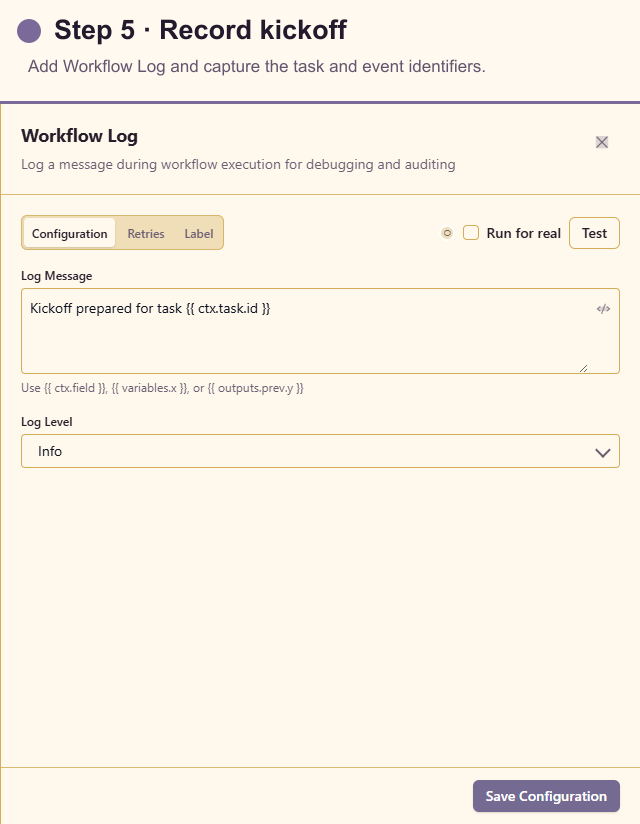
The final success path is PM Task Created → Create Team Event → Send Notification → PM Update Task → Workflow Log. Review the task-update fields carefully before using Run for real.
Test the workflow
Section titled “Test the workflow”Create a synthetic task with a due date and one without. Dry-run the event and task update, then use Run for real in a test project and calendar. Confirm the task update does not trigger another workflow loop.
Inspect Run history for the selected project, created event, notification destination, changed task fields, and log identifiers.
Production checklist
Section titled “Production checklist”- Trigger scope excludes task types that do not need kickoff.
- Missing or ambiguous dates take an explicit path.
- Calendar visibility is appropriate for customer information.
- Notification has one clear owner and next action.
- PM Update Task changes only workflow-owned fields.
- Event and notification creation are safe under duplicate delivery.