
Asset Library
The Asset Library is the one place that lists everything a service has produced. Not just uploaded files — every chart, dashboard, data view, task board, project, email template, and resource, catalogued automatically as it is created.
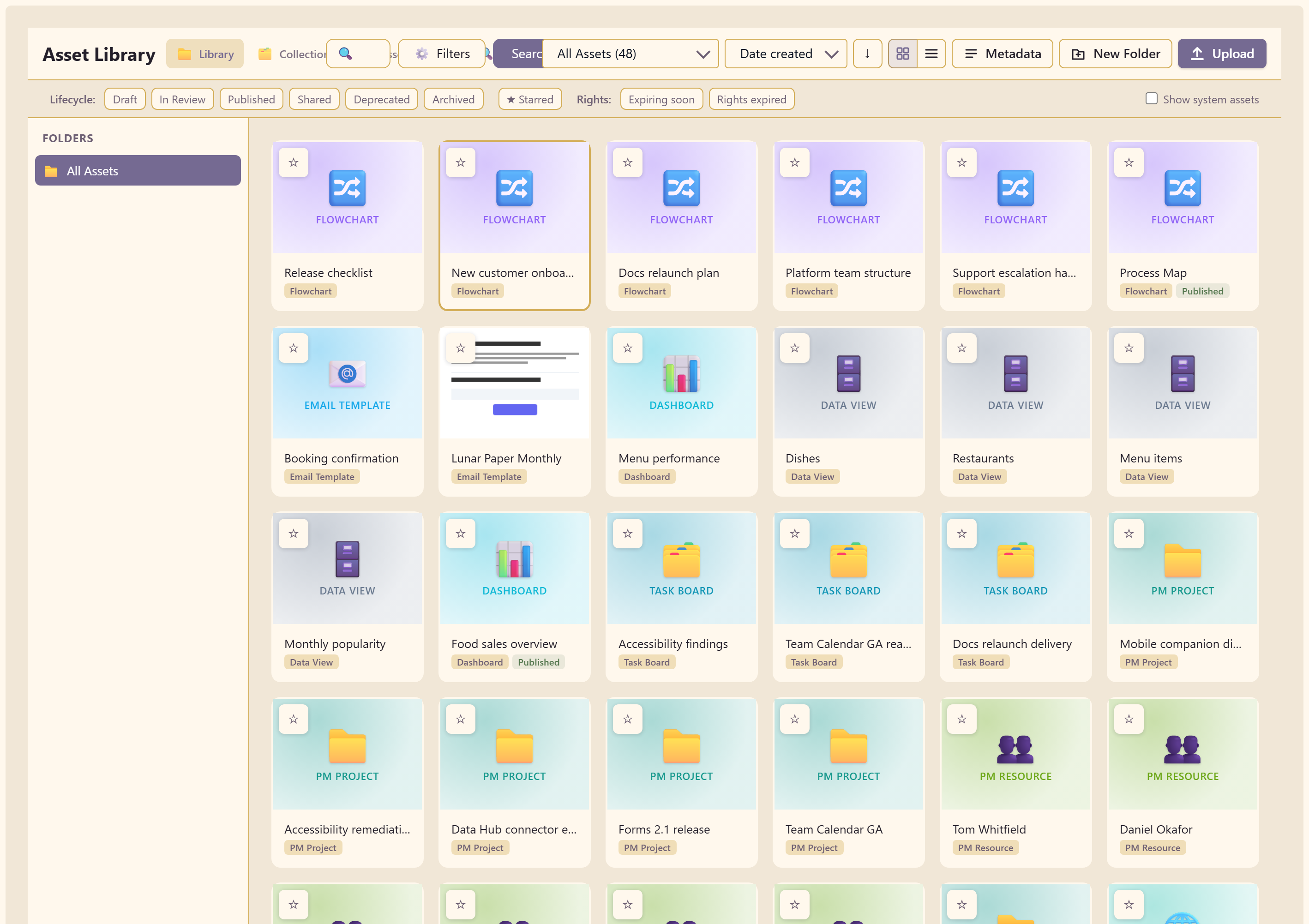
It is reached from Assets in the service’s top row, and it behaves like a module of its own.
Everything is an asset
Section titled “Everything is an asset”Each card shows the item’s name, its type, and its lifecycle state. A published chart carries both a Flowchart badge and a Published one.
This is worth understanding before anything else: you do not put things in the library. Making a chart in Charts puts it here. The library is an index, not a folder you copy into.
Uploaded files sit alongside them, added with Upload.
The four tabs
Section titled “The four tabs”Library is the index itself.
Collections groups assets from across folders.
Asset Analytics reports how assets are being used.
Duplicate Detection finds copies wasting storage.
Library
Section titled “Library”The main view lists every asset, as cards or as a list.
| Control | What it does |
|---|---|
| Search | Finds assets by name |
| Filters | Narrows by type and other attributes |
| All Assets | The folder or scope being shown, with a count |
| Sort | By date created and other orders, ascending or descending |
| Grid / list toggle | Two ways to view the same set |
| Metadata | Shows the metadata panel |
| New Folder | Creates a folder in the tree on the left |
| Upload | Adds a file from your machine |
| Show system assets | Includes assets the platform generates |
Lifecycle
Section titled “Lifecycle”Every asset carries a lifecycle state, and the row of filters above the grid narrows to one: Draft, In Review, Published, Shared, Deprecated, or Archived.
This is the service’s answer to “what is actually finished?”. A library where everything is Draft tells you something, and so does one with a long tail of Deprecated items nobody removed.
★ Starred filters to the ones you have marked.
Rights
Section titled “Rights”Two filters cover usage rights: Expiring soon and Rights expired.
These matter for licensed material — stock photography, music, fonts. An asset whose rights have expired is one you may no longer be allowed to use, and it will not announce itself. Checking this filter periodically is cheaper than finding out from a rights holder.
Folders
Section titled “Folders”The tree on the left organises assets into folders, starting from All Assets. New Folder adds to it.
Folders are for browsing. The filters above are usually faster for finding a specific thing.
Filters
Section titled “Filters”Filters opens a panel that narrows the library by file properties rather than lifecycle.
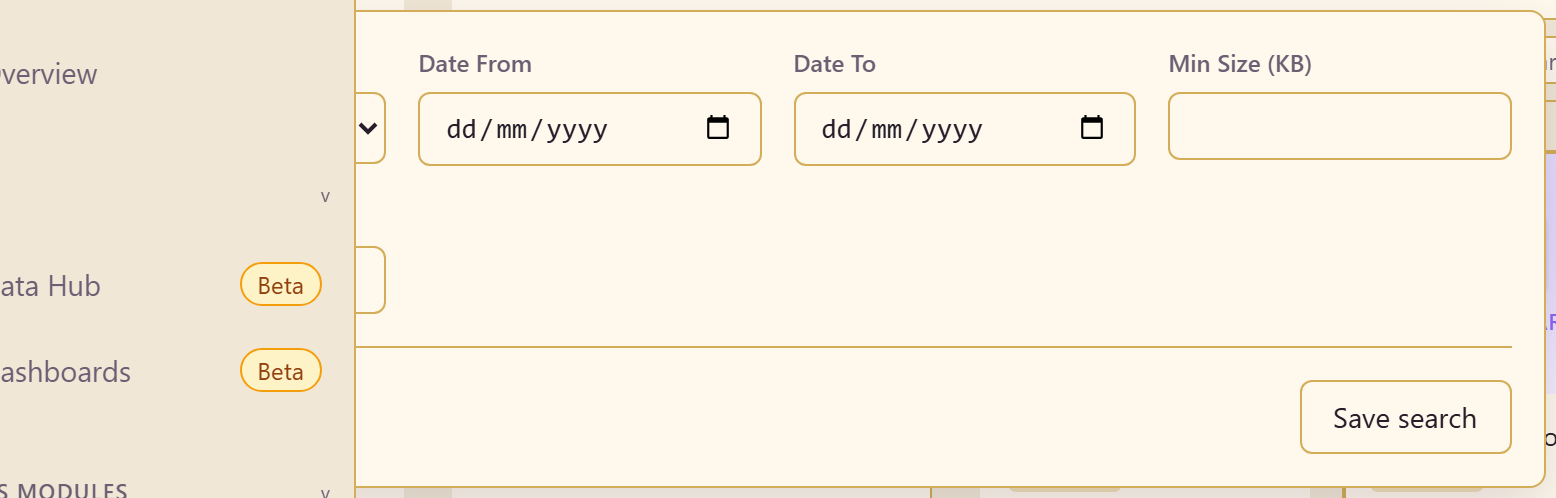
File Type covers images, videos, audio, documents, and other. Date From and Date To bound when an asset was added. Min Size and Max Size, in kilobytes, bound how large it is.
Clear filters resets them, and a filter set can be saved for reuse.
The size filters are more useful than they look. Sorting by maximum size finds the handful of enormous files that account for most of a service’s storage, which is usually a few uncompressed videos nobody needed at full quality.
Metadata
Section titled “Metadata”Metadata is what turns a library of files into something searchable a year later, and it comes in two kinds.
What is captured automatically
Section titled “What is captured automatically”Every uploaded file gets a set of properties without anyone typing them: its file name, type, and size, its dimensions where it has them, a thumbnail, a file hash, and a perceptual hash.
The perceptual hash is what makes Duplicate Detection possible — it recognises the same image re-saved, resized, or renamed, which an exact file hash would miss.
Custom fields
Section titled “Custom fields”Metadata in the library toolbar defines extra fields captured on assets in this library. The panel describes its own purpose plainly: extra fields, and a required field must be filled in before any upload in this service can complete.
On the version tested for this documentation the panel does not finish loading, so the fields below are described from the data model rather than from the editor. Troubleshooting has the detail.
Each field has a key, a label, and a type. Six types are available:
| Type | For |
|---|---|
| Text | A short single-line value |
| Textarea | Longer free text |
| Number | A numeric value |
| Date | A date |
| Select | One choice from a list you define |
| Boolean | Yes or no |
Two settings decide how a field behaves.
Required at upload blocks an upload that omits the value. This is the reason to use custom metadata at all — it is the only mechanism that makes people record something at the moment they still know it.
Applies to asset types scopes a field to particular types. Left unset, the field applies to every asset. Set to images only, a “usage rights expiry” field will not pester somebody uploading a spreadsheet.
Required fields are enforced on the server
Section titled “Required fields are enforced on the server”The rule is applied when the upload is processed, not only in the form. An upload that omits a required value is rejected outright, whichever surface it came from.
That matters because uploads can arrive from more than one place. A validation that lived only in the upload dialog would be advisory; this one is not.
What to make required
Section titled “What to make required”Be sparing. Every required field is friction on every upload forever, and a library where people work around the form is worse than one with fewer fields.
The fields that earn their place are the ones nobody can reconstruct later. Who owns this asset. What it may be used for. When the licence expires. Which campaign it belongs to.
The ones that do not are anything derivable from the file itself — dimensions, format, size — because those are already captured automatically.
Rights expiry
Section titled “Rights expiry”A date field recording licence expiry pairs with the Expiring soon and Rights expired filters above the grid.
Together they answer a question that otherwise has no answer: which of the images on our site are we no longer allowed to use? Without a field capturing it, the honest answer is that nobody knows.
Collections
Section titled “Collections”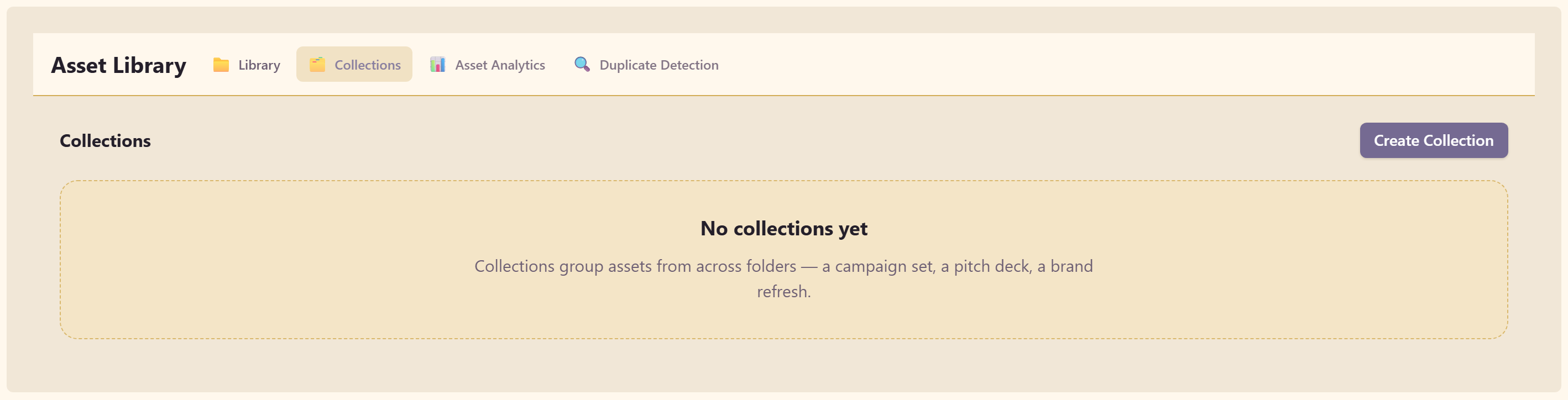
A collection groups assets from across folders — the screen gives the examples: a campaign set, a pitch deck, a brand refresh.
The difference from folders is that an asset lives in one folder but can belong to several collections. Use folders for where something belongs and collections for what it is being used for.
Create Collection starts one.
Asset Analytics
Section titled “Asset Analytics”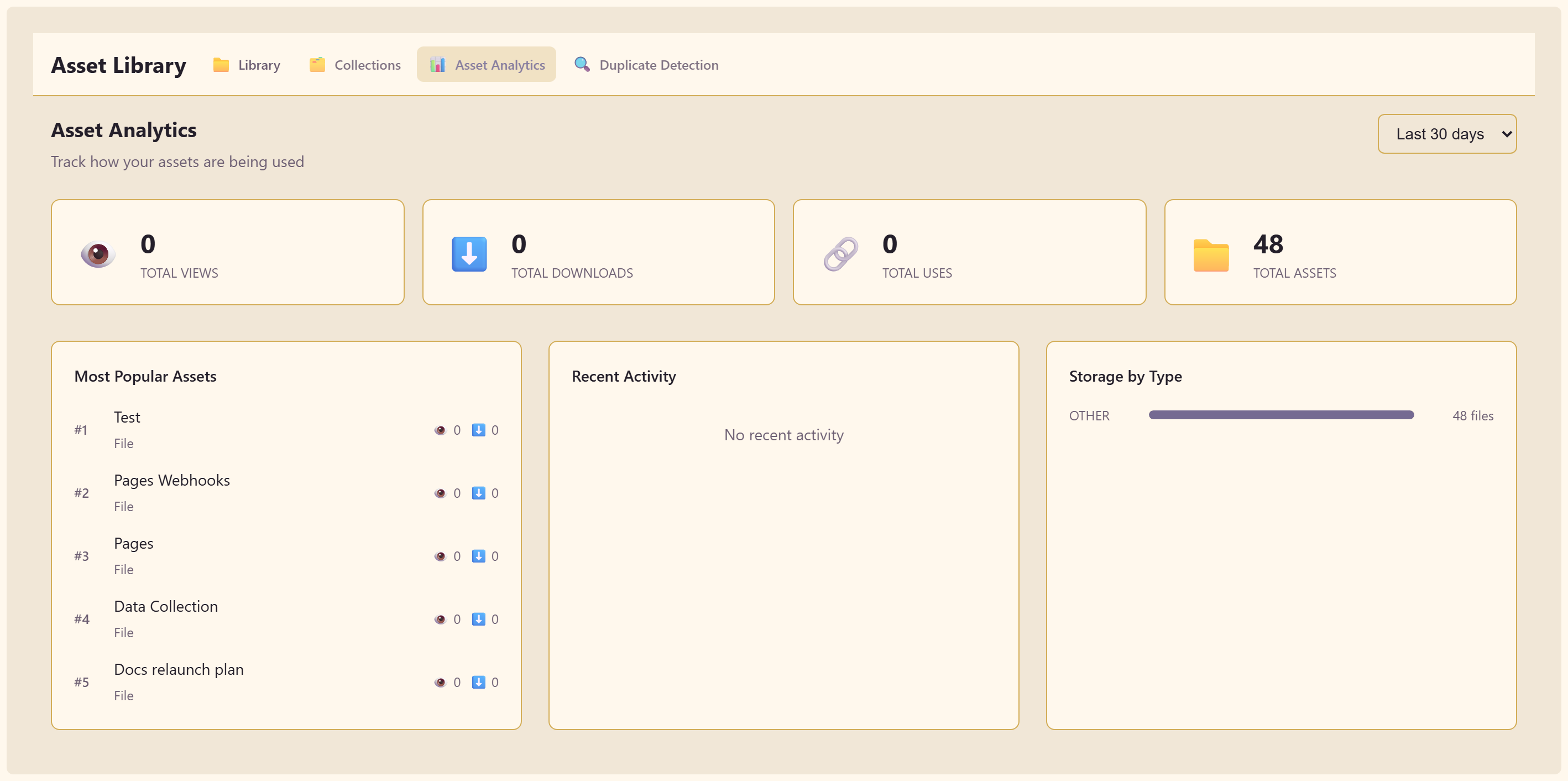
Reports how assets are being used over the last 7, 30, or 90 days, or all time.
| Measure | What it counts |
|---|---|
| Total views | How often assets were looked at |
| Total downloads | How often they were downloaded |
| Total uses | How often they were used somewhere |
| Total assets | How many exist |
Underneath are Most Popular Assets, ranked, plus Recent Activity and Storage by Type.
The useful question here is the inverse of the ranking. The assets with no views and no uses are candidates for archiving, and they are usually the majority.
Duplicate Detection
Section titled “Duplicate Detection”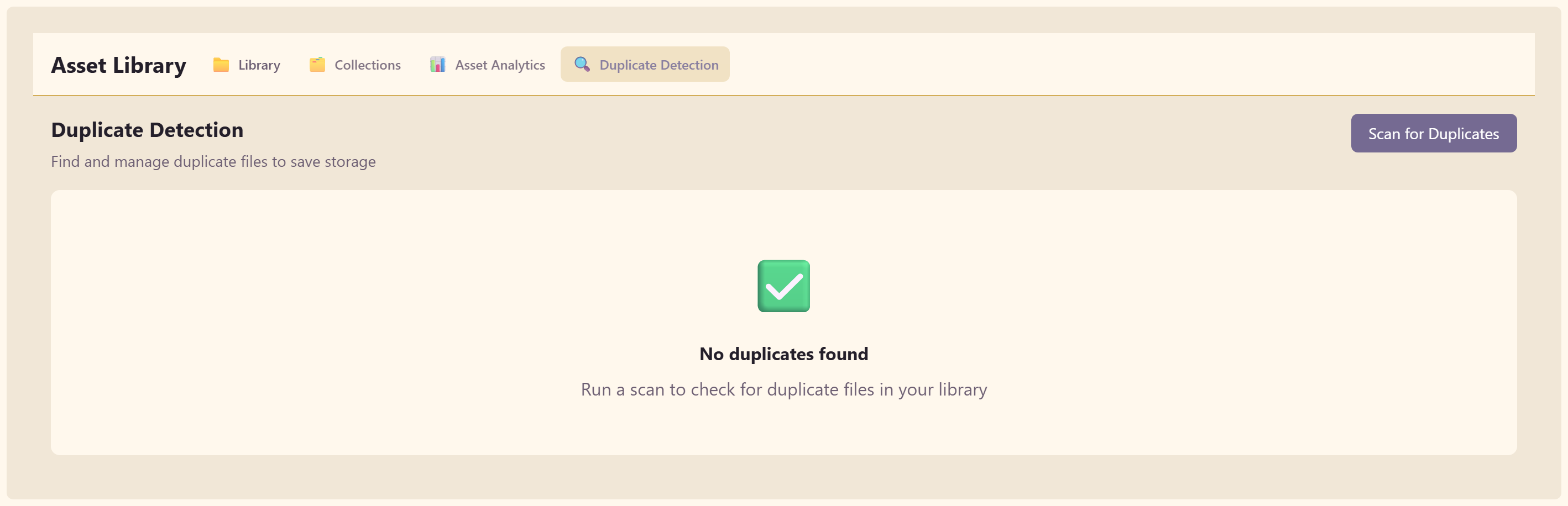
Scan for Duplicates checks the library for duplicate files to save storage.
Worth running occasionally on a library that several people upload to. The same logo arriving four times under four names is the normal outcome of a busy service, and nothing else will surface it.
What it does not do
Section titled “What it does not do”It does not reach across services. The library indexes this service only, which follows from a service being a boundary.
It does not replace the module. Opening a chart from the library still opens it in Charts. The library is where you find things and see their state, not where you edit them.
Related
Section titled “Related”Artifacts and assets explains how this library relates to the artifact map, two views of the same population. Feature list covers the rest of what a service does.